When you connect a tool, Ask Garba and your agents can look things up in it and, where you allow it, make changes in it. A connector is the tool itself. A connection is your link to it, made with your own sign-in.
Garba has a library of popular tools that connect in one click: HubSpot, Attio, Upsales, Notion, Linear, Miro, Apollo, Clay, Stripe and Zapier. Any other tool that offers an MCP server can be added by its address.
In Garba, go to Setup → User → Connectors.
Click Add Connection.
Pick a tool. Use the category chips or Search tools to find it.
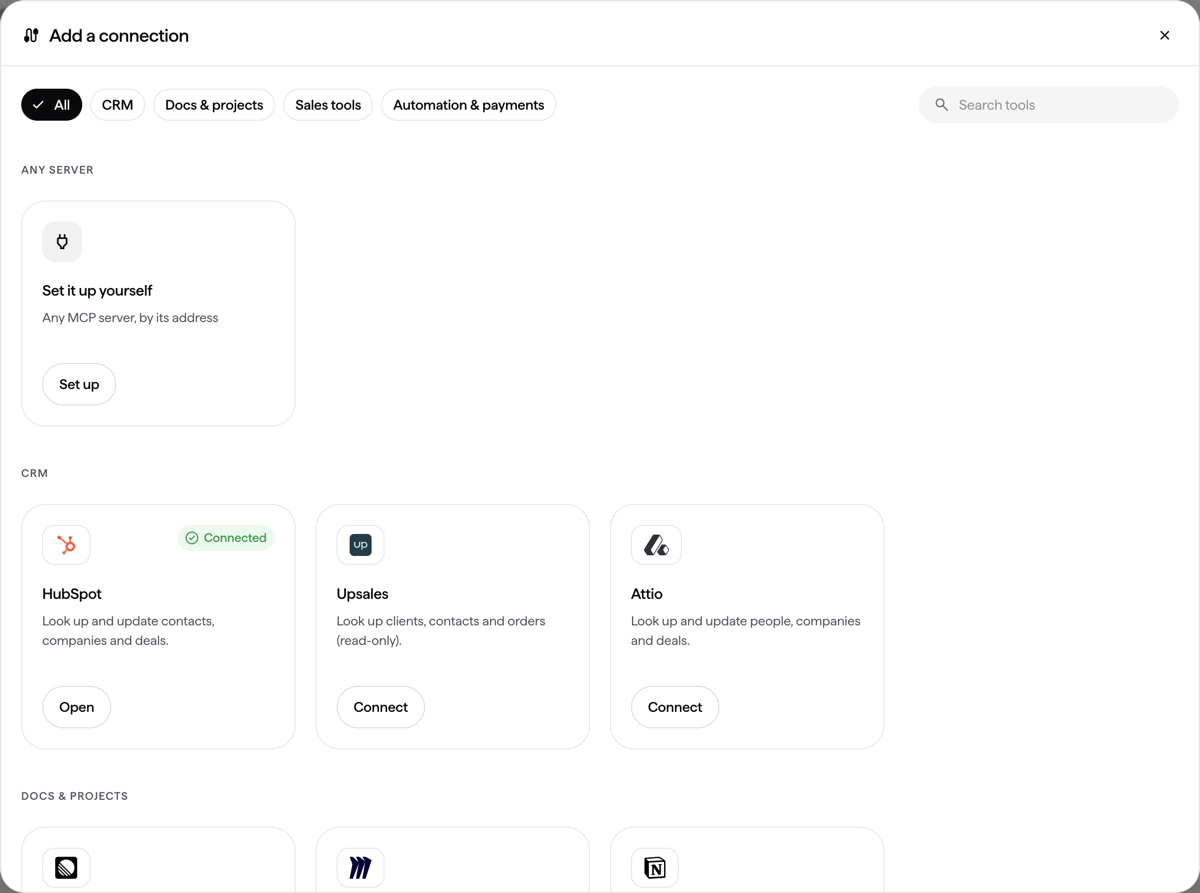
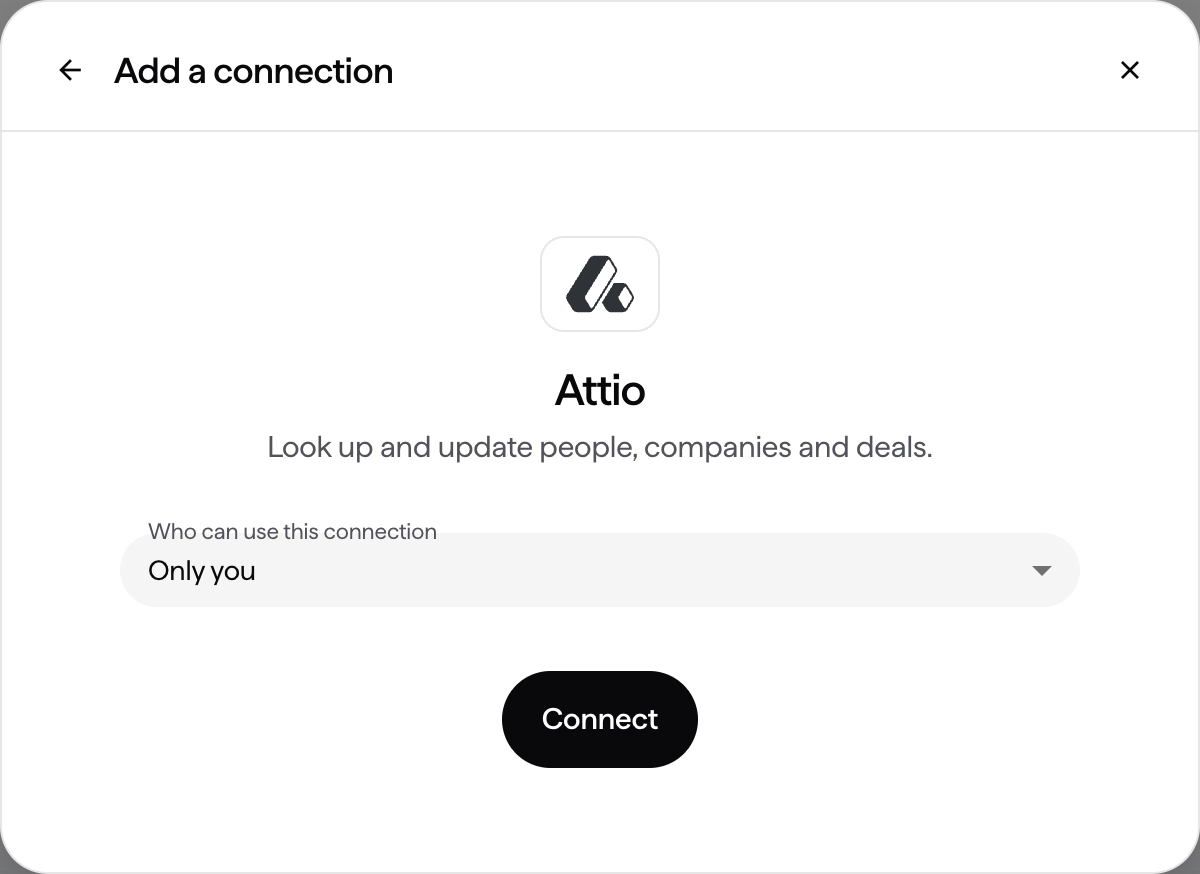
Under Who can use this connection, choose Only you, Your team or Everyone in the account. Only you is the default. If you share a connection, your teammates' chats and agents use your login on that tool.
Click Connect. The tool's own sign-in opens in a new window. Sign in and choose Allow. Garba carries on by itself.
When it is connected, click Set up its tools to choose which of the tool's actions Garba may use, or click Done.
If the sign-in is refused or takes too long, Garba tells you and you can click Try again.
You do not have to open Setup first. In Ask Garba and in the agent builder, when your request needs a library tool you have not connected, Garba shows a card for it, marked Not connected.
Click Connect Notion and sign in in the window that opens. When it is done, Garba continues with your request. Click Not now to go on without it.
A sign-in can stop working, for example when the tool ends it. A library tool whose connection no longer works shows Not working in the library. Click Reconnect and sign in again.
Go to Setup → User → Connectors and click Add Connection.
Click Set it up yourself.
Give the connection a name and the address of the MCP server.
Choose who can use it, choose how it signs in, and complete the sign-in.
Garba checks that the server answers and lists its tools. If the address is a website's home page, the server is often at a path such as /mcp, and Garba suggests that address when it works.
Admins can always add connections. Whether managers and users can is an account setting. In Setup → Account → Settings, under AI Tools, choose the roles in Who can add MCP connections.
If you are not allowed to add connections, Add Connection is greyed out. In a chat, Garba shows "Connecting tools isn't turned on for users in your account. Ask your Garba admin."
If an admin narrows the setting, the connections of people who lose the right are switched off. They can switch them back on once the right is restored.
HubSpot connects through Garba's own HubSpot app, so pick it from the library rather than adding it by its address. This is a separate sign-in from Garba's HubSpot CRM integration. Connecting one does not connect the other, and you can use either alone.
The CRM integration syncs your deals, companies and contacts into Garba. For Ask Garba or an agent to create or change anything in HubSpot, such as a task or a note, connect HubSpot here as well.
If your HubSpot account has HubSpot's Sensitive Data setting turned on, HubSpot blocks calls, meetings, notes and tasks for connected tools. To change this, ask your HubSpot admin.
