
Garba tells you when something needs you: a notetaker waiting to be let into a meeting, an agent waiting for your approval, an integration that stopped working. Every alert lands in the Notifications bell in the left sidebar, and Garba can also send it to you as a Slack or Teams message or an email, so you see it even when Garba isn't open.
The notifications bell
Click Notifications in the left sidebar, just below Search. The number on the bell is how many alerts you haven't read yet.
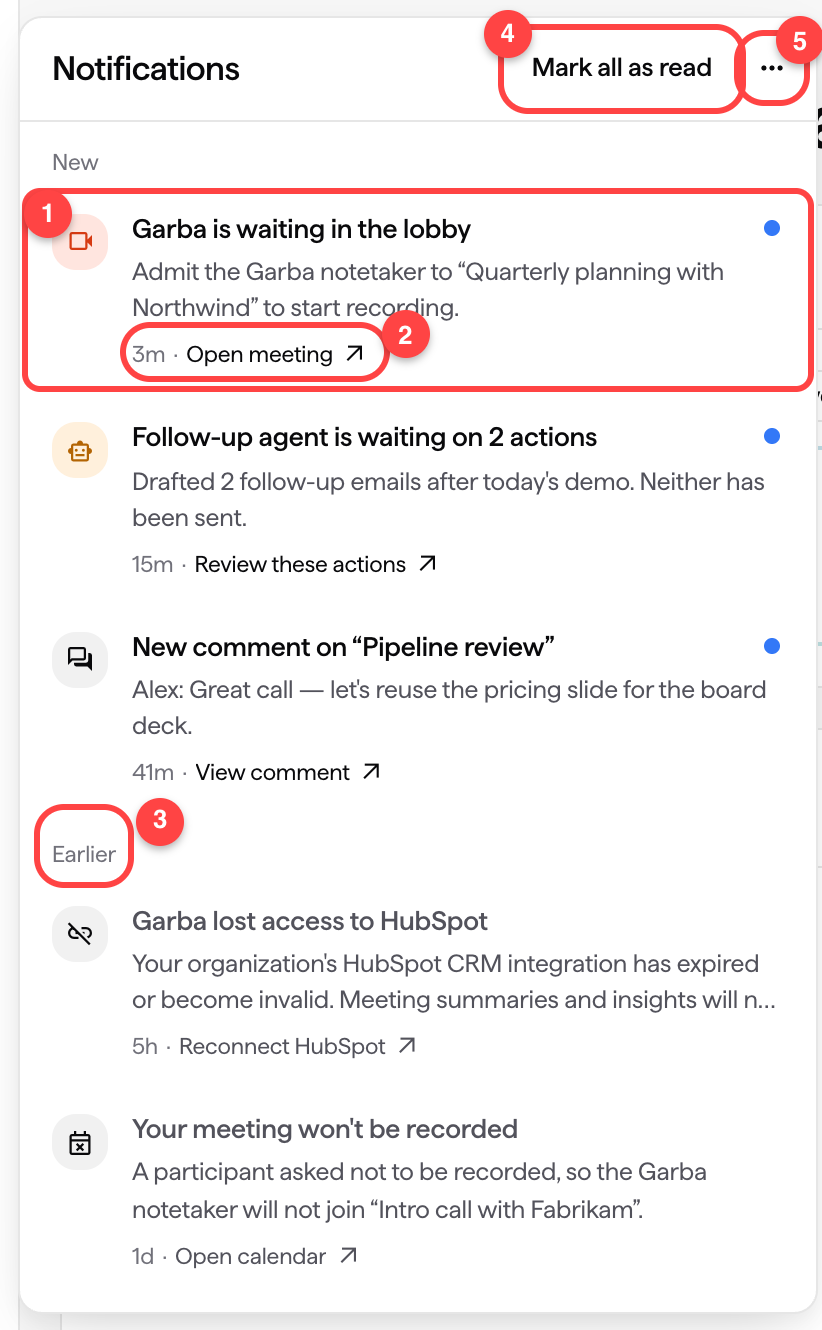
New lists the alerts you haven't read yet, newest first, each marked with a blue dot. Urgent alerts have a red icon and high-priority alerts an orange one.
Click an alert to go straight to where you can act on it, such as the meeting, the approval or the integration. The line under the alert says where it takes you.
Earlier holds the alerts you've already read.
Mark all as read marks every alert as read.
The ⋯ menu has Clear all, which removes every alert from the list, and a shortcut to your notification settings.
Hover over an alert to mark just that one as read (✓) or dismiss it (✕). On a phone the list opens full screen, and each alert shows its ✕ all the time. Urgent and high-priority alerts also pop up briefly at the bottom of the screen when they arrive.
Garba never marks an alert as read for you. If you deal with something from a Slack message or an email, the alert stays in the bell until you open it, mark it as read or clear it. Two kinds tidy themselves up: a notetaker-in-the-lobby alert clears after an hour, and an agent-approval alert clears after seven days.
What Garba alerts you about
Meeting activity: the notetaker has been waiting in a meeting's lobby for a few minutes, or a participant asked not to be recorded, so the notetaker won't join an upcoming meeting.
Comments: someone commented on one of your meetings.
Agent approvals: one of your agents has actions waiting for your approval.
Integrations: a connection such as your calendar, your CRM or a connector stopped working and needs to be reconnected. Problems with the account's own integrations go to the account's admins.
Choosing which alerts follow you outside the app
Open Settings and, under User, select Notifications: https://app.garba.ai/setup/notifications. The Alerts section has one row per kind of alert.
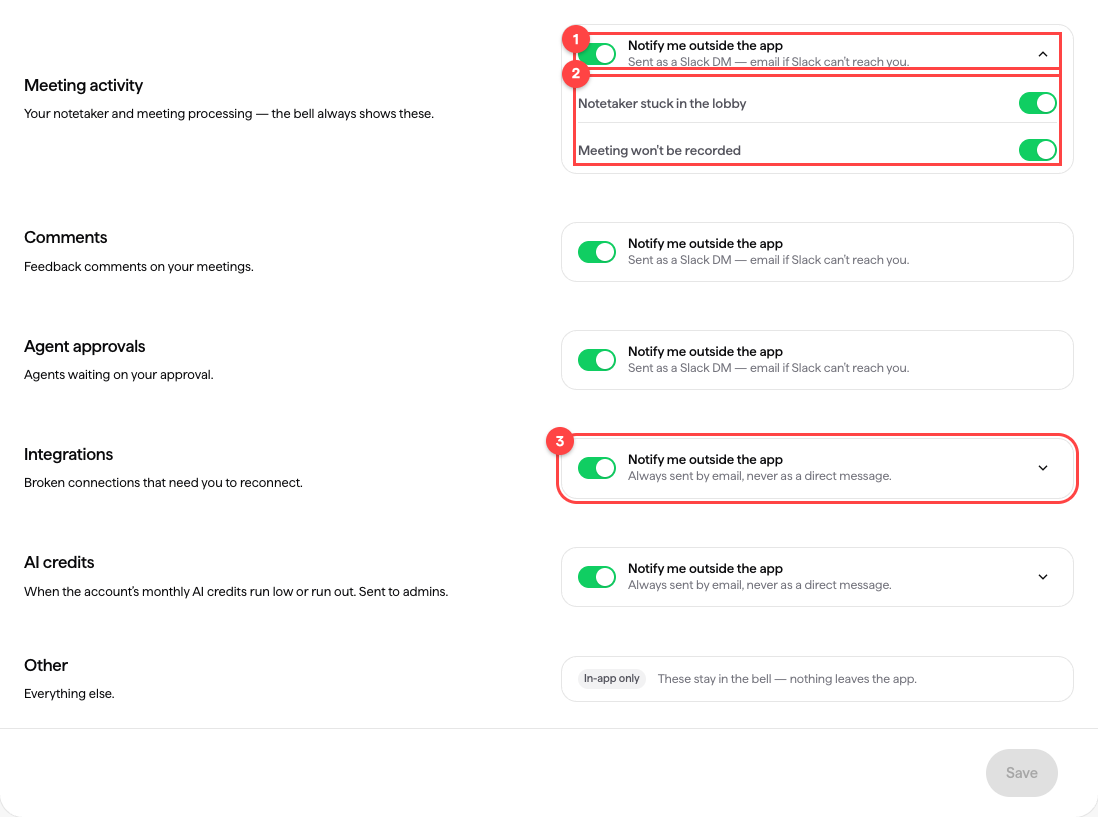
Notify me outside the app decides whether Garba also sends you the alert as a message. The line under it says how the alert will reach you.
Rows that cover more than one kind of alert fold out, so you can switch each kind on or off on its own.
Integrations alerts are always sent by email, never as a direct message, so you can forward them to whoever fixes the problem.
Your choice only affects messages sent outside Garba. The bell always shows every alert. Each alert is sent outside the app once, at the same time it appears in the bell. The notetaker-in-the-lobby alert is the only kind that starts with Notify me outside the app switched off.
Where alerts are sent
For an alert that can be sent as a direct message, Garba tries these in order and uses the first one that works:
A Slack direct message, if your account has the Garba AI agent for Slack. See Activating the Garba Slack Agent.
A Teams message, if your account has the Garba bot in Microsoft Teams and the bot has a chat with you, which it starts itself when it's added to a team you're in, or when you message it. See How to Install the Garba Bot in Microsoft Teams.
An email.
Meeting summaries and briefs are set up separately, under Briefs & summaries on the same page. See Customizing Daily and Pre-Meeting Briefing Delivery.