After you connect Telavox, Garba processes your phone calls automatically. Garba transcribes and summarizes each call. This article explains how the process works.
When a call ends in Telavox, Garba picks up the recording on its next check. The call then goes through these steps:
A call ends in Telavox with a recording.
Garba checks Telavox for new recordings every 5 minutes.
Garba downloads the recording and transcribes it with AI.
Garba writes an AI summary from your configured templates.
Garba sends an email notification to the user, if the setting is on.
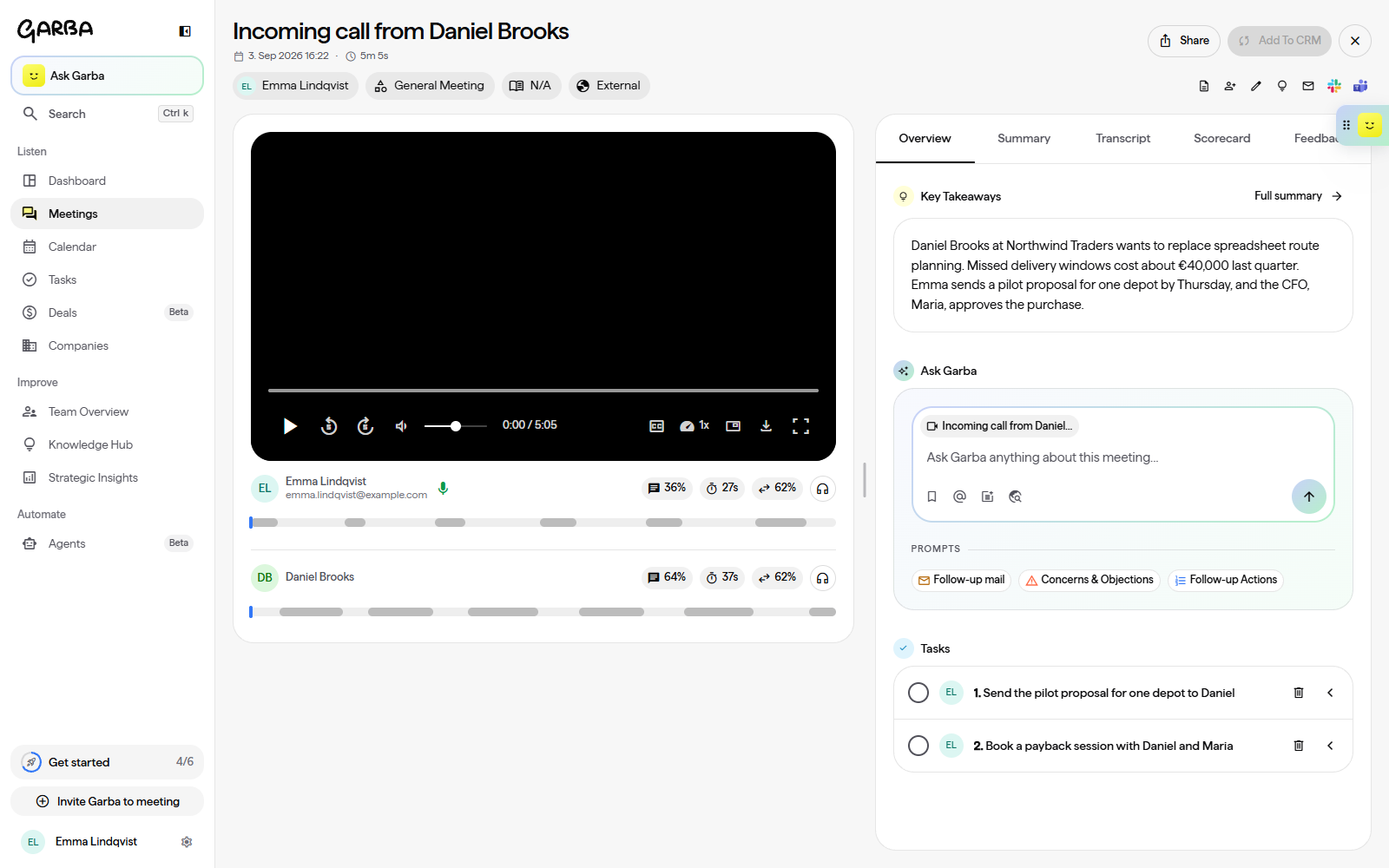
A call appears in Garba as a meeting record. The title is "Incoming call from [number]" or "Outgoing call to [number]". If the number matches a contact in your connected CRM, the title shows the name of the contact, and the call is linked to that contact, their company and their open deals, so it shows on those pages in Garba.
Garba can also log each call in your CRM: as a call record in HubSpot, a call activity in Pipedrive, a logged call in Salesforce or a phone call in Upsales. It carries the time and the Garba summary as notes, and the duration, direction and phone numbers wherever your CRM has a place for them. In HubSpot, the call also gets the call type you have set for its Garba meeting type, and the outcome Connected. This is switched on per account. Contact our support team to turn it on.
Garba imports a call when:
A user answered the call and Telavox recorded it. A call that goes to voicemail has no recording, and it does not reach Garba.
The Telavox user has the Recorded calls add-on active in Telavox.
The email address of the Telavox user matches a Garba user with a Recording license.
The call is not longer than the maximum meeting length of your plan.
Garba imports incoming calls and outgoing calls. Garba skips calls without a recording. Garba imports each call one time only. If you delete a call in Garba, the call does not come back.
Each imported call gets an AI summary, in the same way as a video meeting. The summary follows the settings of your account for calls. To change the summary template, click your name at the bottom of the left sidebar. Under Configuration, click Summary Templates. Examples are a sales discovery format, a support ticket summary or general meeting notes.
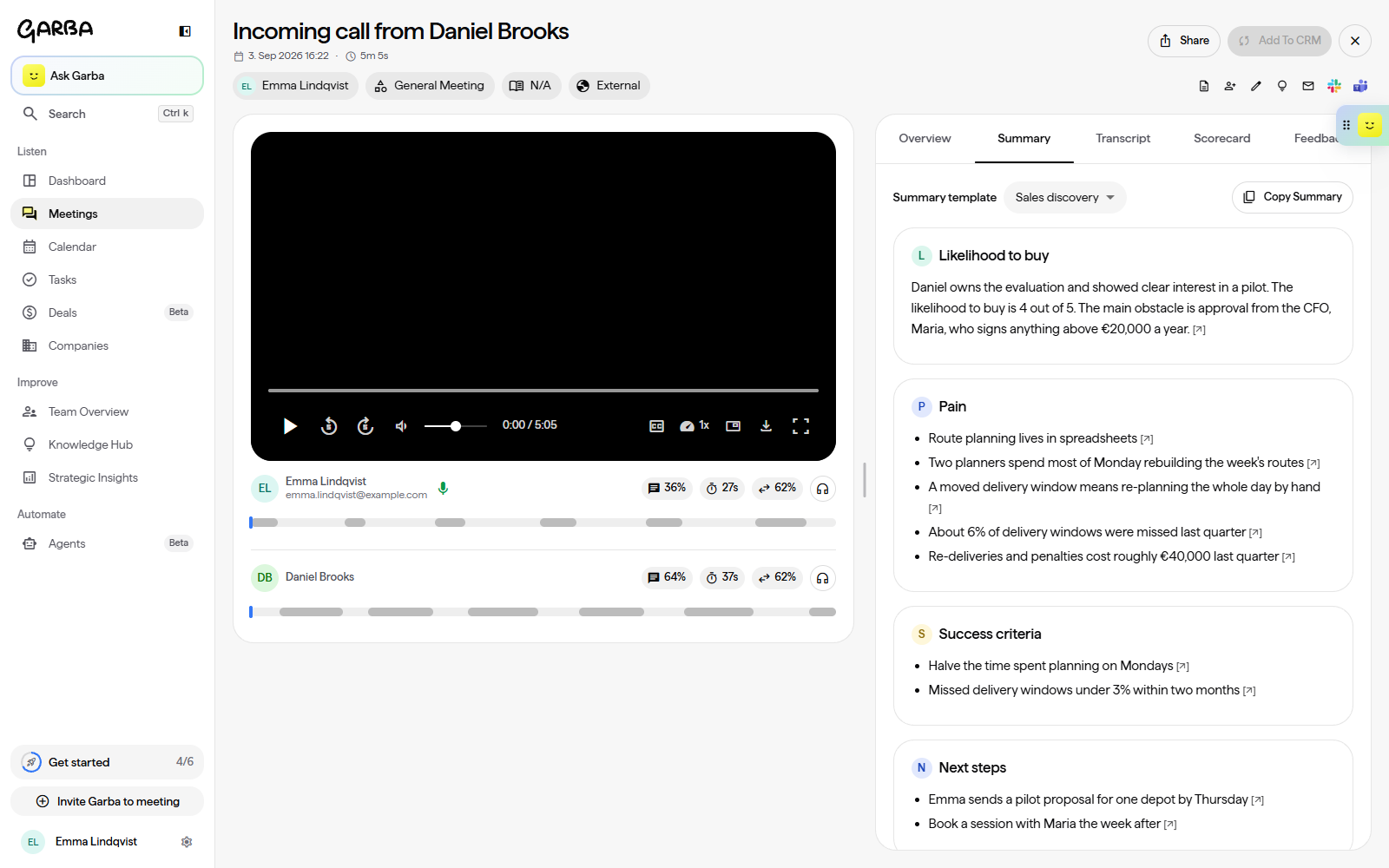
After Garba processes a call, the user who made or received the call gets an email with the summary and the key takeaways, if the notification settings of that user permit it. Each user controls this setting:
Click your name at the bottom of the left sidebar. Under User, click Notifications.
Under Post-Meeting Summary Notifications, select Call under Meeting sources.
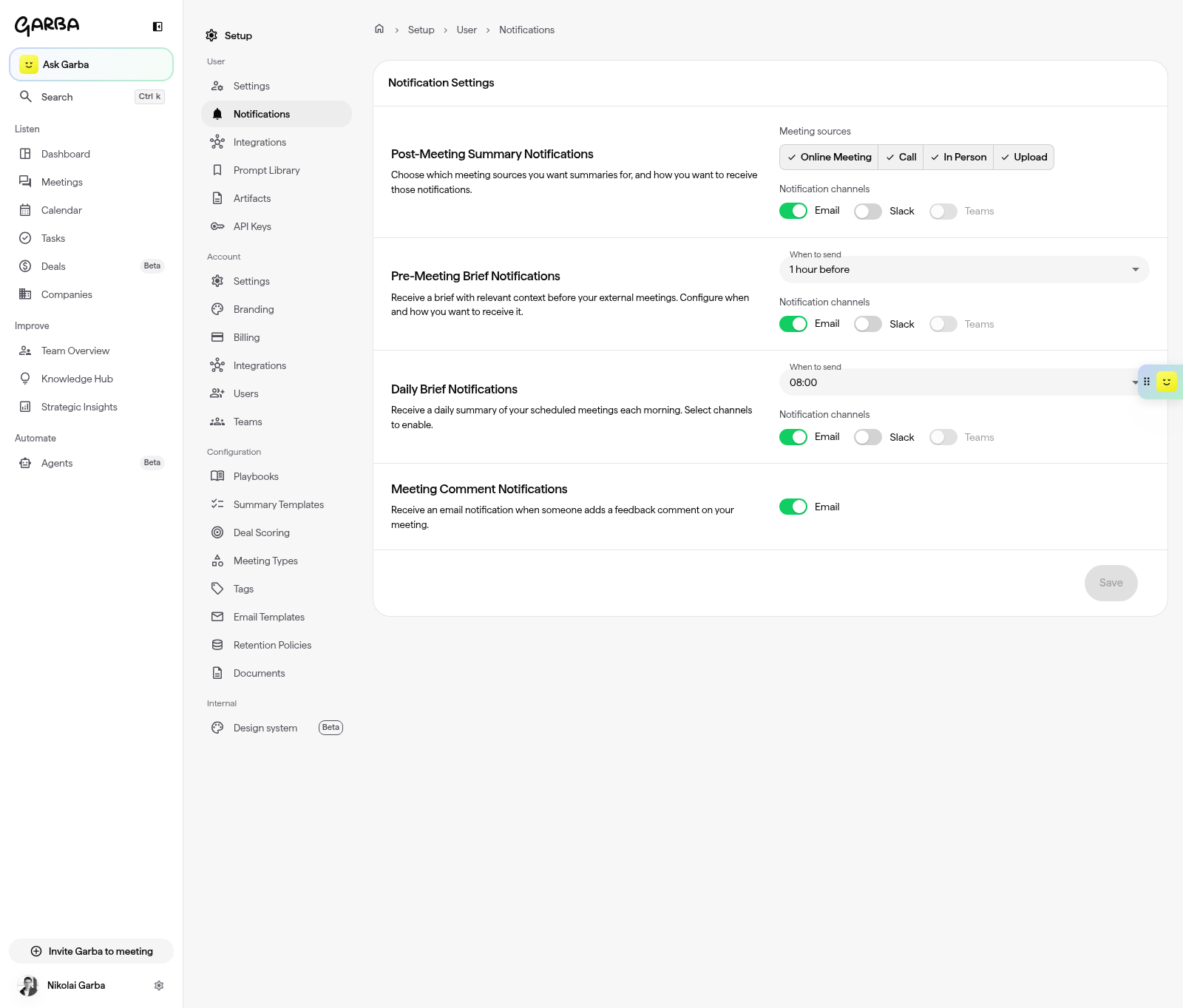
This setting applies to the calls from all connected phone integrations: Telavox, Lynes, CloudTalk and HubSpot calls.
Garba matches Telavox users to Garba users by email address. The email of the user in Telavox must be the same as the email of the user in Garba.
If the email matches no Garba user, or the Garba user has no Recording license, Garba stores the call but does not create a meeting. If you correct the match within 24 hours of the call, Garba processes the call on its next check. For an older call, contact our support team.
Garba records these items from each Telavox call:
Field | Description |
|---|---|
Title | "Incoming call from [number]" or "Outgoing call to [number]" |
Direction | Incoming or outgoing |
Duration | Length of the call |
User | The Garba user matched by email |
Recording | Full audio recording |
Transcript | AI-generated transcription |
Summary | AI-generated summary using your templates |
Source | Marked as "Telavox" |
Participants | External phone number(s) on the call |
Why does my call not show in Garba?
Make sure that the user answered the call and that Telavox recorded it. The Recorded calls add-on must be active for that user. Make sure that the email of the Telavox user matches a Garba user, and that the Garba user has a Recording license. Make sure that the call is not longer than the maximum meeting length of your plan, and not older than 24 hours before you connected.
Can I select which calls Garba imports?
No. Garba imports all recorded calls of the Telavox users who have the Recorded calls add-on. There is no switch for one call. If the integration is connected and the email of the user matches a Garba user with a Recording license, Garba processes the calls of that user.
How far back does the first import go?
When you connect, Garba imports your recorded calls from the last 24 hours. Garba does not import older calls automatically. If you need older calls in Garba, contact our support team. A large import runs in batches, oldest call first, over the next checks.
Why does a call show a phone number and not a name?
Garba shows the name of the contact when the number matches a contact in your connected CRM. If there is no match, Garba shows the phone number.
What happens when I disconnect and connect again?
The imported calls stay in Garba. When you connect again, Garba imports the calls from the last 24 hours. Garba does not import a call two times. For calls from the time when Telavox was not connected, contact our support team.
If you have a question, contact our support team.
