When you connect Telavox to Garba, Garba transcribes, summarizes and analyzes your phone calls automatically. Garba fetches each recorded call from Telavox. The call then appears in Garba as a meeting.
You connect Telavox one time for the whole account. A Telavox administrator creates an API token, and a Garba admin pastes it into Garba. Garba then imports the calls of each Telavox user whose email matches a Garba user.
Before you start, make sure that you have:
An Admin role in Garba
Access to a Telavox administrator account, to create the API token
A Telavox account with the Recorded calls add-on active for the users whose calls must reach Garba
Telavox users with the same email addresses as the related Garba users
A recording license on those Garba users
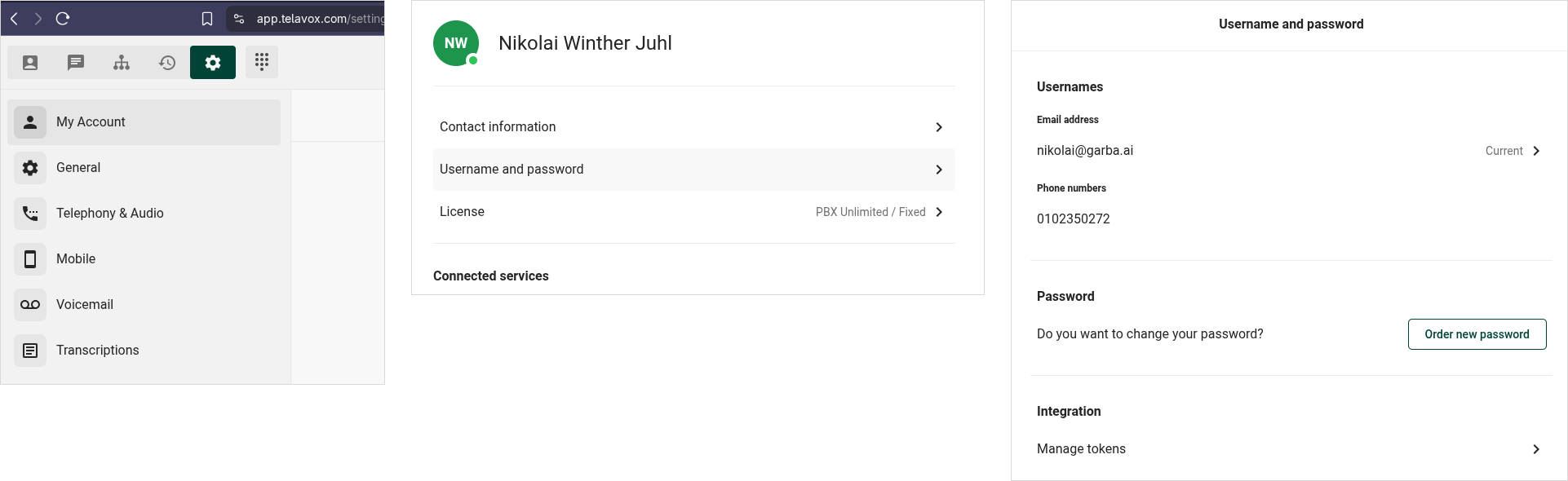
Log in to Telavox as an administrator. Go to My Account > Username and Password > Manage tokens. Create a new token. The token must belong to a Telavox administrator: only an administrator's token can read the recordings of every user.
Name — Give the token a name that shows its purpose, for example Garba.
Copy the token — Telavox shows the token one time only. Keep the token until you paste it into Garba.
In Garba, click your name at the bottom of the left sidebar. In the menu, under Account, click Integrations. Scroll down to the Telephony section.
Integrations — All account-wide integrations are on this page.
Connect — Click this button on the Telavox card. The Connect to Telavox dialog opens.
Paste the token into the dialog. Click Connect. Garba checks the token with Telavox before Garba stores it.
API Token — This field holds the token from step 1.
Connect — If Telavox rejects the token, Garba shows Invalid token. Make sure that you copied the full token. If the error stays, create a new token in Telavox and paste the new token.
A token of a Telavox user who is not an administrator also passes this check. The problem shows some minutes later, when the card changes to Reconnect. See Troubleshooting below.
On the integrations page, the Telavox card now shows the Connected status.
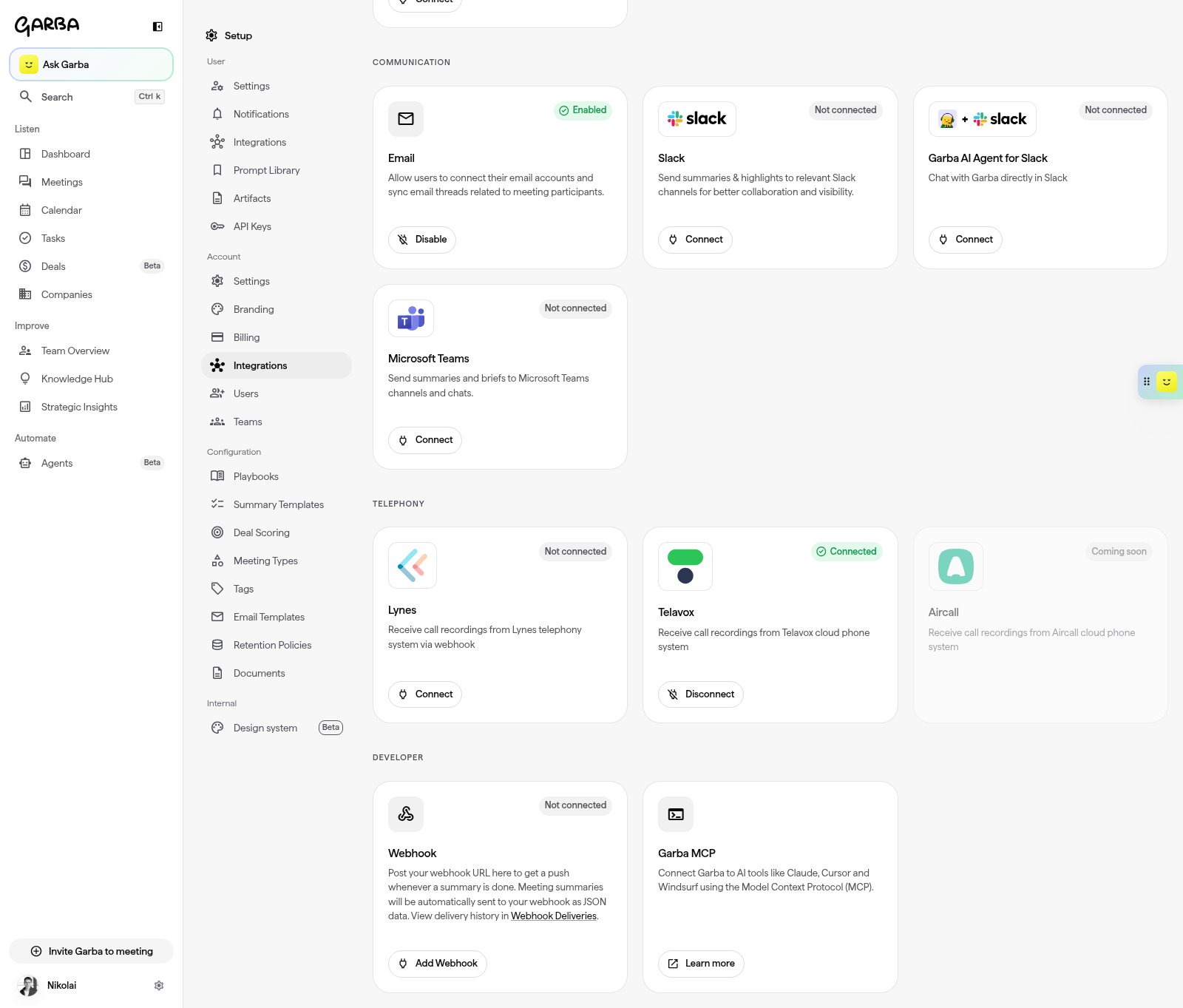
Connected — Garba imports calls from now on.
Disconnect — This button removes the token. See Disconnect Telavox below.
Garba matches each call to a user by the email address of the Telavox user. This email address must be the same address that the user has in Garba. If the email matches no Garba user, Garba keeps the call but does not create a meeting. If you correct the email address within 24 hours of the call, the call becomes a meeting on the next check.
After you connect, Garba automatically:
Imports your recorded calls from the last 24 hours
Checks Telavox for new recordings every 5 minutes
Creates a meeting for each recorded call. The meeting name shows the other party, for example Incoming call from +46701234567 or Outgoing call to +46701234567
Downloads the recording and transcribes it
Generates a summary, insights and action items, in the same way as for a video meeting
Looks up the phone number in your connected CRM to identify the person on the call, and links the call to that contact, their company and their open deals, so it shows on those pages in Garba
Garba can also log each call in your CRM: as a call record in HubSpot, a call activity in Pipedrive, a logged call in Salesforce or a phone call in Upsales. It carries the time and the Garba summary as notes, and the duration, direction and phone numbers wherever your CRM has a place for them. In HubSpot, the call also gets the call type you have set for its Garba meeting type, and the outcome Connected. The call is owned by the user who made it and linked to the contact, company and deal Garba found. This is switched on per account. Contact our support team to turn it on.
Garba does not import calls older than 24 hours automatically. If you need older calls in Garba, contact our support team.
A call appears in Garba some minutes after the call ends. Telavox records only the calls that a user answers. A call that goes to voicemail has no recording, and it does not reach Garba. You do not need to configure anything more on the Telavox side.
Calls do not show in Garba
Make sure that the user answered the call and that Telavox recorded it. The Recorded calls add-on must be active for that user.
Make sure that the email address of the Telavox user is the same as the email address of the Garba user.
Make sure that the Garba user has a recording license.
Make sure that the call is not longer than the maximum meeting length of your plan. Garba does not create a meeting for a longer call.
Make sure that the call is not older than 24 hours before you connected. For older calls, contact our support team.
The card shows Reconnect
The card shows There is an error with your connection. Please reconnect. Telavox rejected the token, and Garba stopped the import of calls. Somebody revoked or deleted the token in Telavox, or the token does not belong to a Telavox administrator.
Create a new token as a Telavox administrator. Click Reconnect on the Telavox card and paste the new token. After you reconnect, Garba imports the calls from the last 24 hours. For older calls, contact our support team. If you do not want to connect again, click Disconnect.
A call shows a phone number and not a name
Garba shows the name of the contact when the number matches a contact in your connected CRM. If there is no match, Garba shows the number.
To remove the integration:
Click your name at the bottom of the left sidebar. Under Account, click Integrations.
Find the Telavox card. Click Disconnect.
Confirm with Yes.
When you disconnect, Garba removes the token. Garba then stops the import of calls from Telavox. The imported calls stay in Garba, with their recordings, transcripts and summaries. You can also revoke the token in Telavox.
If you connect again later, Garba imports the calls from the last 24 hours only.
If you have a problem, contact our support team.
