Connecting Lynes to Garba means your phone calls get transcribed, summarized and analyzed automatically — the same treatment your video meetings get. Lynes sends each finished call recording to Garba over a webhook, and the call then appears in Garba as a meeting.
Lynes is connected from both sides: you generate a webhook URL and a secret token in Garba, and those two values are then entered on the Lynes side.
Before you begin, make sure you have:
An Admin role in Garba
A Lynes account with call recording enabled
Access to a Lynes administrator (or Lynes support) who can set up a call-recording webhook
Lynes users whose email addresses match the corresponding Garba user emails
A recording license on those Garba users
In Garba, go to Setup > Integrations under the Account heading, then scroll down to the Telephony section.
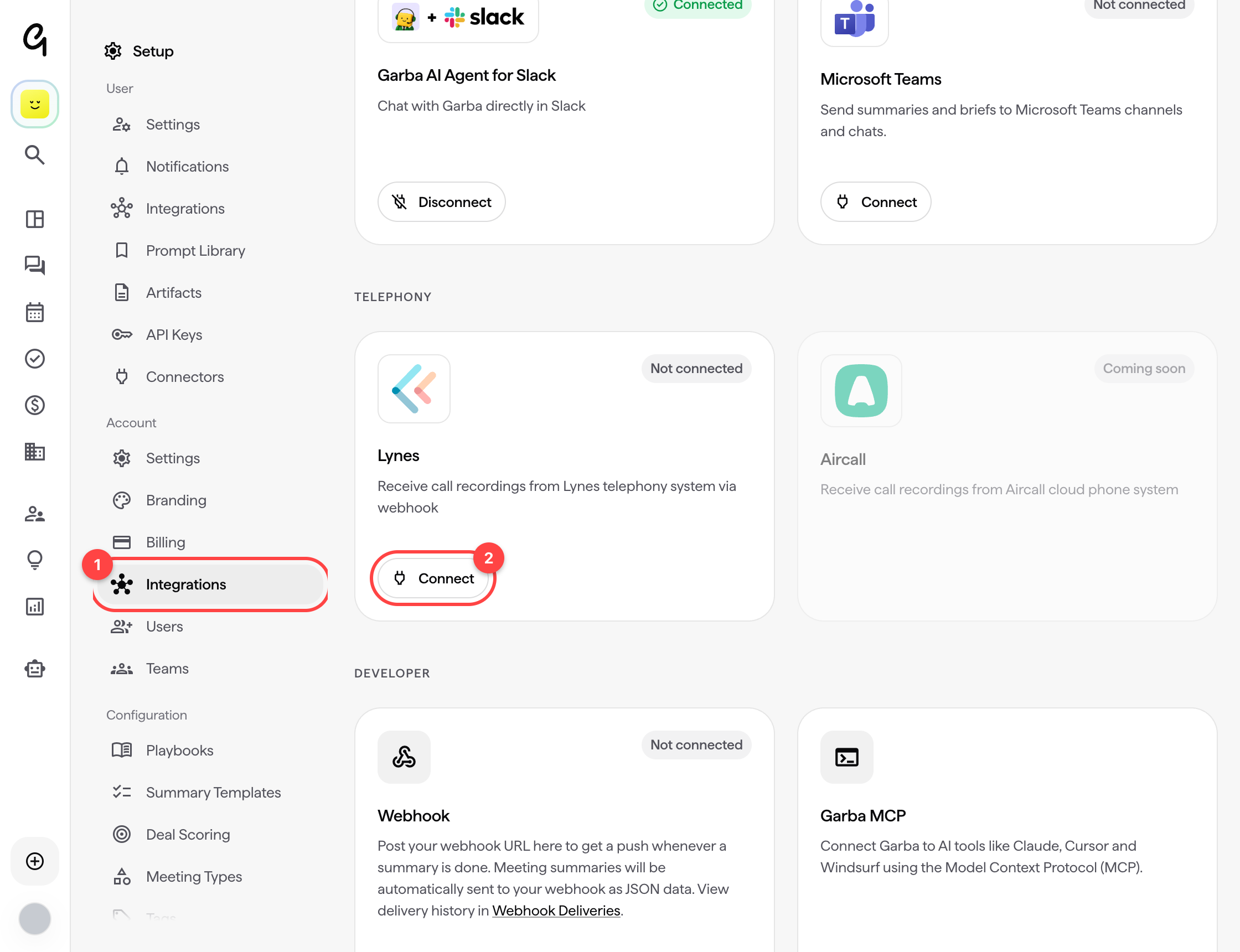
Integrations — under Account in the Setup menu. This is where all account-wide integrations live.
Connect — click this on the Lynes card to generate your credentials.
Garba generates a webhook URL and a secret token for your account and shows them once.
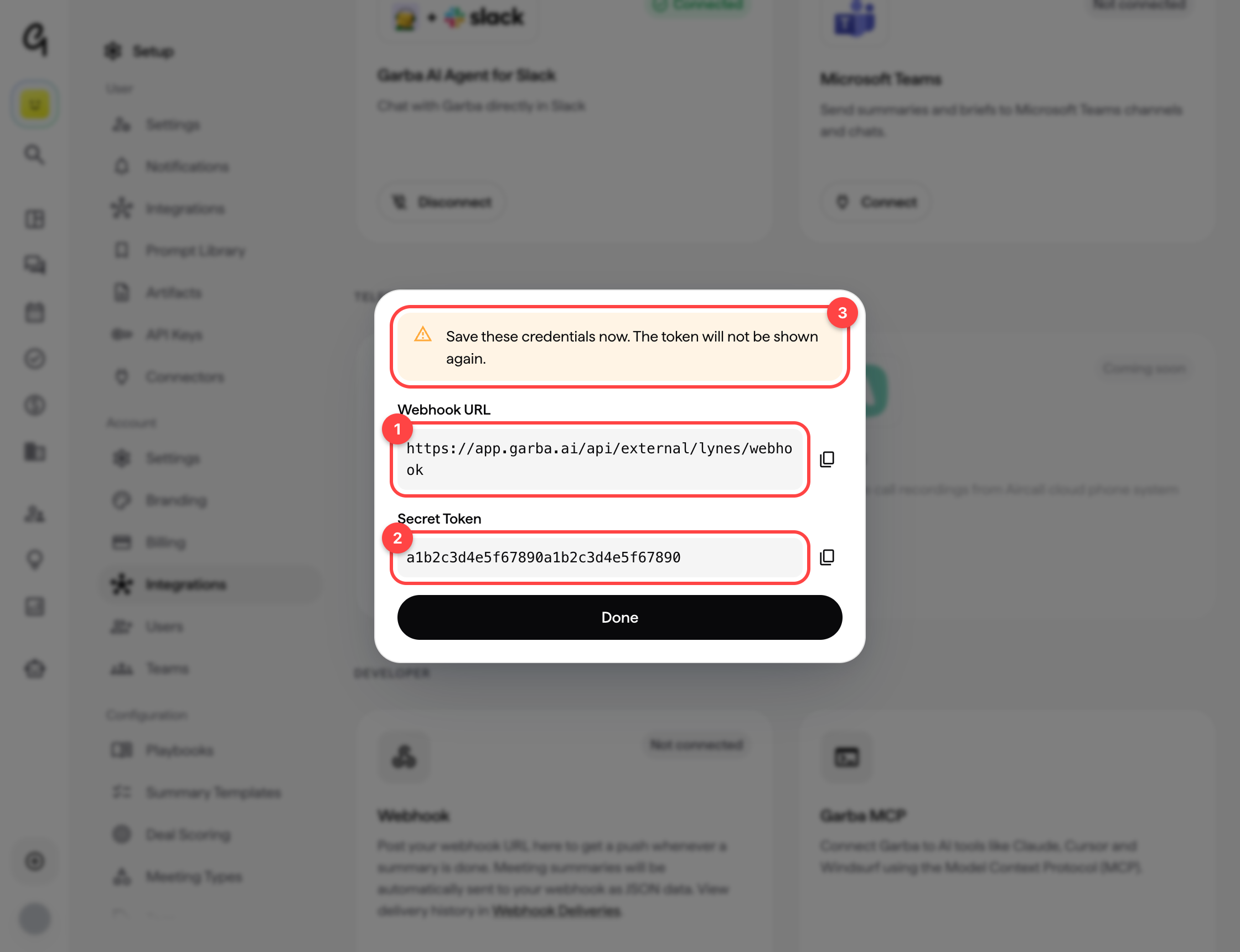
Webhook URL — the address Lynes will send call recordings to.
Secret Token — the token Lynes uses to authenticate with Garba.
Save these credentials now — the token is shown only this once. Use the copy buttons and store both values somewhere safe before you continue.
Click Done when you have saved both values.
If you close this dialog without saving the token, you cannot look it up later. Disconnect the integration and connect again to generate a new one.
Give the webhook URL and secret token to your Lynes administrator or Lynes support, and ask them to set up a call-recording webhook that:
Posts finished call recordings to your Garba webhook URL
Sends the secret token as a bearer token in the Authorization header
Identifies the recording user by their email address
That last point matters. Garba matches each call to a user by the recorder's email address, so it has to be the same address that user has in Garba. If Lynes sends a phone number instead, the call is received but no meeting is created for it.
Back on the integrations page, the Lynes card now shows a green Connected status.
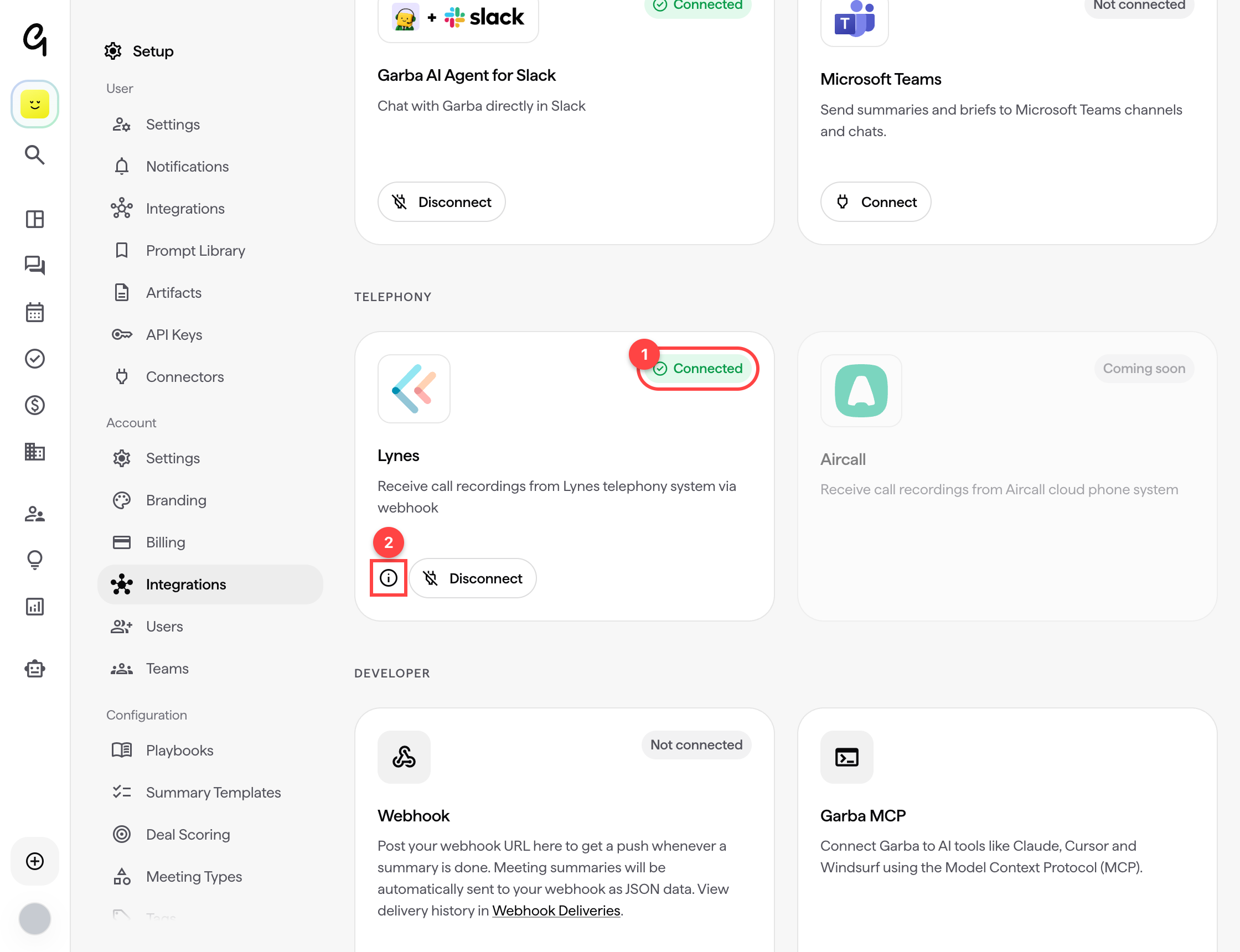
Connected — Garba is ready to receive calls from Lynes.
Information icon — hover it to see your webhook URL again at any time. The secret token is not shown again.
Once Lynes starts sending calls, Garba automatically:
Creates a meeting for each recorded call, named after the other party — for example Incoming call from +46701234567 or Outgoing call to +46701234567
Downloads the recording and transcribes it
Generates a summary, insights and action items, just as it does for a video meeting
Looks up the phone number in your connected CRM to identify the person you spoke with, and links the call to that contact, their company and their open deals, so it shows on those pages in Garba
Garba can also log each call in your CRM: as a call record in HubSpot, a call activity in Pipedrive, a logged call in Salesforce or a phone call in Upsales. It carries the time and the Garba summary as notes, and the duration, direction and phone numbers wherever your CRM has a place for them. In HubSpot, the call also gets the call type you have set for its Garba meeting type, and the outcome Connected. The call is owned by the user who made it and linked to the contact, company and deal Garba found. This is switched on per account. Contact our support team to turn it on.
Calls appear in Garba a few minutes after they end. Calls with no talk time — unanswered calls, for example — are skipped.
Calls are not showing up in Garba
Check that the Lynes user's email address matches their Garba user email exactly
Check that the Garba user has a recording license
Confirm with Lynes that the webhook is enabled and pointing at the right URL
The token was lost
Disconnect the integration and connect again. This generates a new token, and the new token has to be entered on the Lynes side — calls will not arrive until it is.
To remove the integration:
Go to Setup > Integrations under Account
Find the Lynes card and click Disconnect
Confirm with Yes
Disconnecting invalidates the token, so Lynes can no longer send calls to Garba. Calls that were already imported, along with their recordings, transcripts and summaries, stay in Garba.
If you run into any issues, feel free to reach out to our support team!
