A blueprint is a document you write once — a proposal, an order form, a business case, a deal room — with blanks where the customer-specific parts go. When someone on your team asks Garba for one, Garba fills those blanks from your deal, company and meeting data, writes the parts that need judgement, and hands back a finished document.
There are four formats. A report is a written document you edit like text and export to PDF or Word. A web page, slides or a PDF comes out as a page designed in your brand: a web page you share as a link, a deck you present, or A4 pages you send as a file.
Blueprints are set up by admins. A blueprint is available to everyone in the account unless you limit it to particular teams. You do not need to write HTML or know anything about merge fields — you describe the document in a chat and Garba builds it.
Go to Settings → Configuration → Blueprints.
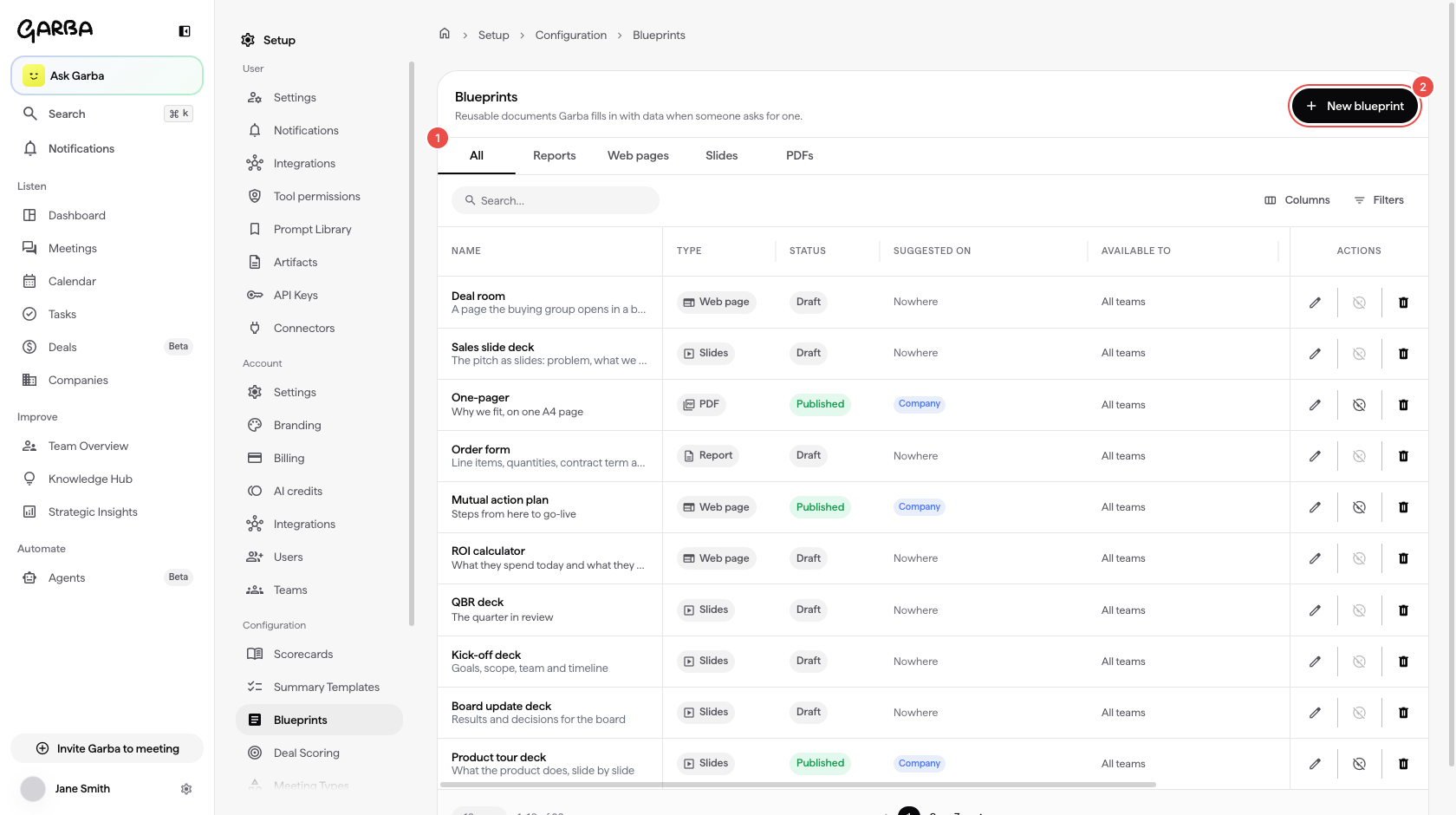
All, Reports, Web pages, Slides and PDFs — the tabs split the list by format.
New blueprint — start a new one.
The list shows each blueprint's type, whether it is a Draft or Published, which pages it is suggested on, which teams have it, how many documents have been made from it, who created it and when it was last edited.
Creating a blueprint takes two screens. On the first, pick the format with the tabs along the top; under them you see what that format looks like.
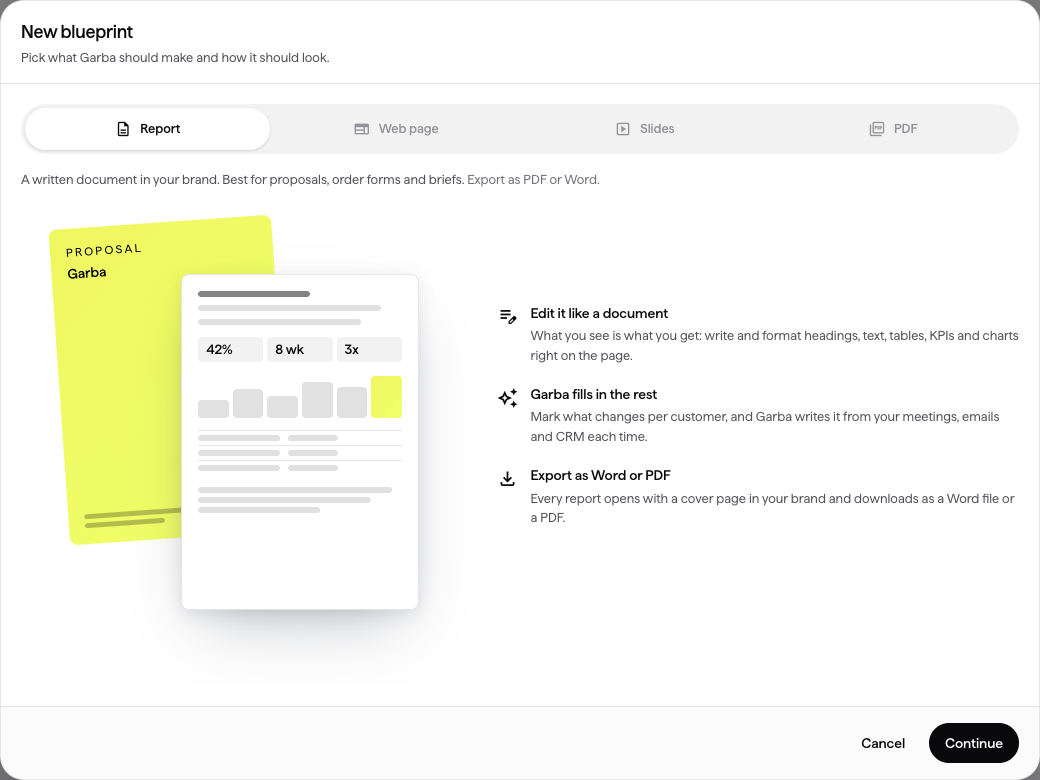
Report — a written report you edit like text: headings, tables, KPIs and charts behind a cover page. Best for proposals, order forms and briefs. Export as PDF or Word.
Web page — a page designed in your brand. Best for deal rooms, mutual action plans and ROI calculators. Share as a link.
Slides — a slide deck designed in your brand. Best for pitches, QBRs and kick-offs. Present, share as a link, or export as a PDF with one slide per page.
PDF — A4 pages designed in your brand, like a brochure. Best for one-pagers, case studies and product sheets. Export as a PDF or share as a link.
A report shows two of its pages and what you can do with it: edit it like a document, let Garba fill in what changes per customer, and export it as Word or PDF.
You can switch between web page, slides and PDF later: ask Garba in the builder chat and it rebuilds the blueprint in the new format. A report can't become one of the others, or the other way round, so pick that one carefully.
Under the Web page, Slides and PDF tabs, the same screen shows the looks that format can start from. Each one is shown in your own brand colours, fonts and logo, so what you see is what your team will send. Click the arrows on a look to open it full size.
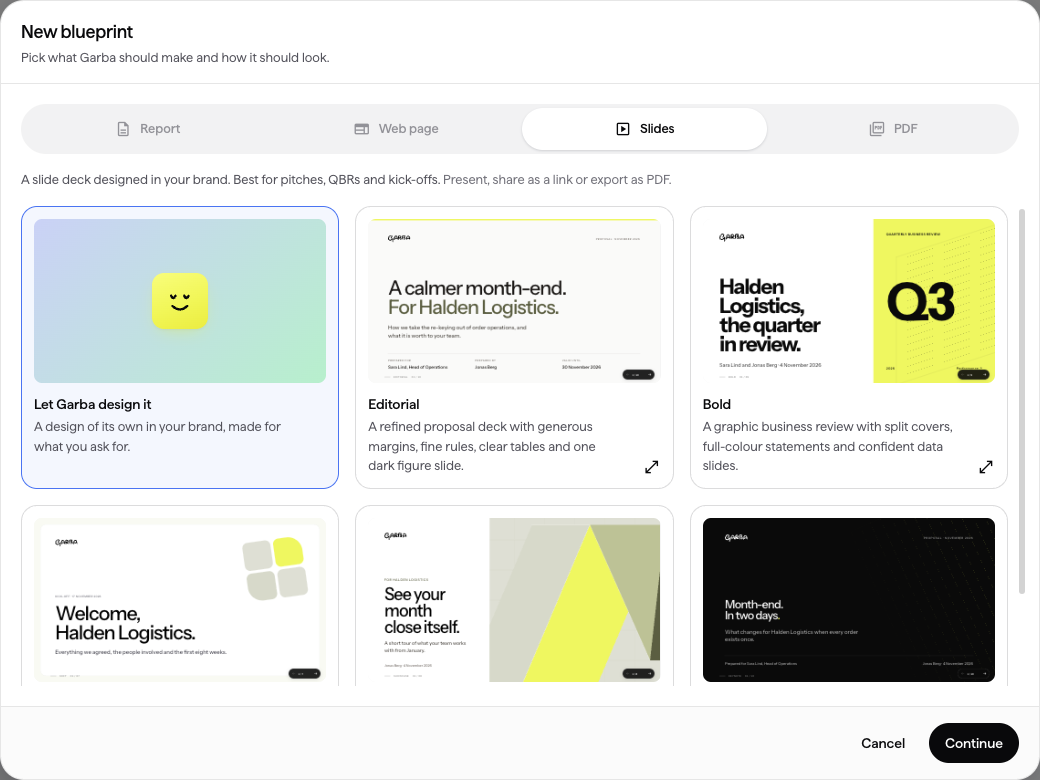
Let Garba design it — the default, marked with the Garba mascot. Garba designs the page for what you ask for in the builder chat.
A ready-made look — a finished design to start from. The blueprint opens with the design and some sample text. The first thing you ask for in the builder chat, such as "a QBR deck for our customers", replaces the sample text with your own content and keeps the design. Until the page is changed, in the builder chat or by editing it yourself, the blueprint can't be published, so no one gets a page about the sample customer by mistake.
Which looks you see depends on the format:
Look | Web page | Slides | What it is | |
|---|---|---|---|---|
Editorial | ✓ | ✓ | ✓ | Calm and typographic, with large headings and thin rules |
Bold | ✓ | ✓ | ✓ | Brand-coloured blocks and very large type and numbers |
Soft | ✓ | ✓ | Rounded panels on a light background | |
Showcase | ✓ | ✓ | ✓ | Built around your own pictures: a hero photo, product screenshots, your team and customer logos |
Console | ✓ | A dark offer page with a side menu, a product screenshot and a package configurator | ||
Keynote | ✓ | A dark stage talk: one big statement per slide, a before and after and a timeline | ||
Minimal | ✓ | A precise grid with a system overview and a package comparison | ||
Letter | ✓ | A business letter on your letterhead, then a quote with terms and signature lines |
Showcase, Console and Keynote have places for your own pictures, such as a hero photo, a product screenshot, your team or customer logos. Until you add one, each shows blank shapes in your brand colours. After Garba builds the blueprint it asks for each picture with an upload box above the chat box. Skip one and its artwork stays, except a skipped strip of customer logos, which is taken out. Ask for a picture later with "add our team photo".
Ready-made slide looks include arrow controls and a slide counter. Use the arrow keys, Page Up / Page Down or Space to move through them, and Home / End to jump to the first or last slide. Their animations follow your device’s reduced-motion setting.
Reports skip this step: a report gets its look from your report branding.
Continue opens the second screen. On the left is what you picked; Change takes you back to pick again.
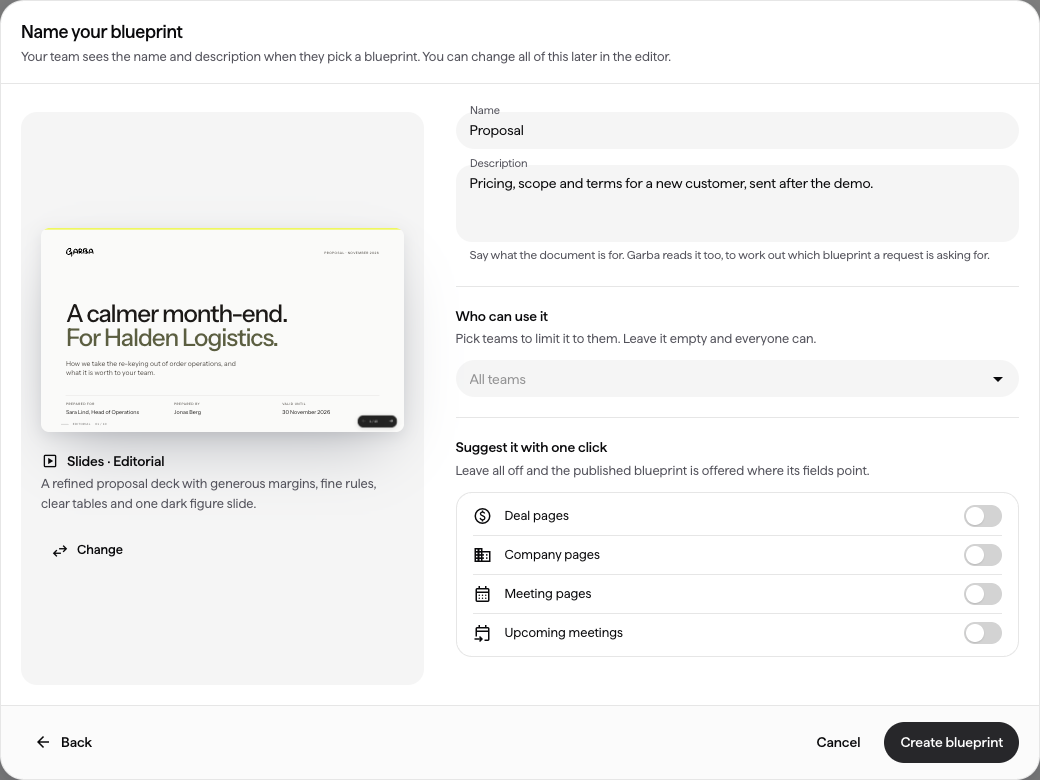
Name — what your team sees when they pick a blueprint. Keep it short: Proposal, Order form, Deal room.
Description — what the document is for. Your team reads it when they pick a blueprint, and so does Garba when it works out which one someone means by "a proposal for Acme". Write it for a colleague who has never seen the blueprint.
The same screen, under the name:
Who can use it — the teams that can use this blueprint. Leave it empty and everyone in the account can. Useful when Sales and Customer Success each have their own version of the same document.
Suggest it with one click — the places where the published blueprint shows up as a one-click tile: deal pages, company pages, meeting pages and upcoming meetings (shown in the meeting's brief). Leave them all off and Garba offers it where its fields point, so a blueprint built on deal fields is offered on deal pages.
Create blueprint — finishes the dialog and opens the builder.
None of this is final. The blueprint editor carries the same settings, so you can rename it, reword the description, change who it is available to and move it to other pages at any time.
A new blueprint opens on the builder chat.

Starting points — one click builds a first draft. They follow the format: a proposal, an order form or a business case for a report; a mutual action plan, an ROI calculator or a deal room for a web page; a pitch deck, a QBR or a kick-off for slides; a one-pager, a case study or a product sheet for a PDF.
Attach a document — drop a PDF, Word, text or Markdown file here, or use the paperclip in the chat at any time. The file is added to your message rather than sent on its own, so say what it is for: "build the blueprint from this proposal", or "use these prices in the pricing table". Garba only rebuilds the layout from a document when you ask it to or the blueprint is still empty.
Or describe it yourself — "A proposal with a summary of what we discussed, their pain points, our scope, pricing and next steps."
If you only name the kind of blueprint, such as "a QBR deck", Garba asks a few questions first: who it is for, which sections it should have, what it should draw on. They appear one at a time above the chat box. Pick an answer, type your own, or skip one, and Garba builds the draft once you have answered. A detailed description or an attached document is built straight away.
Keep talking to the chat to change anything: "make the pricing a table", "add a section on security", "shorter intro".
To add a picture of your own, such as a product shot or your team, ask for it: "add our product photo to the hero". Garba shows an upload box above the chat box. Drop, choose or paste a PNG, JPG or WebP of up to 5 MB (for a set, such as customer logos, up to 12 at once) and Garba puts it in; it then appears in every document made from the blueprint.
Once the draft is there, the blueprint appears beside the chat.

Blue placeholders — values Garba takes straight from your data: company name, industry, deal name, deal value, the owner's name, today's date. These are always correct, because they come from the record rather than from the model.
Purple placeholders — the parts Garba writes for each customer: a summary of your discussions, their pain points, a proposed scope, a pricing table.
Cover page — the card above the document is the first page of every document made from the blueprint. Open it to write the label, title and subtitle the way they will read; leave one empty and Garba writes it for each document. Click Add field next to the title to put in a field such as the company name, so the documents are told apart: "Proposal for Company name". Preview shows the cover with sample values filled in. The switch turns the cover page on or off, and the toggles at the bottom choose whether it shows the date, your company and your logo. The title names each document even with the cover page off.
Click any placeholder to change what it does.

What should Garba write here? — the instruction for this placeholder. Edit it to change the wording, length or focus of what Garba writes.
Look this up on the web — off unless you turn it on, and you turn it on per placeholder. Use it for the public facts your own data cannot hold: a customer's published figures, their market, a competitor. One section can search the web while the rest of the document stays on your meetings, emails and CRM.
You can also edit the blueprint by hand — type, restyle, add rows to a table — and add a placeholder anywhere from the toolbar. Everything saves as you go.

Sample data — Garba fills the whole blueprint with obviously made-up values so you can read it as a finished document. Nothing here comes from a real customer; the real values are filled in when someone generates a document.
Switch back with Edit and keep working until it reads the way you want.

Suggest on and All teams — the same two settings as in the create dialog, kept in the toolbar so you can change them while you work.
Publish — until you publish, the blueprint is a draft and nobody can use it. It is not hidden, though: every admin who can open the Blueprints page sees the draft, not just whoever started it.
Editing a published blueprint does not affect your team until you publish again: your edits sit in a working copy, and a pill in the header counts how many unpublished changes you have. Open that pill to compare your working copy with what the team is using, or to discard your changes. The button then reads Publish changes.
Anyone with Ask Garba can use a published blueprint. On a deal, company or meeting page, and in a pre-meeting brief, the blueprints you chose to suggest appear as tiles under the Ask Garba box.
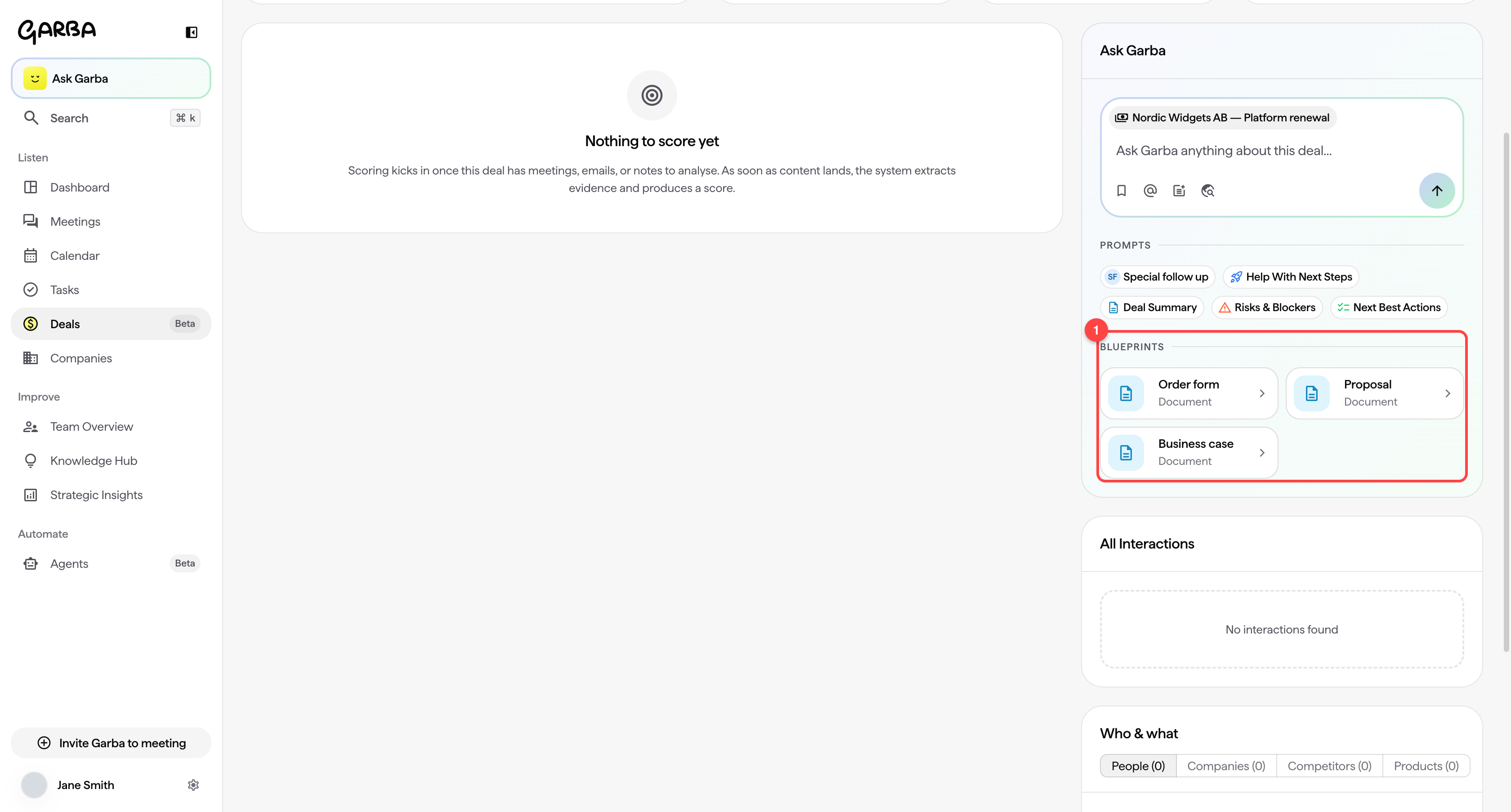
Blueprints — one click asks Garba to fill that blueprint for the deal, company or meeting you are looking at. In a brief, it is filled for the upcoming meeting and its companies.
You can also just ask: "Draft a proposal for Nordic Widgets using our proposal blueprint." Garba picks the blueprint by name, gathers what it needs from your meetings, emails and CRM data, and writes the document.
Or pick one from the Ask Garba box itself: the Blueprints button beside the input lists every published blueprint you can use, grouped by format: Reports, Web pages, Slides and PDFs, wherever you are in Garba. Choosing one writes the request for you, so you only add which deal or company it is for.
A blueprint that uses deal or company fields needs one to fill in. If it is not obvious which deal you mean, Garba asks.
The Meeting title and Meeting date fields are for the meeting the document is made for. From a meeting page they are that meeting's; from an upcoming meeting's brief they are the upcoming meeting's, so an agenda made from Thursday's brief is dated Thursday. Last meeting is different: it is the most recent meeting already held with the customer.
The result is an ordinary Garba document, yours to edit.
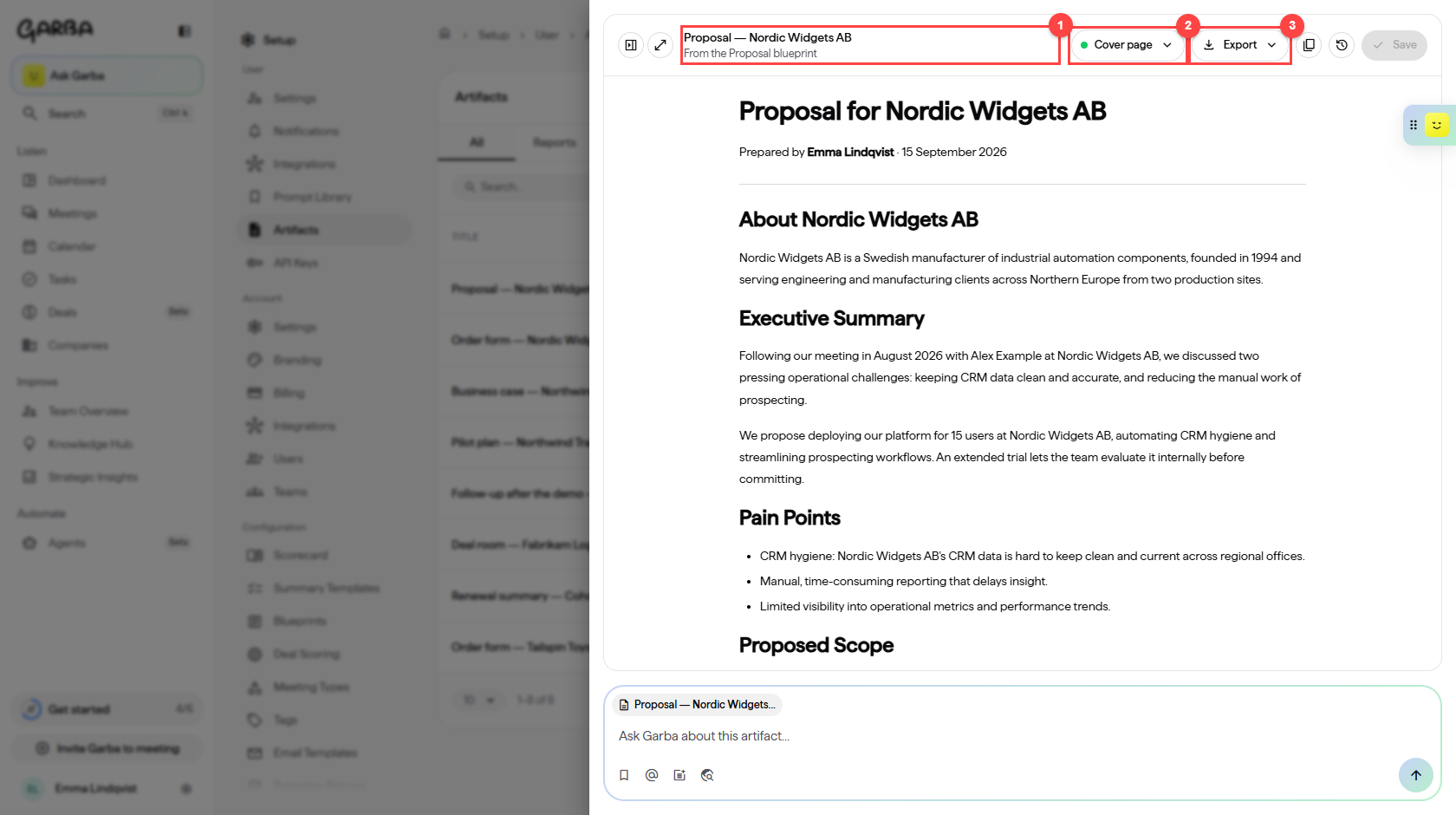
From the … blueprint — every generated document says which blueprint it came from.
Cover page — the cover settings come from the blueprint; you can still change them here.
Export — download as PDF or Word, or send it by email. A web page gets a share link instead, with an optional password and expiry; slides and PDFs get both.
Edit anything you like before you send it: the document is a normal artifact, with version history and an Ask Garba box of its own.
A web page, slides or PDF blueprint is a designed page rather than a report, so its editor looks a little different.

Preview / Edit text / Code / Split — see the page as the customer will, retype the page's own wording in place, edit the HTML directly, or view page and code side by side. Edit text is how you reword one of these blueprints without touching HTML: click any of the page's own words and type over them, and the layout and styling stay exactly as they are.
Placeholders in the page — the same blue and purple kinds as in a report, outlined where they sit. Click any one to change its label, its instruction, or whether it looks its answer up on the web.
A web page can hold anything a web page can: charts, a sticky in-page menu, even an ROI calculator the buyer adjusts themselves. Every filled page can be shared as a link, and slides and PDFs can also be exported as a PDF file. A PDF page does not grow: content that does not fit an A4 sheet is cut off, so ask Garba to move it to a new page.
Only admins can create and edit blueprints. Everyone with Ask Garba can use the published ones.
Deleting a blueprint keeps the documents made from it.
Blue placeholders never guess. If a value is missing from your data, Garba says so rather than inventing one — usually a sign the CRM field is empty.
The description matters. It is how Garba decides which blueprint someone means, so write it for a colleague who has never seen it.
If a web page, slides or PDF blueprint shows Something on this page didn't work, part of the page's code failed. Click Details to see what, or Ask Garba to fix it to have the builder chat repair it.
