
Garba can sync the emails from your connected mailbox into Salesforce, so the conversations you have with a customer show up automatically on their contact record — no copy-pasting, no BCC addresses to remember.
What email sync does
When email sync is on, each email you send or receive is matched against your Salesforce contacts. If a participant matches, Garba logs the email on that contact as a Salesforce activity, with the subject, body, participants, and the correct direction (incoming or outgoing).
Note: Email sync to the CRM is available for Salesforce only.
Before you start
Make sure the following are in place:
Salesforce is connected as your team's CRM in Garba.
Your mailbox is connected to Garba (Google or Microsoft) under Setup → Integrations.
You turn the setting on — email sync is per-user and starts off, so each person decides whether their emails sync.
Step 1: Turn on email sync
Go to Setup → User Settings and switch on “Sync My Emails to CRM”. The setting only appears when your team's CRM is Salesforce and your mailbox is connected.
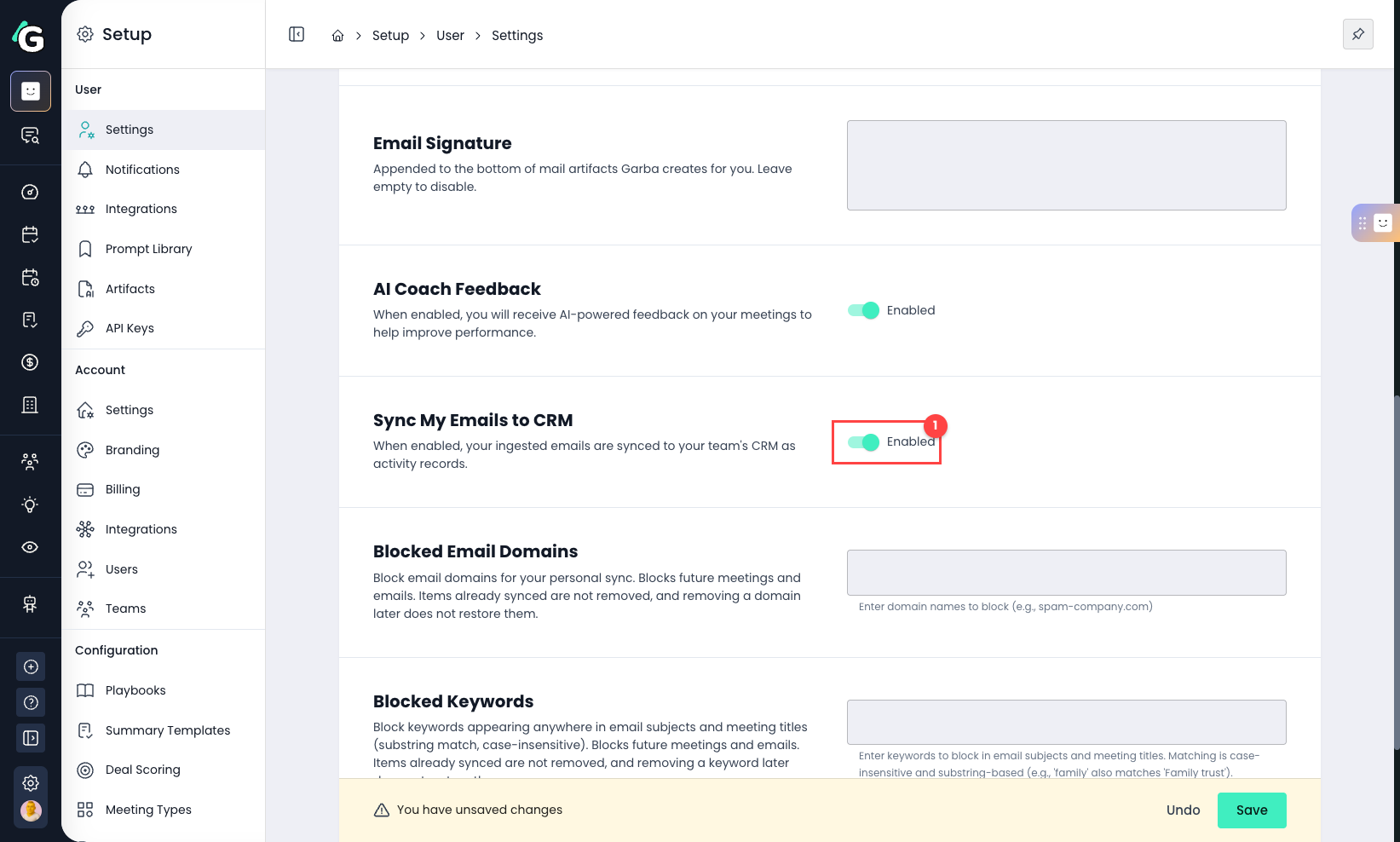
Sync My Emails to CRM — switch this on. From now on, your matching emails are logged to Salesforce automatically.
How Garba decides which emails to sync
Not every email is synced — only the ones that belong on a customer record. Garba syncs an email when:
It matches a contact — at least one external participant (From, To, or Cc) matches a Salesforce contact's email address.
It involves someone outside your company — your own email domain is treated as internal, so internal-only emails are skipped.
It's recent and not private — the email was received within the last 7 days and isn't marked private.
If an email doesn't match anyone in Salesforce, what happens next depends on a setting — see below.
What about people who aren't in Salesforce yet?
Whether an email is logged for someone new depends on your account's Create Missing CRM Contacts setting (Setup → Account Settings → CRM & Integrations).
If it's on — Garba adds the external participant as a new Salesforce contact and then logs the email to them automatically.
If it's off — an email is only synced when it already matches an existing Salesforce contact; otherwise it's skipped.
For more on how that works — including how to set default values for required fields in Salesforce — see the article “Automatically creating missing CRM contacts.”
Good to know: Turning email sync on only affects emails from that point forward. Messages that were already processed before you switched it on aren't synced retroactively.
Step 2: Where synced emails appear
Open the matched contact in Salesforce and look at the Activity timeline. Each synced email appears there with its subject, the participants, and whether it was sent or received.
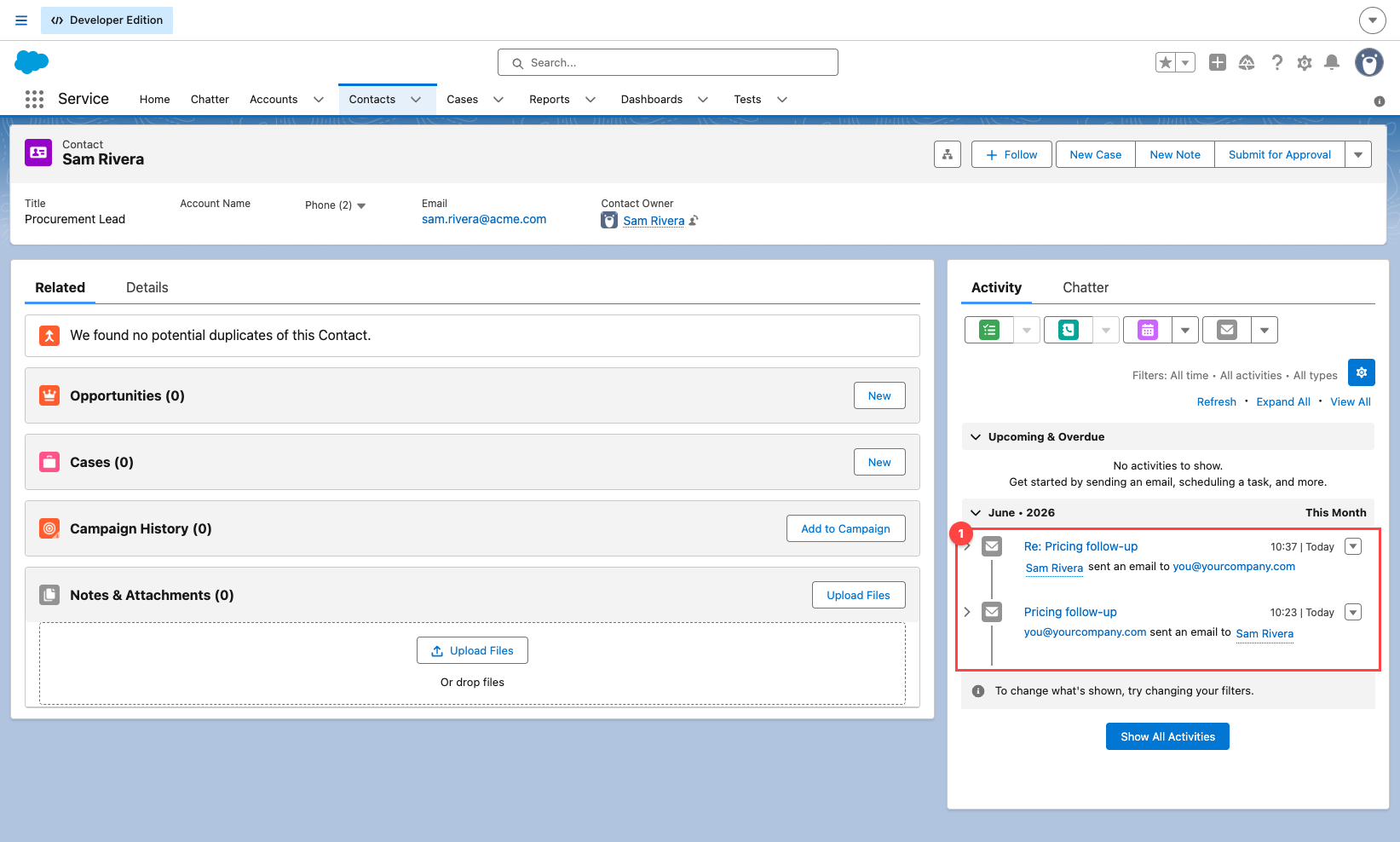
Activity timeline — every matching email is logged here, newest first, with a one-line summary of who emailed whom.
From here the email is a normal Salesforce activity, so it rolls up to the contact's account and is available in reports like any other logged email.