Field sync lets Garba write the insights from a meeting straight onto the matching record in Salesforce. Instead of a long summary buried in an activity, each section of your summary template maps to its own Salesforce field on the deal — so values like sentiment, topics, and a running summary land in structured, reportable fields.
When a meeting is processed, Garba matches the external participants' email addresses to Salesforce contacts, follows those contacts to their related Opportunity, and applies the summary template that fits the meeting's team and type. Each template section that has field sync configured then writes its result onto that Opportunity.
Field sync supports three Salesforce field types. Garba detects the type automatically and adapts how it writes the value:
Text — plain text fields (Text, Text Area, Long Text Area, and similar). The section's written output is saved as text.
Dropdown (picklist) — Garba uses AI to map the section's output to the single most relevant predefined option.
Multi-select (multi-select picklist) — Garba maps the output to one or more predefined options and merges them with any existing selections.
Number, currency, date, and checkbox fields are not supported as sync targets, and read-only fields won't appear in the list.
Create the custom fields you want to populate in Salesforce first (Setup → Object Manager → your object → Fields & Relationships). Once they exist, they become selectable in Garba.
Open a summary template (Setup → Summary Templates) and enable field sync on the section you want to map. The Field Sync panel appears beneath the section.
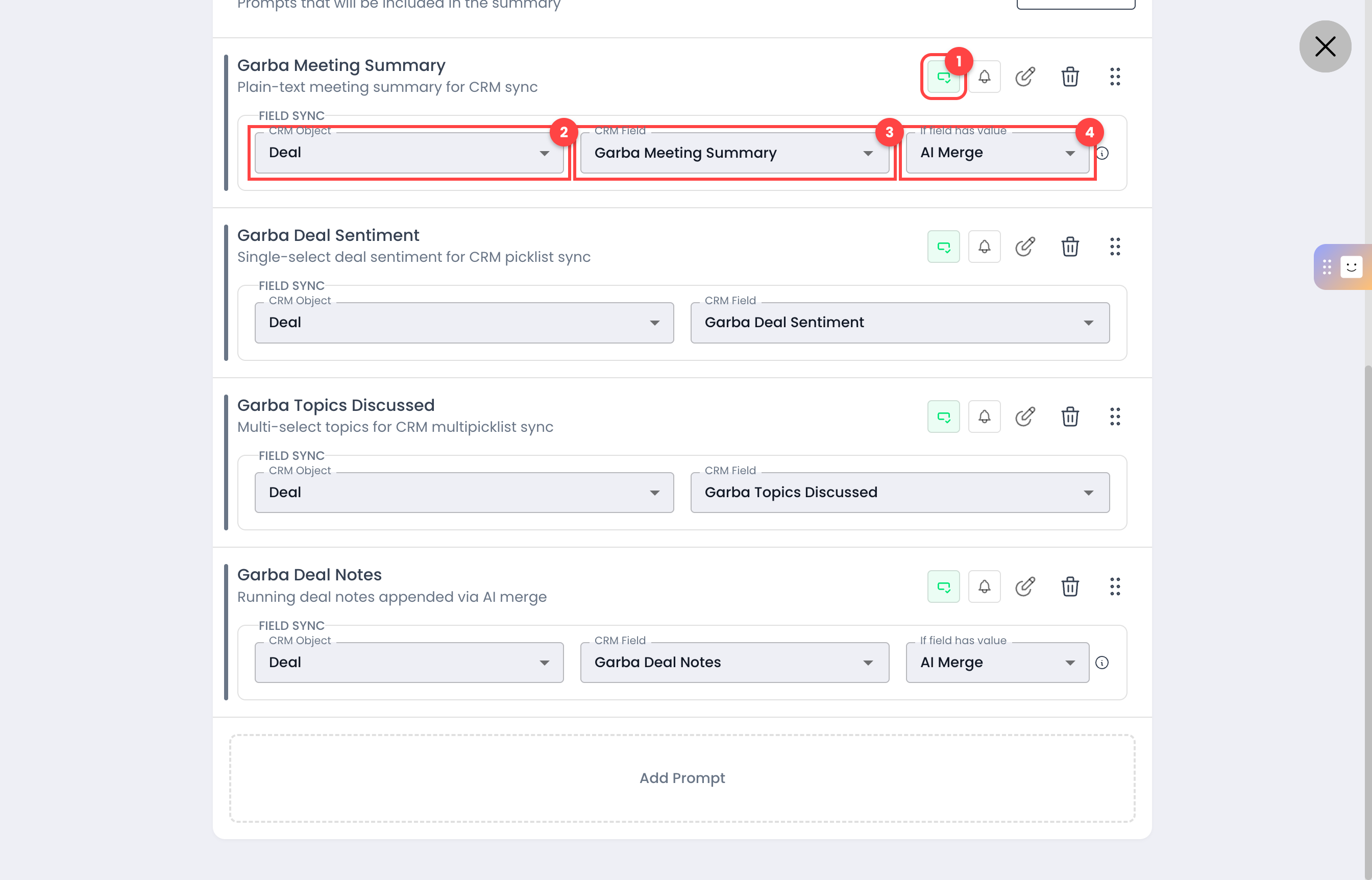
Field sync toggle — enables field sync for this section and reveals the panel below.
CRM Object — the Salesforce object to write to (for example, the Deal / Opportunity).
CRM Field — the specific Salesforce field this section's output is written to.
If field has value — how to handle a field that already contains a value (text fields only).
Open the CRM Field list and pick your target field. Each option shows the field's detected type, so you can confirm it matches the kind of content the section produces.
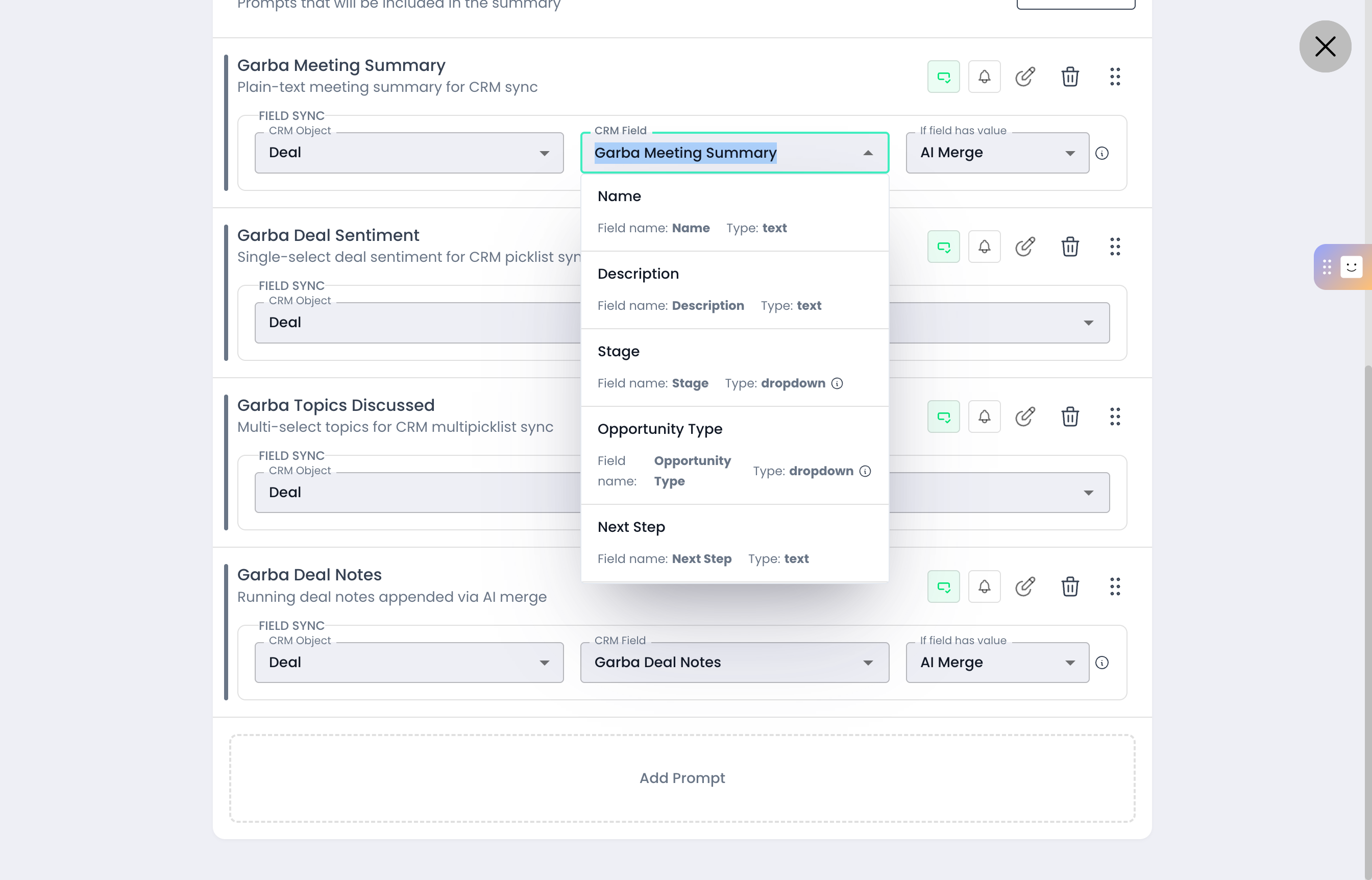
Fields tagged text accept the section's written summary.
Fields tagged dropdown or multiSelect are filled by mapping the output to your predefined options.
Only updateable fields of a supported type appear in the list.
For text fields you can control what happens when the Salesforce field already contains a value. Pick the behaviour from the “If field has value” menu.
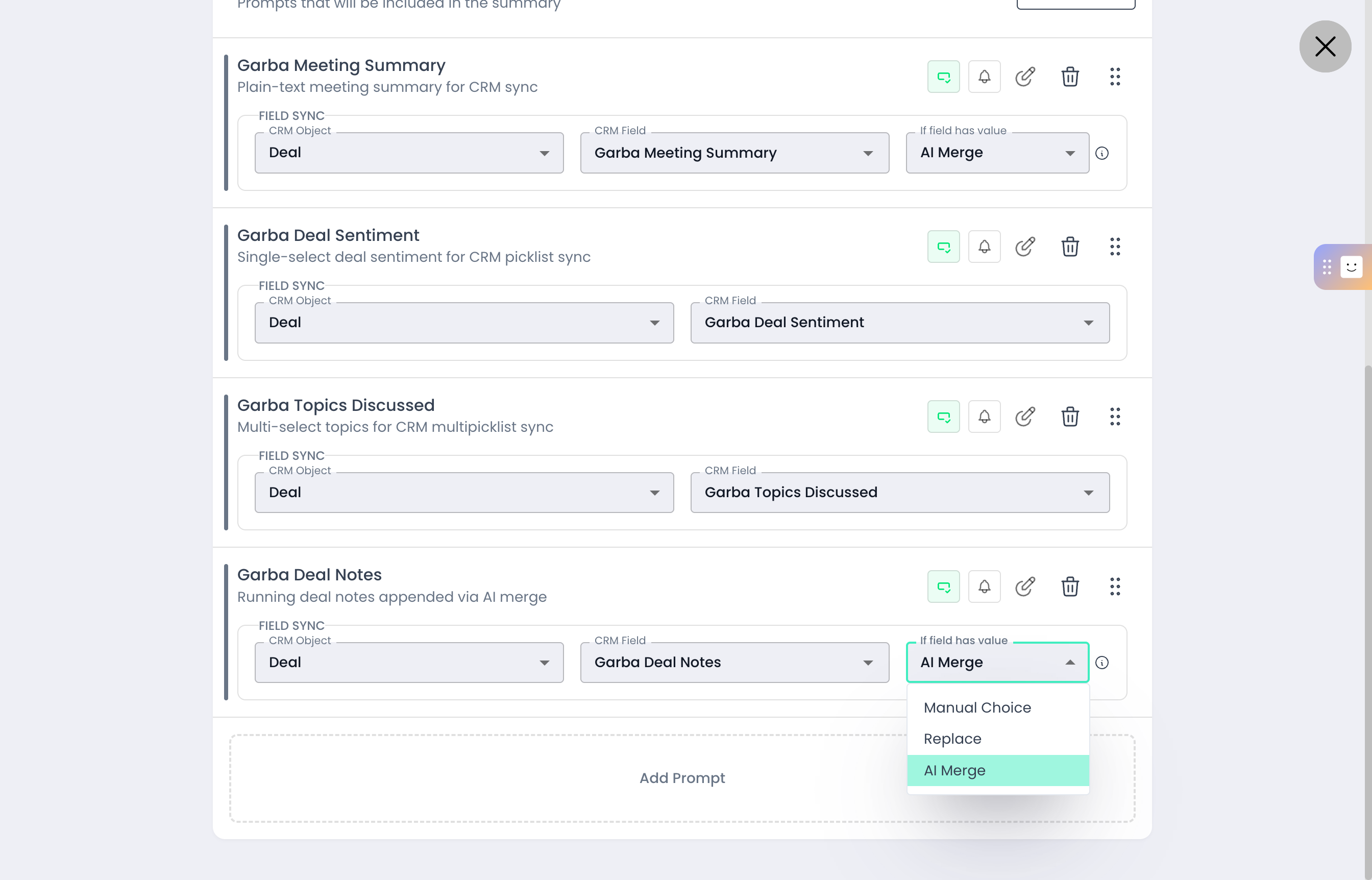
Manual Choice — keeps the existing value and leaves the update for a person to confirm.
Replace — overwrites the existing value with the latest meeting's output.
AI Merge — blends the new meeting's output with the existing value into one coherent, up-to-date note (ideal for running deal notes).
Dropdown fields overwrite with the newly mapped option, and multi-select fields merge new options with whatever is already selected.
After a meeting syncs, open the matched deal in Salesforce and look at the record's Details. Each mapped field is populated directly on the Opportunity — sentiment as a picklist, topics as a multi-select, and your summary or notes as text. The full meeting summary is still logged as an activity, but field sync is what puts the structured, reportable values onto the deal itself.
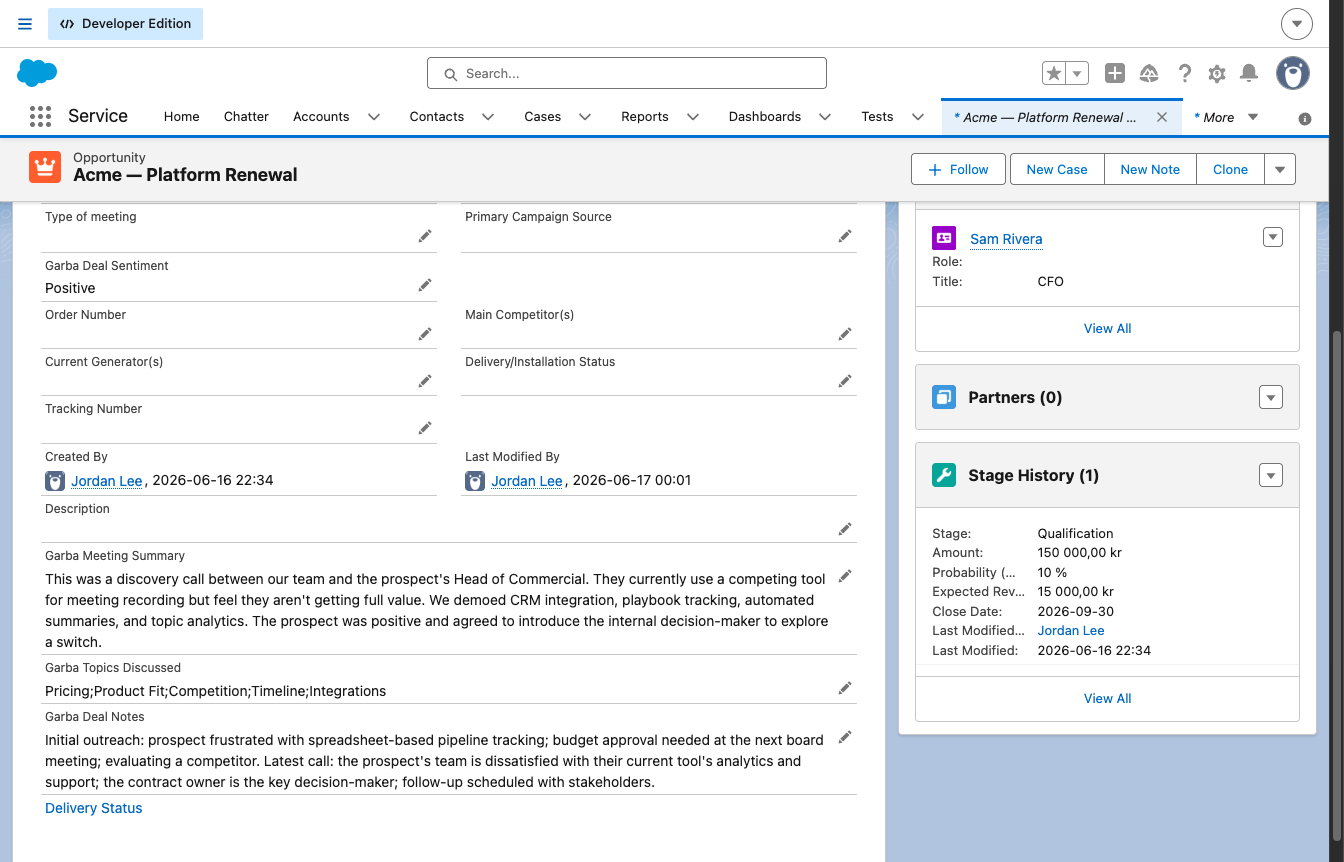
Dropdown / picklist fields show the single value Garba selected (for example a sentiment of “Positive”).
Multi-select fields list every value Garba matched, separated by semicolons (for example the topics discussed).
Text fields contain the generated text — either replacing the previous value or merged into it, depending on the handling you chose.
Once a meeting is processed, open the matched opportunity in Salesforce. The synced values land directly on the record’s fields, ready to read or report on — no copying from the meeting notes required.
Tip: Save the template after configuring your sections. Changes apply to meetings processed after the template is saved.
