Garba can automatically send your meeting summaries and tasks into Planhat, so your customer records stay up to date without any copy-pasting. After a meeting, the summary lands on the right company in Planhat and your follow-up tasks appear there too — already linked to the customer.
This guide walks you through the one-time setup and explains exactly what gets synced. There are four things to do, and they only need to be done once:
Create an access token in Planhat
Find your Tenant slug in Planhat
Connect Garba to Planhat
Choose which teams sync to Planhat
You'll need to be an admin in both Planhat and Garba to complete the setup.
A token is like a secure password that lets Garba talk to your Planhat account on your behalf. You create it inside Planhat.
In Planhat, open the workspace menu (top-left) and go to App Center, then select Private apps and click + New app.
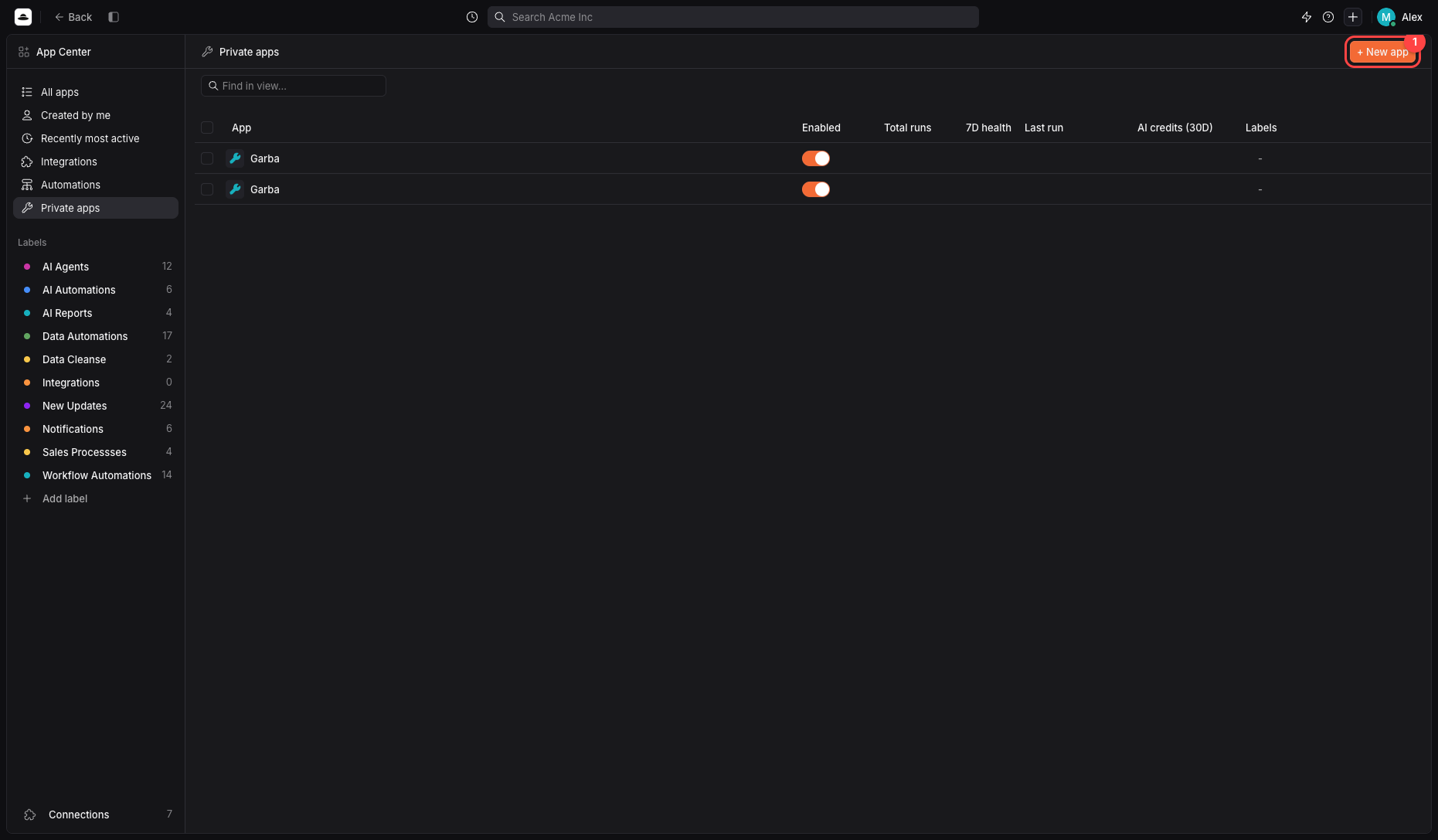
Give the app a name like Garba so it's easy to recognise later, then click Create.
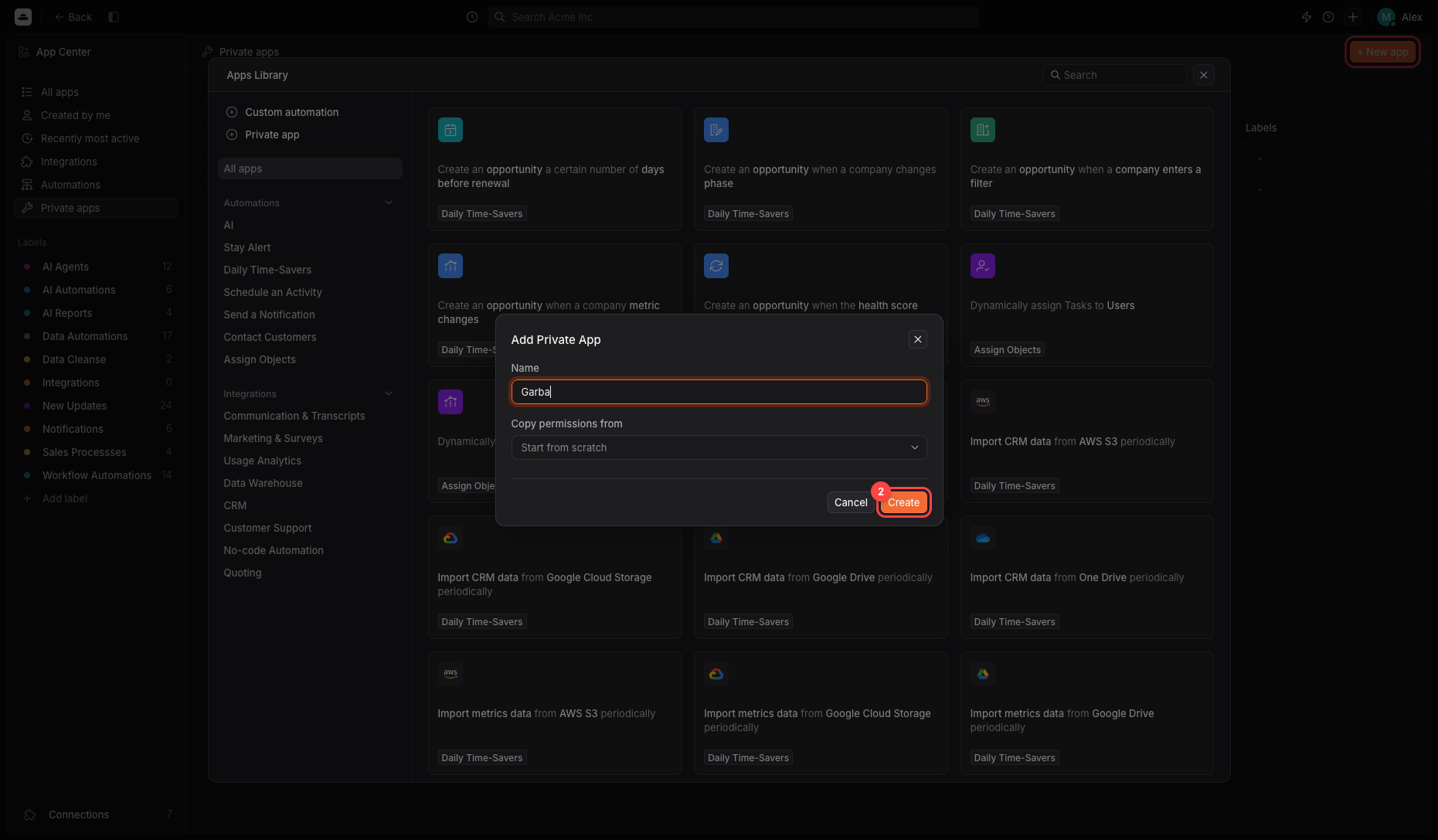
Open the Permissions tab and give the app access to the data Garba needs. The simplest option is to give these five objects Full Access. If you prefer to grant the minimum, set exactly these:
Company — View
End User (contacts) — View
User — View
Conversation — View, Create, Update
Task — View, Create, Update, Remove
If you skip End User access, meetings still sync to the right company — participants just won't be linked as contacts.
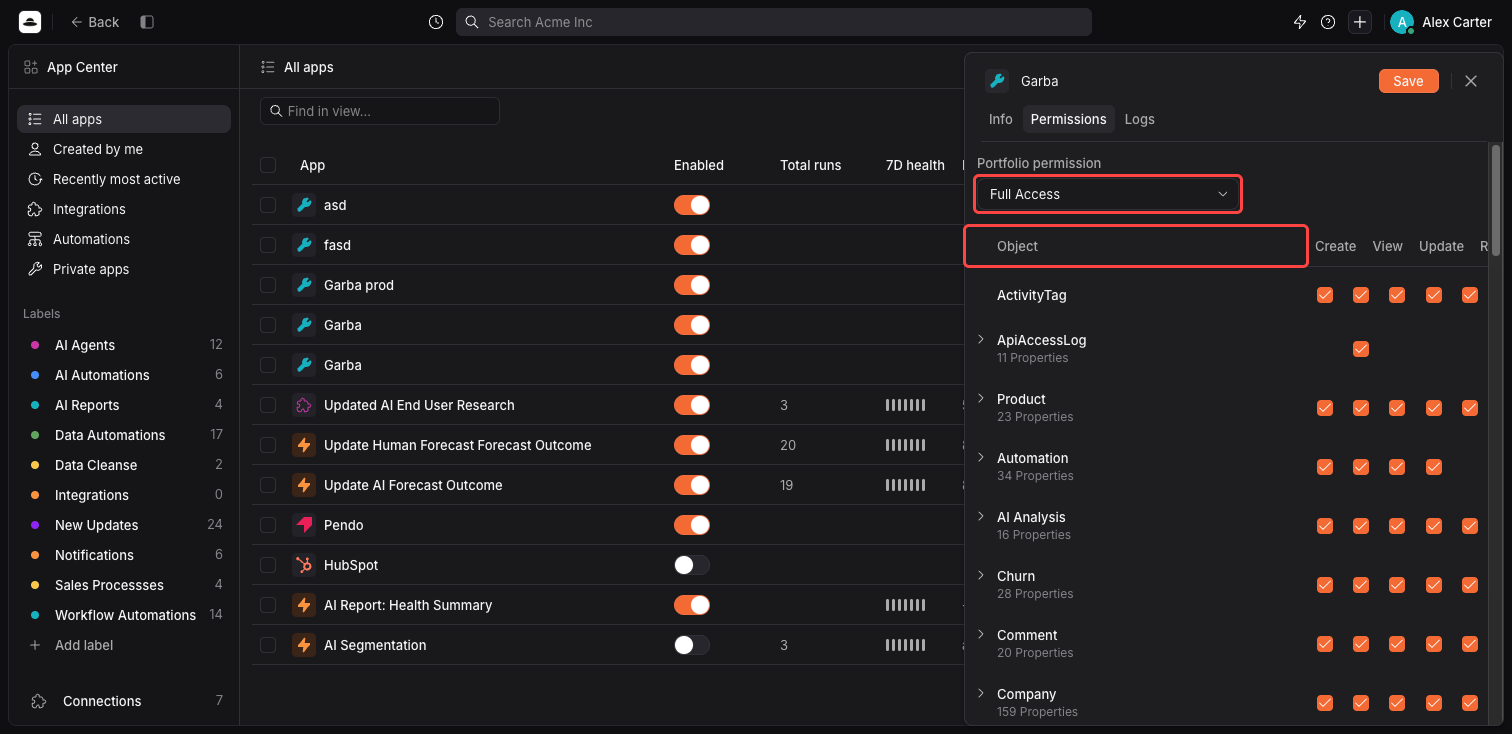
Back on the app's Info tab, click Generate new token. Planhat shows the token only once, right after you create it — copy it immediately and keep it somewhere safe. You'll paste it into Garba in the next step. If you ever lose it, just generate a new one.
Your Tenant slug is a short name for your Planhat workspace (for example acme). Garba uses it to build the links that take you straight from a synced meeting or task in Garba to the right place in Planhat, so it's worth grabbing while you're still in Planhat.
In Planhat, go to Settings → Account Setup. Under Basic, find the Tenant slug field and copy the value — you'll paste it into Garba in the next step.
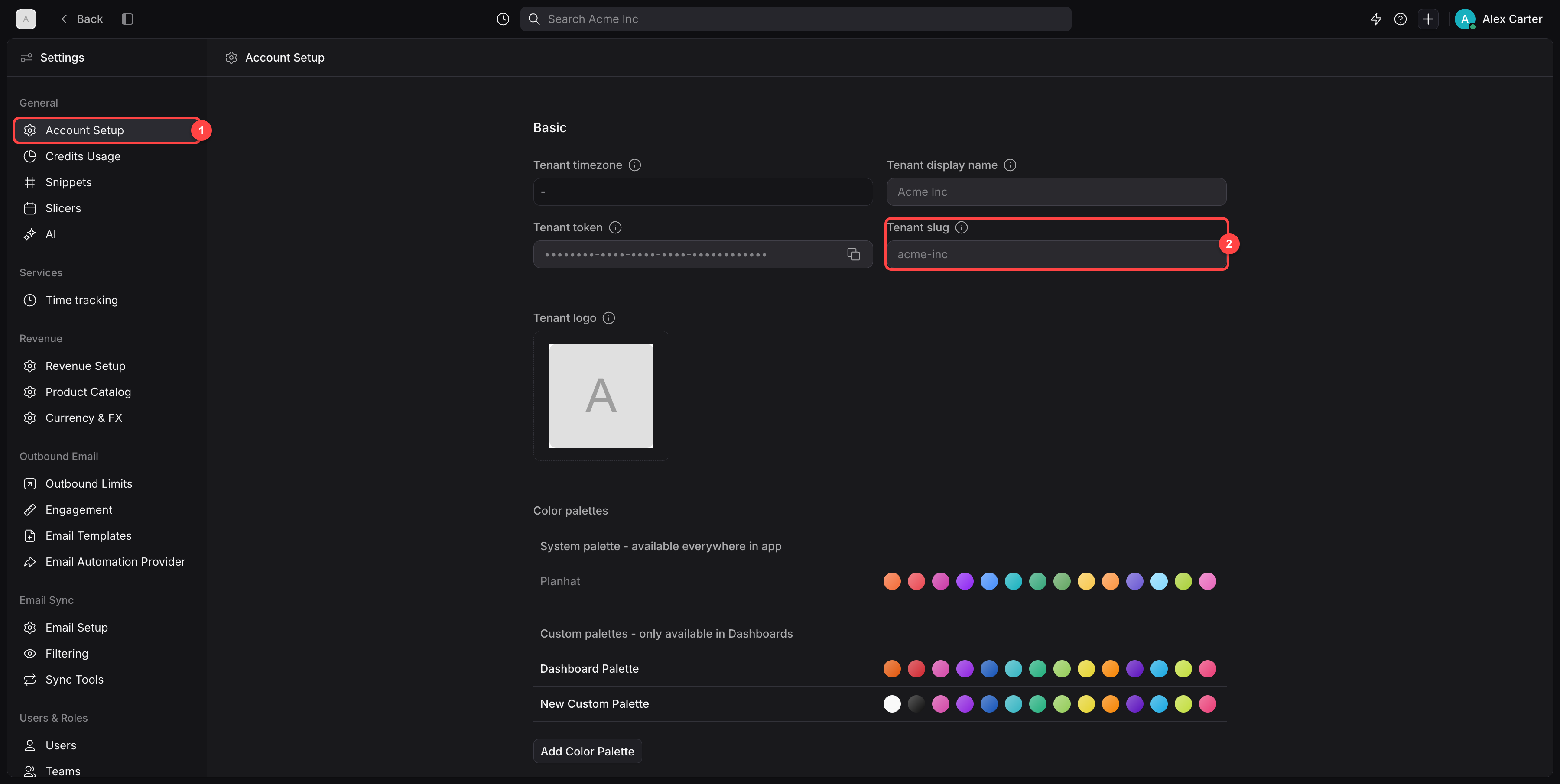
Account Setup — the page under Settings where your workspace details live.
Tenant slug — copy this value (in this example, acme-inc).
Now you'll hand that token to Garba.
In Garba, go to Setup → Integrations.
Find the Planhat integration and click Connect.
Paste the access token you copied from Planhat into the API Access Token field.
Paste your Tenant slug (from Step 2) into the Tenant slug field.
Click Connect.
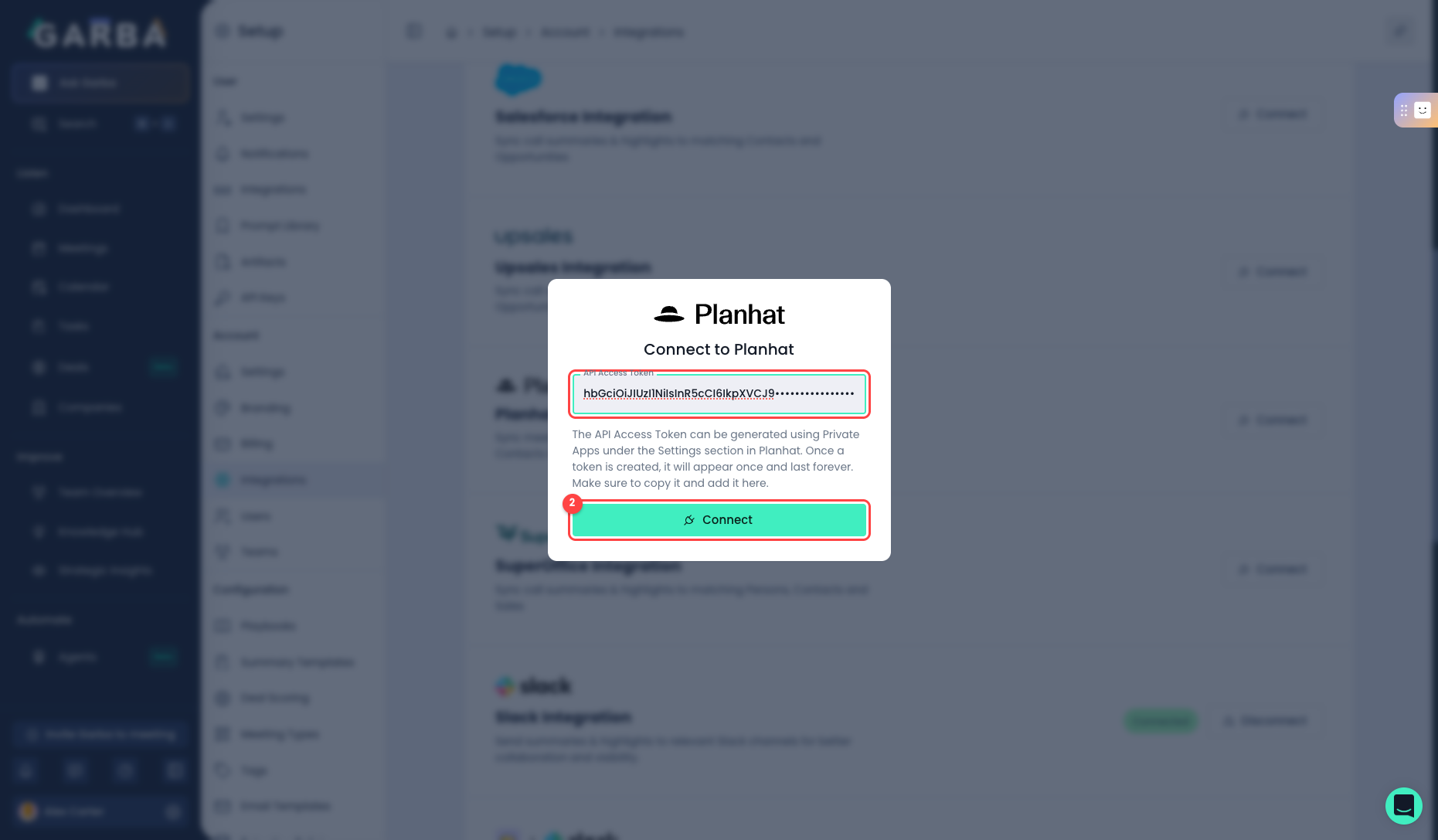
Garba checks the token straight away. If it's valid, the Planhat integration switches to Connected. If it fails, double-check that you copied the whole token and that it has the permissions from Step 1, then try again.
Garba syncs per team, so the last part of setup is choosing which teams send their meetings to Planhat. This is what lets Sales keep using one CRM while Customer Success uses Planhat.
Go to Setup → Teams, edit the team that should use Planhat (for example, your Customer Success team), set its CRM Type to Planhat, and save.
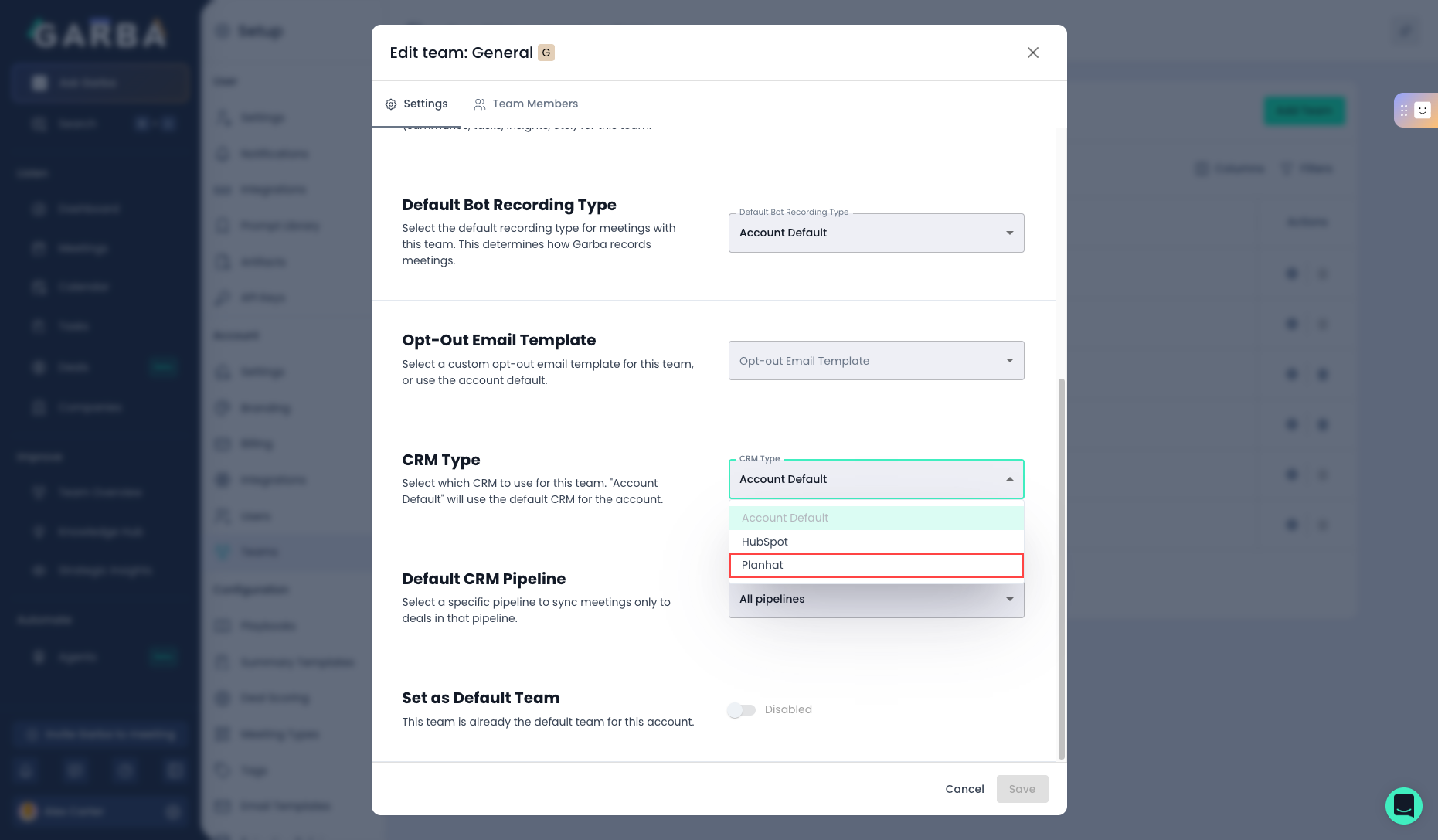
From then on, meetings owned by people in that team sync to Planhat automatically. Teams set to a different CRM (like HubSpot or Pipedrive) keep syncing there — they're completely independent. A team syncs to one CRM at a time.
Once a team is set to Planhat, here's what happens after each of their meetings — automatically, with no manual steps.
If the meeting is already in a calendar that's connected to Planhat (the most common case), Garba writes the full summary straight onto that meeting in Planhat — with a link back to the meeting in Garba — and marks it as held, so it stays visible on the company's timeline. If the meeting isn't in Planhat's calendar, Garba instead creates it as a Conversation on the company. Either way, Garba finds the right company by matching the email addresses of the external attendees to contacts in Planhat.
Each task from the meeting in Garba is created as a task in Planhat on the same company, with its due date and an owner matched to the right Planhat user by email.
Mark a task done in Garba and the matching task is marked done in Planhat too; reopen it and it reopens. You only manage it in one place.
For a meeting to sync it must be recorded and processed, include at least one external participant, and not be marked private. The participant's email needs to match a contact in Planhat so Garba can find the right company.
Garba matches existing Planhat contacts by email. If a participant isn't in Planhat, the summary still lands on the company (as long as another participant matches), but a brand-new contact won't be created for them.
Because the CRM choice is per team, you can run Sales on one CRM and Customer Success on Planhat side by side.
Lost the token? Just create a new one in Planhat (Step 1) and reconnect in Garba (Step 3).
