Connecting your email gives Garba richer context to work with across the platform.
Smarter pre-meeting briefs — Garba uses your email conversations to surface more relevant context before meetings. Note: private emails are not included in pre-meeting briefs.
Enhanced company insights — Company pages are enriched with information from your email interactions.
Better AskGarba responses — AskGarba incorporates email context to deliver more accurate and grounded answers.
Send emails directly from Garba — Compose and send emails without leaving the platform.
By default, Garba only syncs emails related to companies your team has already had meetings with. You can optionally enable automatic company creation, which allows Garba to create new company records based on email conversations with new contacts.
When you connect your email, Garba syncs up to 6 months of email history and a maximum of 10,000 emails from your account. After that, new emails are synced automatically on an ongoing basis.
Syncing is fully automatic — you cannot select individual emails to include or exclude. What gets synced is controlled by three types of filtering rules configured in Account settings:
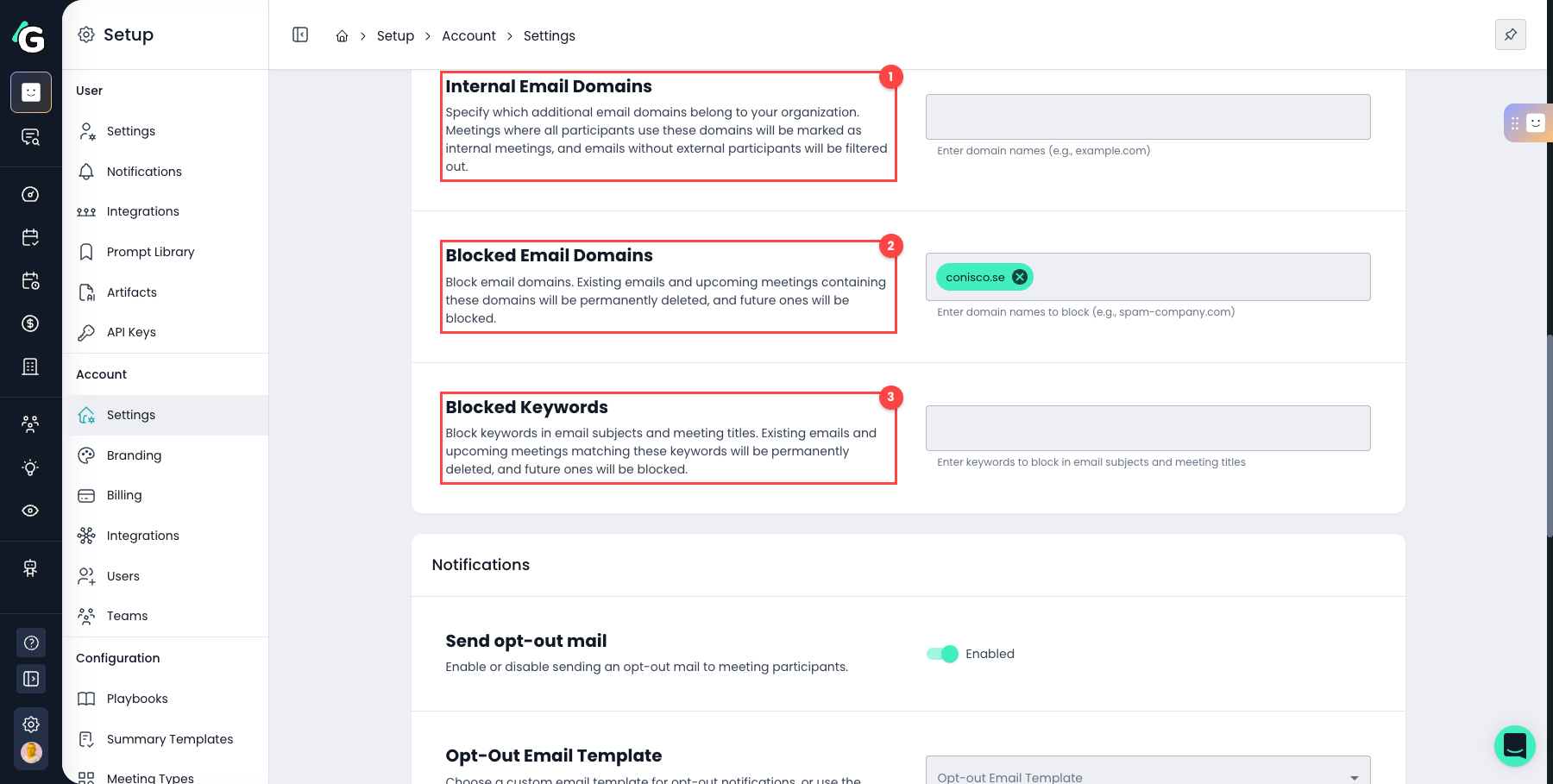
Specify which domains belong to your organisation. Emails where all participants are on these domains are treated as internal and filtered out automatically.
Block specific domains entirely. Any existing emails and meetings containing these domains are permanently deleted, and future ones are blocked. This applies retroactively — if you add a blocked domain after emails have already been synced, those emails will be deleted.
Block specific words or phrases in email subjects and meeting titles. As with blocked domains, existing matches are permanently deleted and future ones are blocked.
These filters are powerful and cannot be undone. Configure them carefully in Account settings before enabling the integration or connecting your email.
Once synced, individual emails cannot be removed from Garba. The only way to remove emails in bulk is by using blocked domains or blocked keywords — but be aware this will permanently delete all matching content.
For most users (User role), the default privacy setting is public — meaning synced emails are visible to teammates based on your team's access policy. This is by design: it's what enables pre-meeting briefs, company insights, and shared context across your team.
Admins and Managers default to private. This means their meetings and emails are only visible to themselves and direct participants from day one.
Not sure what your setting is? Check User Settings → Default Meeting and Email Privacy before connecting.
Changing your privacy setting only affects new meetings and emails from that point on. Emails and meetings that have already been synced are not affected — they keep whatever privacy status they had when they were synced.
When you change your privacy setting, a calendar resync is triggered automatically. This re-evaluates privacy for future already-scheduled meetings, but does not change existing meetings or emails.
Privacy is also a one-way ratchet: once a meeting or email is marked as private, it stays private even if you later switch your setting back to public.
How privacy is determined (highest to lowest priority):
Calendar event marked as private → always private, regardless of settings
Already private meeting → stays private (ratchet rule)
Internal meeting + account-level Internal Meetings Default Privacy set to Private → private
User's Default Meeting and Email Privacy setting → applied as the final fallback
Admins have full access to all public emails across all teams. However, no one — including admins — can see emails marked as private. Private emails are only visible to you and the other participants on the email (from, to, cc, bcc). Private emails are also excluded from analytics, CRM syncs, and reports. AskGarba only surfaces private emails to the owner and participants.
Once emails are synced, they stay in Garba. There is no way to remove individual emails. The only way to control what's synced is through your account's blocked domains and blocked keywords — and be aware that changes there permanently delete all matching content.
Disconnecting stops future syncing and removes Garba's access to your email account. However, emails that have already been synced remain in Garba and are still visible to your team according to your access policy.
Email visibility is determined by three things:
Public — visible to teammates based on your team's access policy, and included in pre-meeting briefs and AskGarba
Private — visible only to you and the email participants, regardless of role or team. Not included in pre-meeting briefs or analytics. AskGarba will only surface private emails to you and the email participants — never to other users.
Own only — teammates can only see their own emails
Own team only — teammates can see emails within your team
Own and specified teams — teammates can see emails across selected teams
All teams — teammates can see emails across the entire organisation
Admins — see all public emails across all teams, but never private emails
Managers — can see emails from users within their own team
Users — see emails based on their team's access policy
An admin must first enable email syncing for your workspace:
Go to Account integrations and enable the email integration.
Microsoft 365 users: If your organisation uses Microsoft 365, your Entra ID admin may need to approve Garba’s access to email permissions before users can connect. The enable wizard includes an option to request or copy the admin consent link. See Microsoft 365: Admin approval for email permissions below for details.
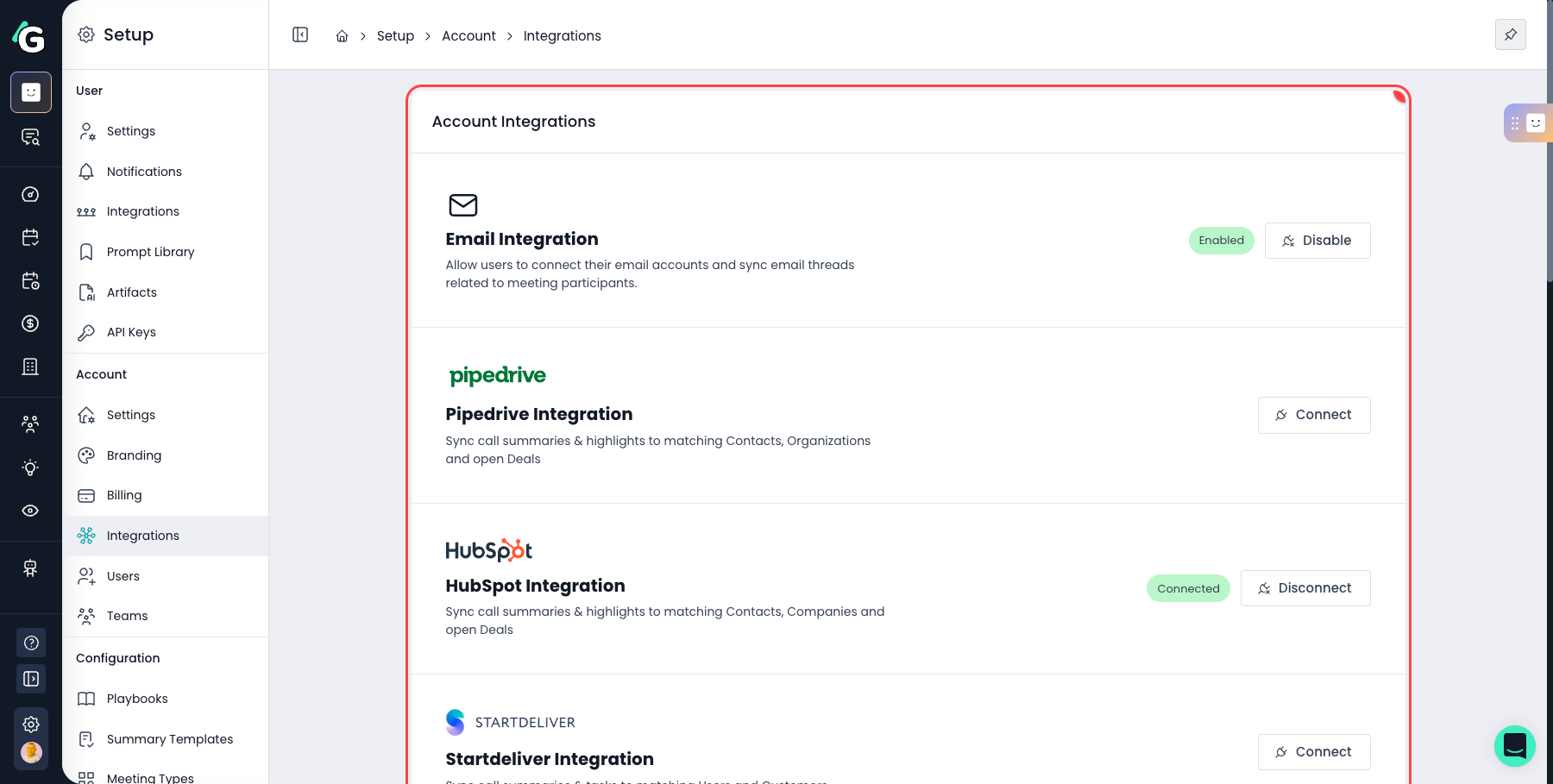
This is the most important step to get right. Three settings in Account settings control what gets synced — and changes to blocked domains and keywords permanently delete existing content with no way to recover it.
Internal email domains — Add all domains that belong to your organisation so internal emails are correctly filtered out
Blocked email domains — Add any domains you never want synced (e.g. specific partners, vendors, or domains with sensitive content)
Blocked keywords — Add any subject line keywords that should trigger automatic filtering
Get these right before anyone connects. Retroactive changes will permanently delete all matching emails and meetings.
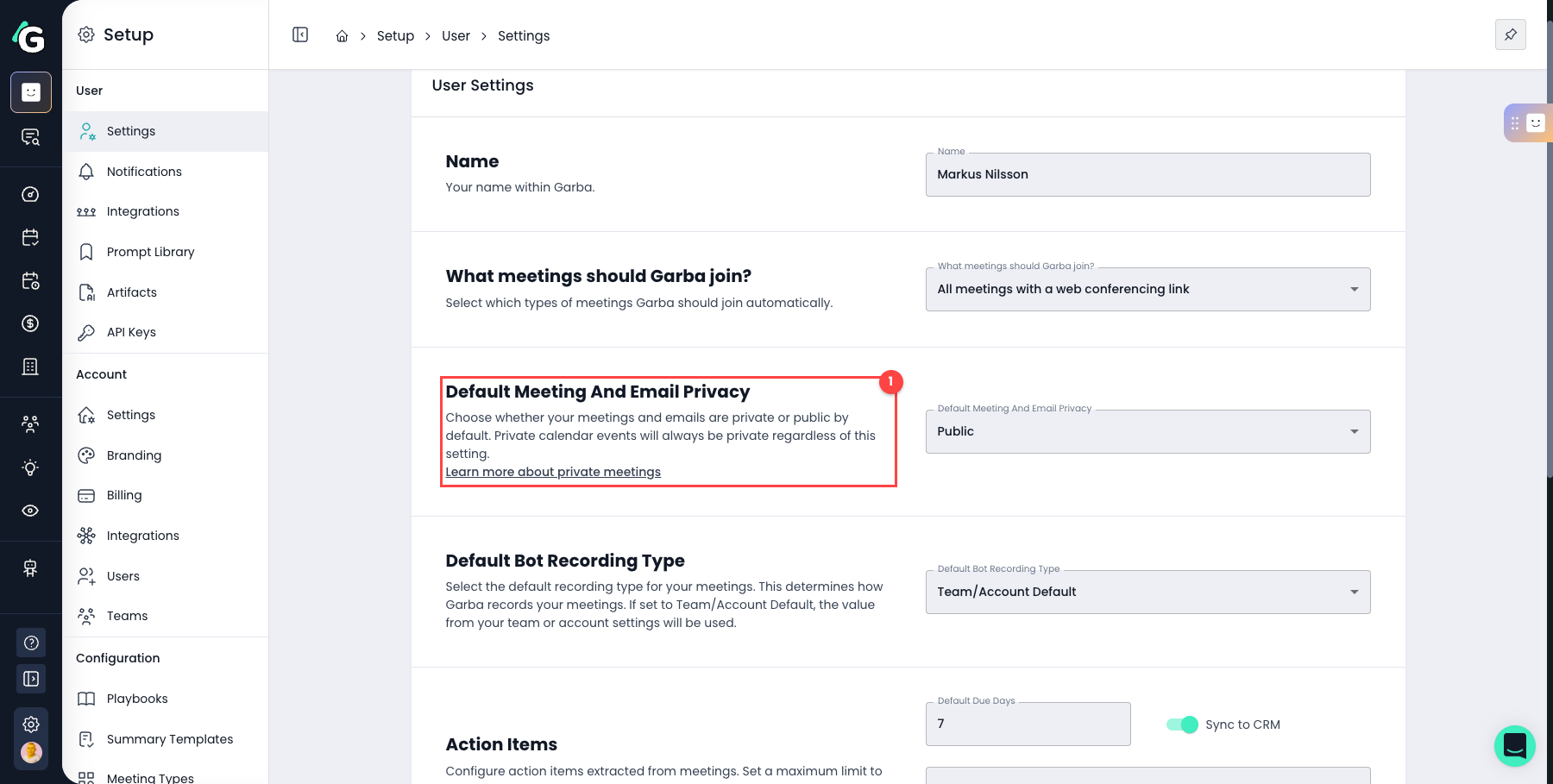
The Default Meeting and Email Privacy setting controls visibility for both your meetings and your emails with a single toggle. Check your setting before connecting — it determines what becomes visible to your team the moment syncing starts.
Users default to Public — emails are visible to teammates based on your team's access policy
Admins and Managers default to Private — emails are only visible to you and direct participants
To review or change your setting:
Go to User Settings → Default Meeting and Email Privacy and set to Public or Private as appropriate.
Remember: changing your setting only applies going forward. Already-synced emails keep their existing privacy status and cannot be changed retroactively.
Admins can also configure an account-level setting (Internal Meetings Default Privacy) that controls whether all internal meetings — where every attendee is from your organisation — default to private regardless of individual user settings.
Once filters are configured, each user connects their own account individually:
Go to User integrations and connect your Google or Outlook account.
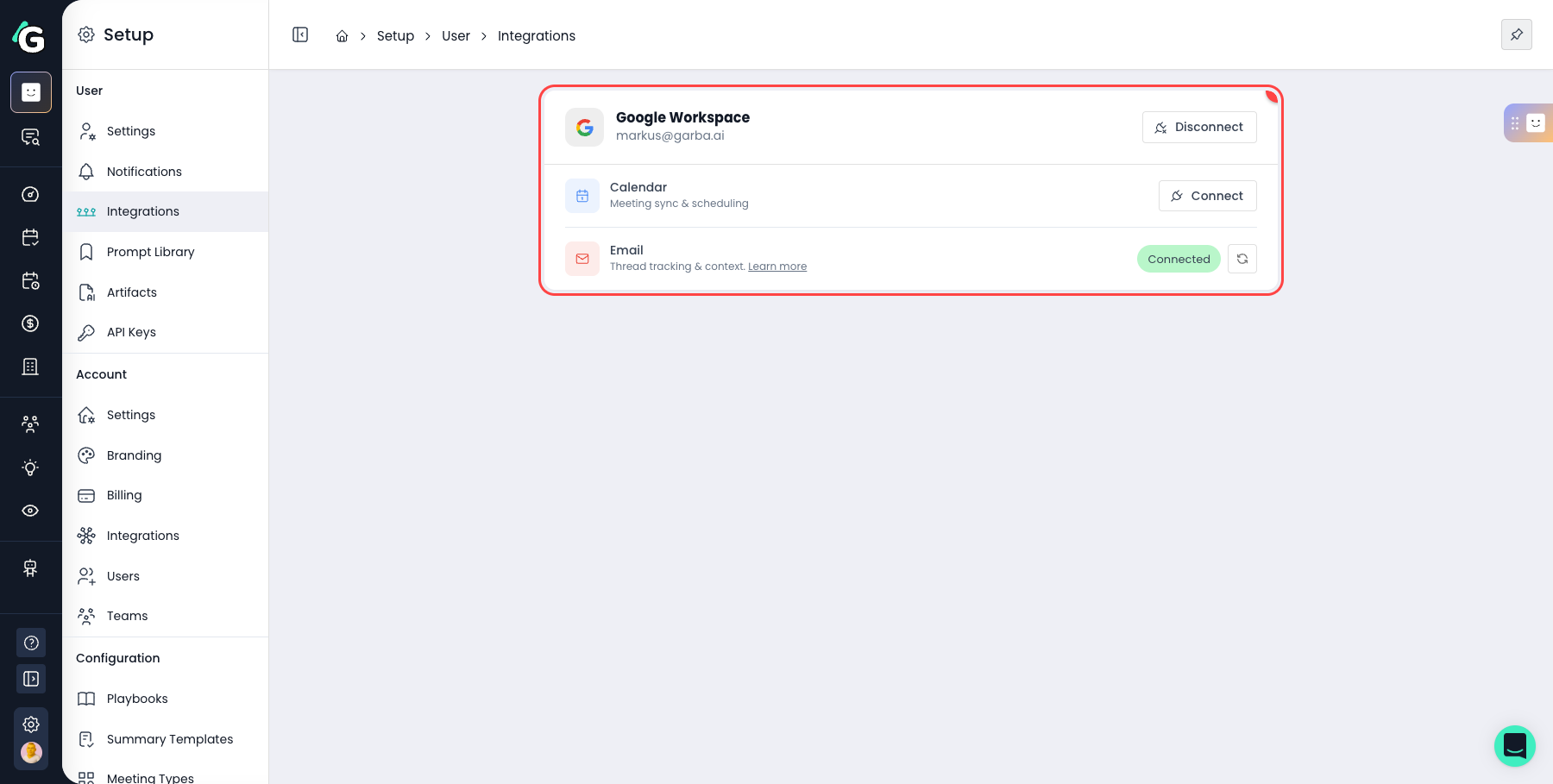
Each user connects their own account. Admins cannot connect email accounts on behalf of other users, and cannot access another user's email account.
You can disconnect at any time from User integrations. When you disconnect:
Garba stops syncing new emails
Your calendar integration is also removed
All authentication tokens are deleted — Garba no longer has access to your email account
Previously synced emails remain in Garba and are still visible to your team based on your access policy
You can configure data retention policies under Data retention policies in Account settings.
If your organisation uses Microsoft 365 (Outlook), your IT department may have restricted which apps can access email. This means users might see an "Admin approval required" error when trying to connect their email to Garba.
This is controlled by your organisation’s Microsoft Entra ID (formerly Azure Active Directory) settings — not by Garba. The person who manages these settings is your Microsoft 365 admin (also called the Entra admin). This is a separate role from the Garba account admin.
When a user connects their email, Garba requests two Microsoft Graph permissions:
Mail.Read — allows Garba to read the user’s email to sync threads with external companies
Mail.Send — allows the user to send emails directly from Garba using their own email address
These are delegated permissions — they only grant access on behalf of the individual user who consents, not the entire organisation. Each user connects their own account separately.
It depends on how your Microsoft 365 tenant is configured. There are three common scenarios:
User consent is allowed — Users can approve the permissions themselves during the connection flow. No admin action needed.
User consent is restricted — Users see an "Admin approval required" error. A Microsoft 365 admin must grant consent before users can connect.
Admin has already granted consent — If your admin has pre-approved Garba’s permissions, users can connect seamlessly without any extra steps.
If users are blocked by an admin consent requirement, the Microsoft 365 admin can approve Garba’s permissions using one of these methods:
Garba provides a direct admin consent link in the Enable Email Integration wizard (visible to the Garba admin when enabling email integration).
If the Garba admin is also the Microsoft 365 admin, they can click "I am the Microsoft 365 admin" to approve directly. If not, they can click "Copy link for Microsoft 365 admin" and share the link with the right person. The Microsoft 365 admin does not need a Garba account to use this link.
Once the Microsoft 365 admin opens the link and approves the permissions, all users in the tenant can connect their email to Garba.
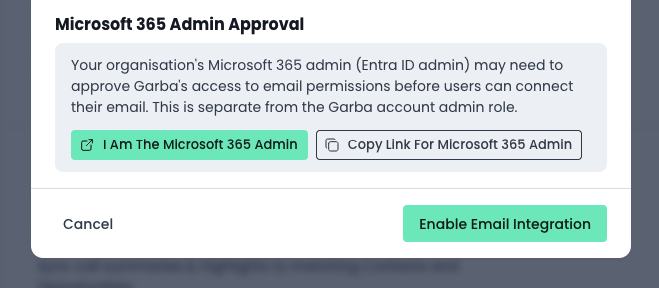
The Microsoft 365 admin can also grant consent directly from the Entra admin center:
Go to the Microsoft Entra admin center
Navigate to Enterprise applications and find the Garba application
Go to Permissions (under Security)
If Mail.Read and Mail.Send are not listed, click Add a permission → Microsoft Graph → Delegated permissions → add Mail.Read and Mail.Send
Click "Grant admin consent for [your tenant name]"
Instead of granting consent for specific apps, the Microsoft 365 admin can allow users to consent to apps themselves:
In the Microsoft Entra admin center, go to Enterprise applications → Consent and permissions → User consent settings
Set to "Allow user consent for apps from verified publishers" or "Allow user consent for all apps"
With this setting, users will see the standard Microsoft consent prompt when connecting and can approve it themselves.
Here are the most common issues and how to resolve them:
"Admin approval required" error — Your organisation restricts which apps can access email. Share the admin consent link (shown in the error dialog) with your Microsoft 365 admin.
"You declined the permissions" error — You clicked Cancel or No on the Microsoft consent prompt. Try connecting again and make sure to click Accept.
Admin consent was granted but users still can’t connect — Check if "Assignment required" is enabled on the Garba enterprise app in Entra. If so, users need to be individually assigned to the app under Users and groups.
"User not assigned to app" error — Your Microsoft 365 admin has restricted who can use the Garba app. Ask them to assign you under Enterprise applications → Garba → Users and groups.
Connection worked before but stopped — Your refresh token may have expired, or an admin may have revoked consent. Try disconnecting and reconnecting your email in User integrations.
If you continue to experience issues, contact your Microsoft 365 admin with the specific error message shown in Garba.
