Garba lets you share meeting summaries and transcript snippets directly to Microsoft Teams channels as Adaptive Cards. This makes it easy to keep your team informed without leaving Teams.
Before you can share to Teams, the Microsoft Teams integration must be connected and the Garba bot must be installed in at least one team. Contact your Garba admin if you are unsure whether this is set up.
You can share a full meeting summary from any meeting detail page.
Open Garba at app.garba.ai and navigate to a meeting
On the meeting detail page, click the Share button in the header area
In the share menu, look for the Teams icon or the Share to Teams option
A dropdown will appear showing the Teams channels available to you
Search or scroll to find the channel you want to share to
Click the channel name to share the summary
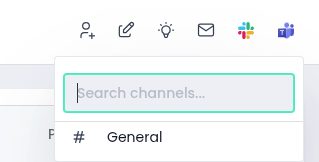
The channels shown in the dropdown are filtered to only include channels from teams you are a member of. If a channel is not listed, confirm that the Garba bot has been installed in that team and that you are a member of the team.
When you share a meeting summary to a Teams channel, Garba posts an Adaptive Card containing:
The meeting title
Participant names and email addresses
The full meeting summary formatted with sections and headings
A View Meeting Details button that links back to the full meeting in Garba
You can share specific parts of a meeting transcript rather than the full summary. This is useful when you want to highlight a particular moment or quote from a meeting.
Open a meeting in Garba and navigate to the Transcript tab
Click on one or more transcript paragraphs to select them
In the selection toolbar that appears, click the Teams icon
A channel dropdown will appear — select the channel to share to
The selected transcript paragraphs will be posted as an Adaptive Card in that channel
Only standard channels appear in the Teams channel dropdown. Private and shared channels are not shown, as the bot is not automatically added to those channel types.
Channels are filtered based on your Teams team membership. If you are not a member of a team, that team's channels will not appear for you even if the Garba bot is installed there.
The Teams share option is not visible
The Teams sharing option only appears when the Microsoft Teams integration is connected for your account. Check with your Garba admin to confirm that the integration is set up. The Teams card in Account Integrations must show as connected.
No channels appear in the dropdown
This means no Teams channels have been registered for your account yet. The Garba bot needs to be installed in at least one team for channels to be discovered. Ask your Teams admin to install the Garba bot. Once installed, channels will appear in the dropdown automatically.
The channel I want is not in the list
Confirm the Garba bot is installed in the team that contains the channel
Confirm you are a member of that team in Microsoft Teams
Private and shared channels are not supported — only standard channels appear
If the bot was recently installed, wait a minute and try refreshing the page
The Adaptive Card was posted but appears blank or incomplete
This can happen if the meeting summary is still being generated. Wait until the summary is fully available in Garba and try sharing again. If the issue persists, contact [email protected].
I shared a summary but it did not appear in the Teams channel
Check that the Garba bot is not removed or blocked from the target channel. If the bot was removed from the team after installation, it will no longer be able to post. Ask your Teams admin to reinstall the bot, then try sharing again.
