Once the Garba bot is installed in your Microsoft Teams workspace, you can chat with it directly to get AI-powered insights from your meetings. The bot understands your Garba meeting data and can answer questions, surface action items, draft follow-up emails, and more.
The Garba bot must be installed in your Microsoft Teams workspace by a Teams administrator before you can use it. Contact your Garba account admin or Teams admin if the Garba bot is not yet available.
Your Microsoft Teams email address must match the email address on your Garba account. This is how the bot identifies which meeting data to retrieve for you.
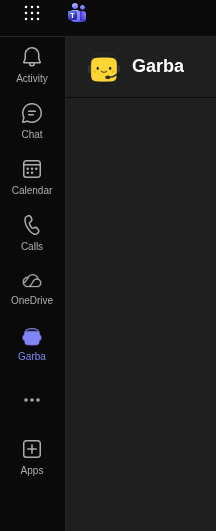
The easiest way to use the Garba AI agent is through a direct message (DM).
Open Microsoft Teams
Click New chat or search for Garba in the search bar
Select the Garba bot from the results
Type your question and press Enter
In a DM, the bot uses the recent conversation history as context for follow-up questions. For example, after asking 'Summarize my last meeting,' you can follow up with 'What were the action items?' and the bot will understand what meeting you are referring to.
The Garba bot has access to your meeting data, including transcripts, summaries, action items, and participant information. Here are some examples of what you can ask:
Summarize my last meeting
What action items came out of my recent meetings?
Write a follow-up email for my meeting with Acme Corp
What were the key decisions from yesterday's product meeting?
Who were the participants in my last call?
Show me my upcoming meetings for the week
What topics did we discuss with this customer last quarter?
Type prompts (or suggestions or my prompts) to see a card with clickable question buttons. Clicking a button sends that question directly to the bot — no typing required.
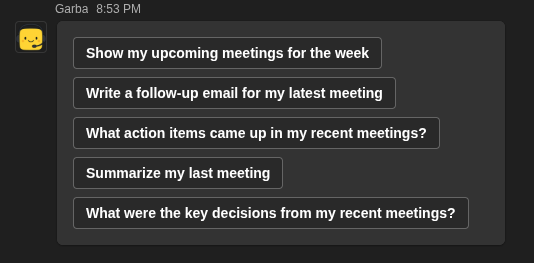
The prompts shown are based on your saved favorite prompts in Garba. If you have not set up any favorites, the bot shows these built-in default suggestions:
Show my upcoming meetings for the week
Write a follow-up email for my latest meeting
What action items came up in my recent meetings?
Summarize my last meeting
What were the key decisions from my recent meetings?
To set up your own favorite prompts, click the settings icon at the bottom of the left sidebar in Garba, click Settings under User, and navigate to the Prompts section.
Type reset (or start over, new conversation, clear, restart, new chat, or start fresh) to begin a new conversation. The bot will greet you and display the prompts card automatically.
Type help to receive a message with links to this help guide and the full Garba web app. The Garba web app at app.garba.ai offers the complete Ask Garba experience with richer search capabilities and report generation and much more.
If the Garba bot is installed in a team, you can also interact with it inside a channel by @mentioning it in a message.
Go to any standard channel in a team where Garba is installed
Start a new message or reply in an existing thread
Type @Garba followed by your question
The bot will reply in the same thread
Example: @Garba What were the key decisions from our strategy meeting last week?

Each thread is treated as its own separate conversation. The bot uses the messages in that thread as context for your question, but it does not carry context from other threads in the same channel.
The bot says it cannot find my account
This means the email address on your Microsoft Teams profile does not match the email on your Garba account. Contact your Garba account admin to verify your account is set up with the correct email, or ask them to confirm the Teams integration is connected.
The bot is not responding in a channel
Make sure you are @mentioning the bot using @Garba. In channels, the bot only processes messages where it is explicitly mentioned. Also confirm with your admin that the bot has been installed in the specific team containing that channel.
The bot says it encountered an error
Transient errors are automatically retried. If the error persists, try sending your message again. If the problem continues, contact your Garba admin or [email protected] or ask support chat within Garba.
Prompts card is not appearing after typing prompts
Make sure you type exactly prompts with no extra text. The command must match exactly (it is not case-sensitive). If the issue persists, try using the DM channel with the bot rather than a Teams channel.
The bot does not seem to know about my most recent meetings
The bot only has access to meetings that have been processed by Garba. If a meeting just ended, it may take a few minutes for the transcript and summary to be available. If a meeting is missing entirely, check that Garba was set up to record it.
