This guide explains how to connect your Microsoft 365 organization to Garba. Completing this step grants Garba the permissions it needs to send messages and summaries to your Teams channels and users.
A Microsoft 365 subscription with Microsoft Teams enabled
Microsoft 365 global admin or Teams admin role — required to grant admin consent on behalf of your organization
A Garba account with admin access — only Garba account admins can manage account integrations
Navigate to the Account Integrations page in Garba.
Log in to Garba at app.garba.ai
Click the settings icon at the bottom of the left sidebar
In the settings menu, under Account, click Integrations

In the Account Integrations page, scroll down to the Microsoft Teams section.
Click the Connect button on the Microsoft Teams card
You will be redirected to the Microsoft admin consent page
If the button shows Reconnect instead of Connect, a previous connection attempt encountered an error. Click Reconnect to restart the authorization flow.
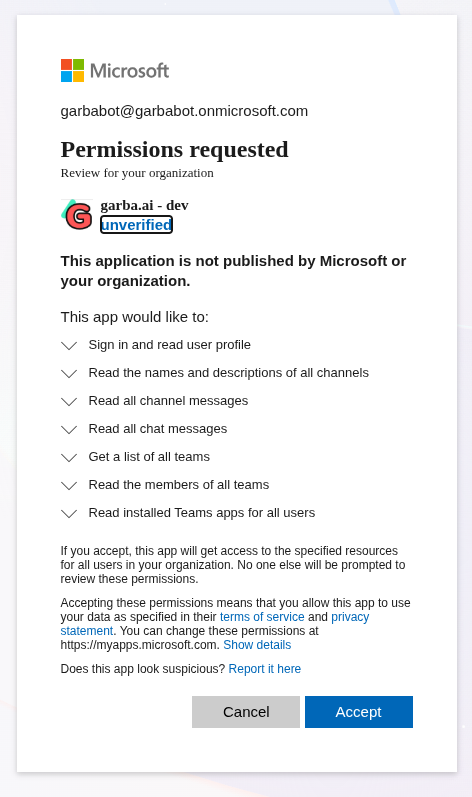
Microsoft will ask you to sign in and approve a set of permissions on behalf of your organization. These permissions allow Garba to send messages and read team membership information.
Sign in with your Microsoft 365 admin account. Review the requested permissions and click Accept to grant consent.
Important — if your organization has already approved Garba’s calendar or email access: granting the Teams admin consent resets which permissions are approved organization-wide, and previously approved calendar/email permissions are removed in the process. Existing connections keep working for now, but new users — or anyone reconnecting — will see “Need admin approval” again later.
To avoid this, re-grant the calendar/email approval right after completing the Teams connection, using the links in Microsoft 365: “Need admin approval” — grant access with one link (for IT admins). Re-granting calendar/email does not affect the Teams connection. Note that if you click Reconnect for Teams again later, you will need to re-grant calendar/email afterwards as well.
When you click Accept on the Microsoft consent dialog, you are granting Garba read-only access to specific parts of your Microsoft 365 environment. Garba never modifies channels, messages, or team settings. Below is a plain-language explanation of each permission shown in the dialog.
Sign in and read user profile — Allows Garba to authenticate you and read your basic Microsoft profile (name and email). This is the standard permission required for any Microsoft sign-in.
Read the names and descriptions of all channels — Garba reads channel names so it can populate the channel selector when you configure where meeting summaries should be posted. No channel content is accessed with this permission.
Read all channel messages — Garba reads existing channel thread messages to give its AI agent the conversation context needed to provide accurate, relevant responses. Garba only reads — it never edits or deletes messages.
Read all chat messages — Garba reads direct message (DM) conversation history so the AI agent has context when responding in private chats. As with channel messages, Garba only reads — it never sends, edits, or deletes DMs on your behalf.
Get a list of all teams — Garba fetches team names to display them alongside channel names in the share dropdown, making it easier to find the right channel. No team settings or membership data is changed.
Read the members of all teams — Garba reads team membership to filter the channel dropdown so it only shows channels belonging to teams you are a member of. This keeps the selector relevant and uncluttered.
Read installed Teams apps for all users — Garba uses this to locate the bot’s direct-message chat for each user, which is required to fetch conversation history for AI agent context. No app installation or removal is performed.
In summary: Garba holds read-only permissions. It cannot post to channels, send messages to users, modify team membership, or change any settings in your Microsoft 365 environment. You can revoke consent at any time from the Microsoft Entra admin center under Enterprise applications > Garba.
After granting consent, Microsoft redirects you back to Garba. The Microsoft Teams card will now show a green connected status.

Important: At this point, admin consent has been granted but the Garba bot is not yet installed in your Teams environment. The channel and chat counts will show as zero until you install the bot. See How to Install the Garba Bot in Microsoft Teams for the next step.
The Connect button is not visible
Only Garba account admins can manage account integrations. If you do not see the Microsoft Teams card or the Connect button, contact your Garba account administrator.
I see an error after granting consent
If you are redirected back to Garba but the status still shows disconnected or shows a reconnect error, try clicking Reconnect to start the flow again. Make sure you are signing in with a Microsoft 365 admin or Teams admin account during the consent step.
Microsoft shows Need admin approval during the consent flow
This message appears when a non-admin user tries to grant consent. The connection must be completed by a Microsoft 365 global admin or Teams admin. See Why you're seeing 'Need admin approval' when connecting for more details.
The integration shows as connected but channels show zero count
This is expected. Admin consent has been granted, but no channels are discoverable until the Garba bot is installed in at least one team. Follow the bot installation guide to complete setup.
