---
title: "Webhook Integration"
description: "Send meeting summaries to Zapier, Make, n8n, or any custom endpoint via webhooks"
url: https://help.garba.ai/en/articles/10742496-webhook-integration
collection: "Developer Documentation"
updated: 2026-10-25
language: en
---
# Webhook Integration
Send meeting summaries to Zapier, Make, n8n, or any custom endpoint via webhooks
## Overview
Garba can automatically send meeting summaries to **any system that can receive an HTTP POST request**. Use it with automation platforms like Zapier, Make.com, or n8n, or point it at your own custom endpoint to build whatever integration you need.
## When is the webhook triggered?
The webhook is triggered automatically once a meeting has been analyzed: its summary, key takeaways and any scorecards are done. It is sent once per meeting; changing the meeting type or regenerating the summary does not send it again. Garba sends an HTTP POST request with a JSON body (`Content-Type: application/json`) and the event type `meeting_summary_completed`.
**Note:** Webhooks are only sent for non-private meetings. Private meetings are excluded from webhook delivery.
## Setting up the webhook
1. Get a webhook URL from the system you want to connect (see platform tips below)
2. In Garba, go to **Settings > Integrations** and find the **Webhook** card
3. Click **Add Webhook**, paste your webhook URL and click **Connect**
4. Garba immediately sends a test payload to verify the connection — your endpoint must respond with a 2xx status code
You'll find the Webhook card near the bottom of the Account Integrations page:
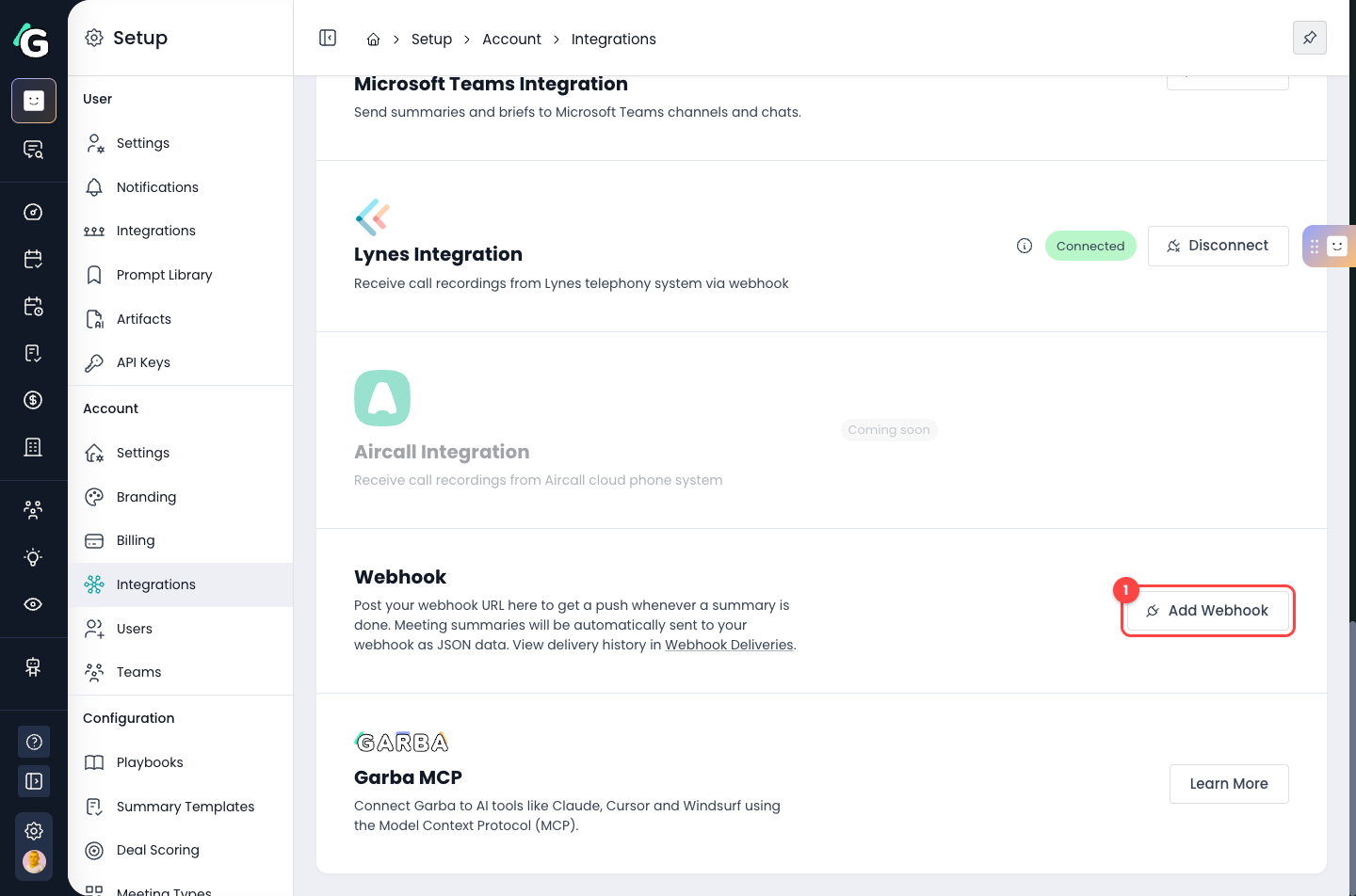
- **1** — Click **Add Webhook** to open the connection dialog
Paste your webhook URL and connect:
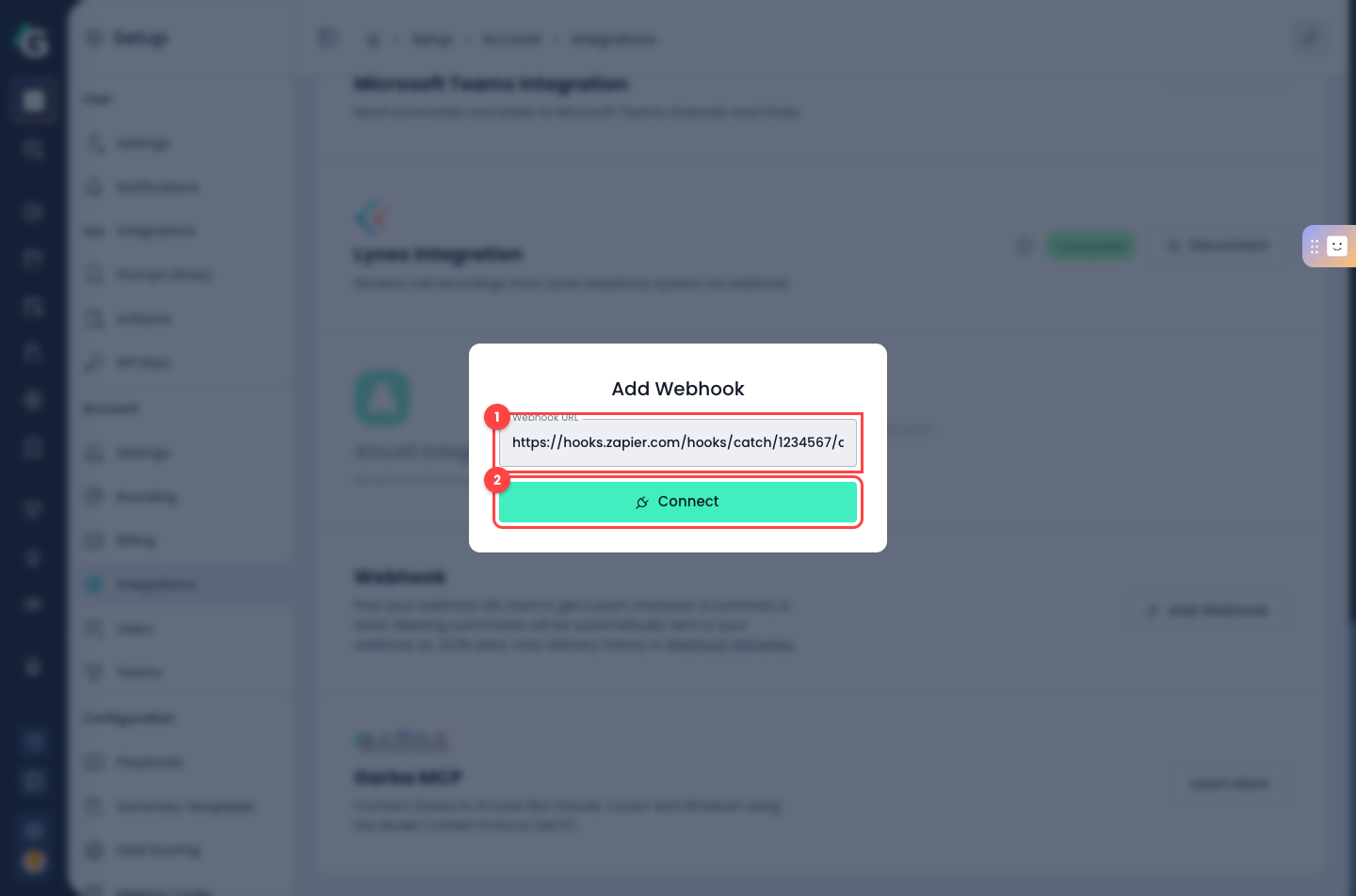
- **1** — Paste the webhook URL from the system you want to connect
- **2** — Click **Connect**. Garba sends the test payload right away and only saves the webhook if your endpoint responds successfully
Once connected, the card shows a Connected status and a **Webhook Deliveries** page appears in the Settings menu:
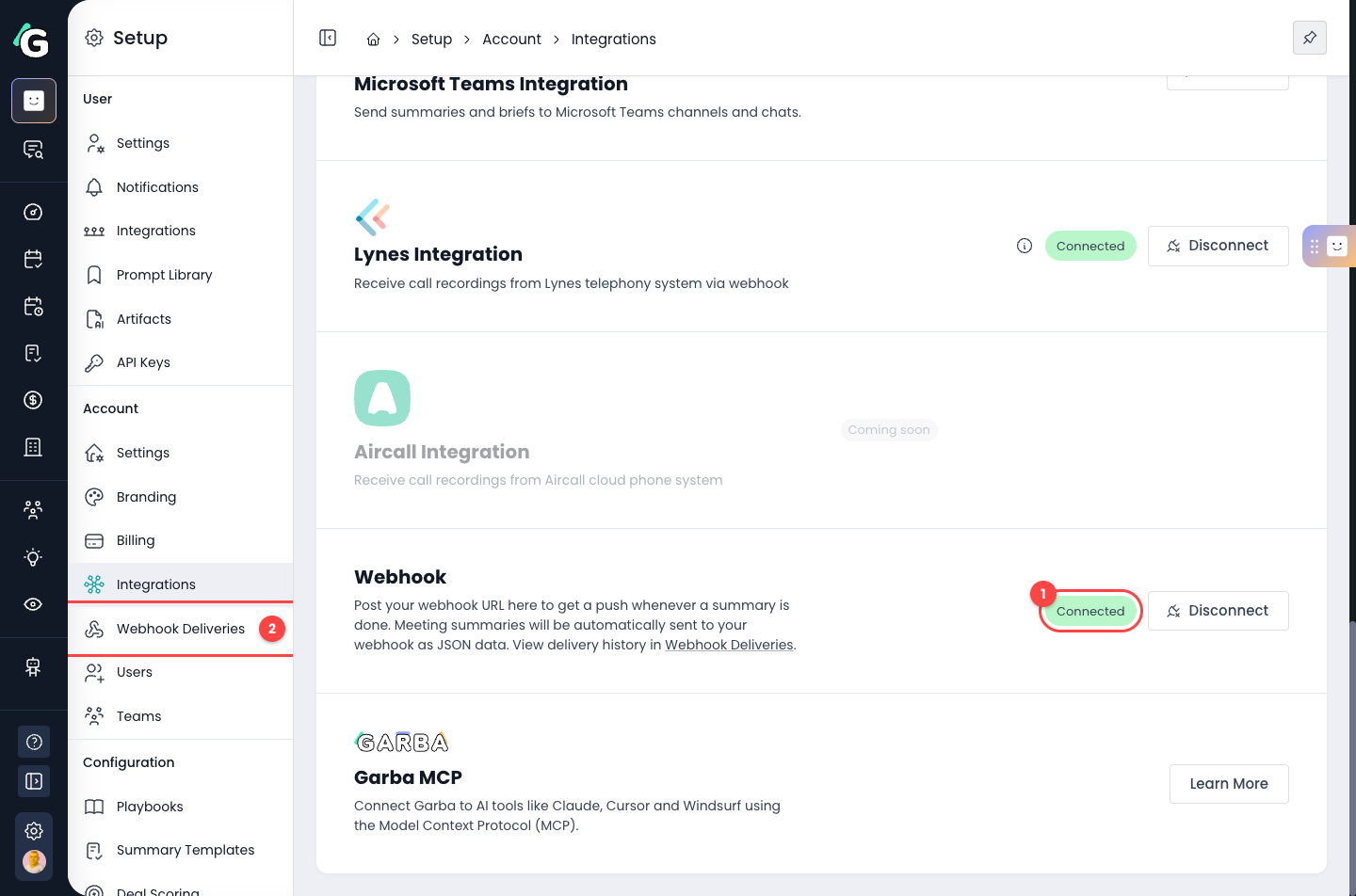
- **1** — The webhook is connected and active
- **2** — **Webhook Deliveries** lets you monitor every delivery (see below)
A few requirements and things to know:
- The URL must use **HTTPS**
- Local and internal network addresses are not allowed
- Each account has one webhook — saving a new URL replaces the existing one
- Only account admins can manage the webhook integration
## Platform tips
### Zapier
1. In Zapier, create a new Zap and choose **Webhooks by Zapier** as the trigger
2. Select **Catch Hook** as the trigger event
3. Copy the webhook URL provided by Zapier and paste it into Garba
4. Return to Zapier and test the trigger to see sample data
### Make.com
1. In Make, create a new scenario with the **Custom webhook** trigger
2. Copy the webhook address and paste it into Garba — both the full URL and the `identifier@hook.region.make.com` format shown by Make work; Garba converts the latter automatically
### n8n and custom endpoints
In n8n, use the **Webhook** trigger node and copy its production URL. For a custom integration, any HTTPS endpoint that accepts a POST request with a JSON body and responds with a 2xx status code will work.
## Payload structure
The webhook sends a JSON payload with the following fields:
- `id` - Unique identifier for the meeting (UUID)
- `name` - Meeting title
- `meetingType` - Name of the meeting type (if assigned)
- `created` - When the meeting was created (ISO 8601)
- `attendeeType` - Type of meeting: Single, Internal, or External
- `summaryInMarkdown` - The meeting summary in Markdown format
- `summaryHtml` - The meeting summary in HTML format
- `meetingSource` - Source: FileUpload, OnlineMeeting, HubSpotCall, or InPersonMeeting (may be null)
- `user` - Information about the meeting owner
- `participants` - List of meeting participants
- `actionItems` - List of action items from the meeting
- `eventType` - Always `meeting_summary_completed`
### User Object
- `name` - User's full name
- `email` - User's email address
- `picture` - URL to profile picture (may be null)
- `teamName` - Name of the user's team (may be null)
### Participant Object
- `type` - Participant role: Unknown, Host, TeamMember, or Guest
- `name` - Participant's name
- `email` - Participant's email address (may be null)
- `profilePicture` - URL to profile picture (may be null)
- `isRoom` - True when the participant is a meeting room's video system rather than a person: everyone in that room spoke through it. When Garba can tell the voices in the room apart, each is a participant of its own named "Speaker 2 in Lighthouse" and so on, with `isRoom` true as well. `type` is then the room's side when Garba can tell it, and `email` is null
### Action Item Object
- `assignedTo` - User object for the assignee
- `title` - Action item title
- `description` - Detailed description (may be null)
- `dueDate` - Due date in ISO 8601 format (may be null)
## Example Payload
```javascript
{
"id": "a1b2c3d4-e5f6-7890-abcd-ef1234567890",
"name": "Weekly Sales Pipeline Review",
"meetingType": "Sales Call",
"created": "2025-01-15T14:30:00Z",
"attendeeType": "External",
"summaryInMarkdown": "## Summary\n\nThe team reviewed the Q1 sales pipeline...\n\n## Key Points\n\n- Pipeline value increased by 15%\n- Three new enterprise deals in negotiation\n- Follow-up needed with Acme Corp",
"summaryHtml": "Summary
\nThe team reviewed the Q1 sales pipeline...
\nKey Points
\n\n- Pipeline value increased by 15%
\n- Three new enterprise deals in negotiation
\n- Follow-up needed with Acme Corp
\n
",
"meetingSource": "OnlineMeeting",
"user": {
"name": "Jane Smith",
"email": "jane.smith@example.com",
"picture": "https://example.com/avatars/jane.jpg",
"teamName": "Sales"
},
"participants": [
{
"type": "Host",
"name": "Jane Smith",
"email": "jane.smith@example.com",
"profilePicture": "https://example.com/avatars/jane.jpg",
"isRoom": false
},
{
"type": "TeamMember",
"name": "Bob Johnson",
"email": "bob.johnson@example.com",
"profilePicture": "https://example.com/avatars/bob.jpg",
"isRoom": false
},
{
"type": "Guest",
"name": "Alice Chen",
"email": "alice.chen@acmecorp.com",
"profilePicture": null,
"isRoom": false
},
{
"type": "Unknown",
"name": "Lighthouse (Acme, 3)",
"email": null,
"profilePicture": null,
"isRoom": true
}
],
"actionItems": [
{
"assignedTo": {
"name": "Jane Smith",
"email": "jane.smith@example.com",
"picture": "https://example.com/avatars/jane.jpg",
"teamName": "Sales"
},
"title": "Send follow-up proposal to Acme Corp",
"description": "Include revised pricing and implementation timeline",
"dueDate": "2025-01-22T00:00:00Z"
},
{
"assignedTo": {
"name": "Bob Johnson",
"email": "bob.johnson@example.com",
"picture": "https://example.com/avatars/bob.jpg",
"teamName": "Sales"
},
"title": "Schedule demo with TechStart Inc",
"description": null,
"dueDate": null
}
],
"eventType": "meeting_summary_completed"
}
```
## Test payload
When you save a webhook, Garba sends a one-time test payload to verify your endpoint. Make sure your endpoint accepts it and responds with a 2xx status code:
```javascript
{
"eventType": "webhook_test",
"message": "This is a test message from Garba to verify your webhook is working correctly.",
"timestamp": "2025-01-15T14:30:00Z",
"accountId": 123
}
```
## Delivery, retries and monitoring
Once a webhook is connected, a **Webhook Deliveries** page appears under Settings. It shows every delivery attempt with its status, HTTP response and retry count:
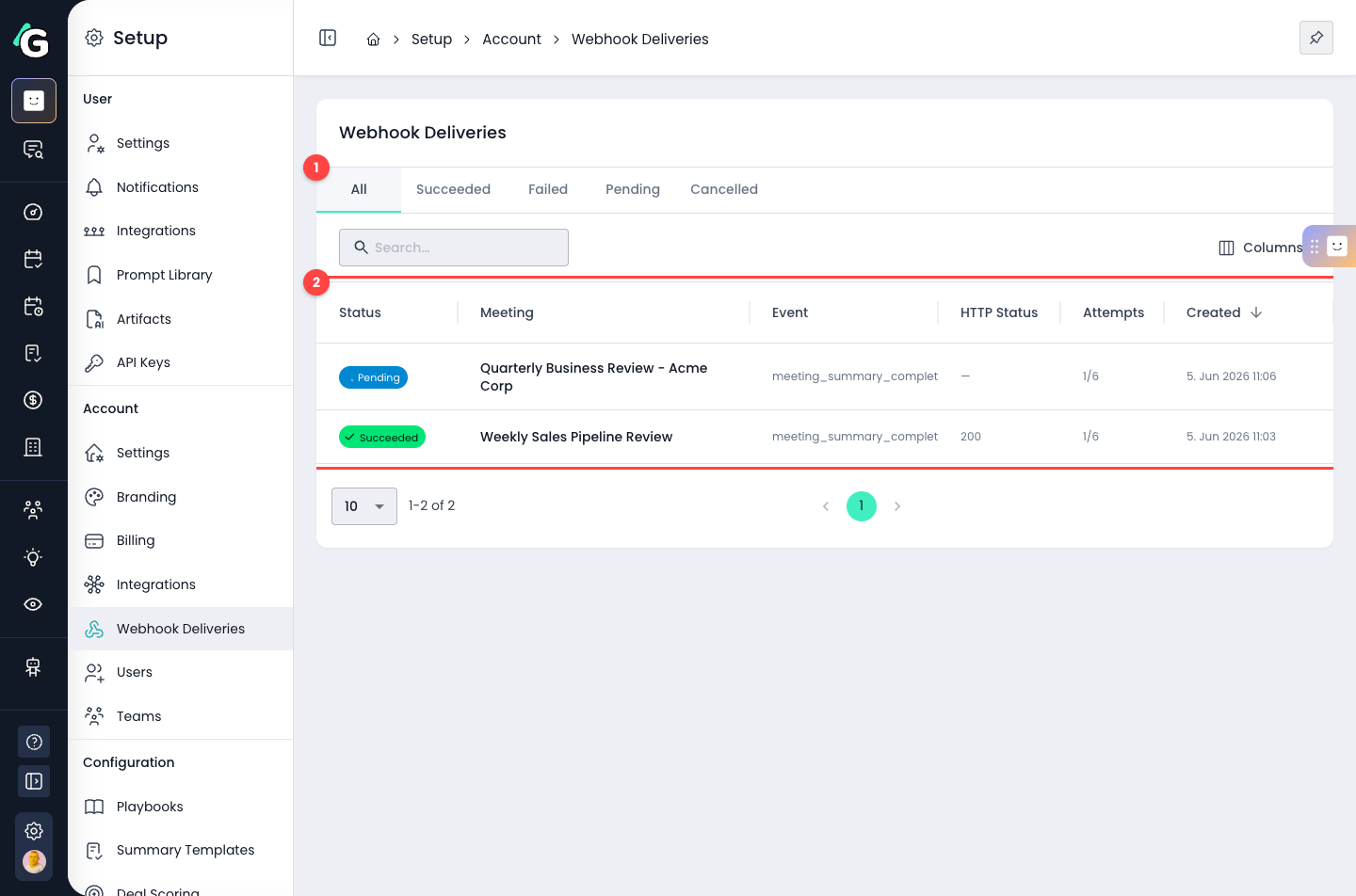
- **1** — Filter deliveries by status: Succeeded, Failed, Pending or Cancelled
- **2** — Each row shows the meeting, event type, HTTP status and attempt count. A **Pending** delivery has failed at least once and is waiting for an automatic retry
Click a delivery to see the full detail, including the exact JSON payload that was sent and the response from your endpoint:
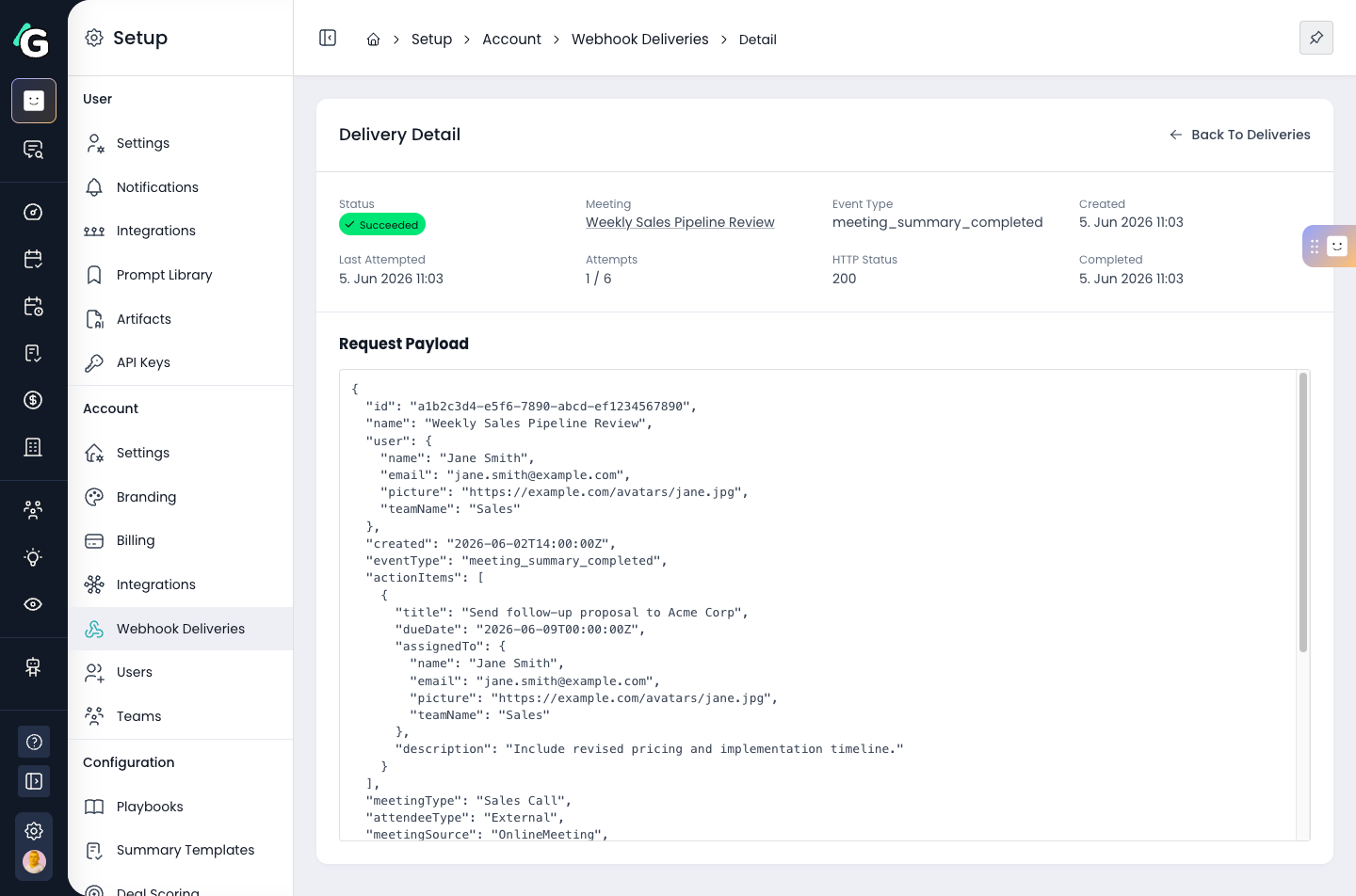
How delivery and retries work:
- Failed deliveries are retried automatically up to **6 attempts** with increasing delays (1 minute, 5 minutes, 30 minutes, 2 hours, then 8 hours)
- Responses with a 4xx status code (except 408 and 429) are treated as permanent failures and are not retried
- After **20 consecutive failures**, the webhook is automatically disabled. The Webhook card in Settings then shows a **Disabled** status and the reason. Once your endpoint is fixed, click **Re-enable** on the card
- Failed deliveries can also be retried manually from the delivery detail page
- Delivery logs are kept for 30 days