Garba can automatically send meeting summaries to any system that can receive an HTTP POST request. Use it with automation platforms like Zapier, Make.com, or n8n, or point it at your own custom endpoint to build whatever integration you need.
The webhook is triggered automatically once a meeting has been analyzed: its summary, key takeaways and any scorecards are done. It is sent once per meeting; changing the meeting type or regenerating the summary does not send it again. Garba sends an HTTP POST request with a JSON body (Content-Type: application/json) and the event type meeting_summary_completed.
Note: Webhooks are only sent for non-private meetings. Private meetings are excluded from webhook delivery.
Get a webhook URL from the system you want to connect (see platform tips below)
In Garba, go to Settings > Integrations and find the Webhook card
Click Add Webhook, paste your webhook URL and click Connect
Garba immediately sends a test payload to verify the connection — your endpoint must respond with a 2xx status code
You'll find the Webhook card near the bottom of the Account Integrations page:
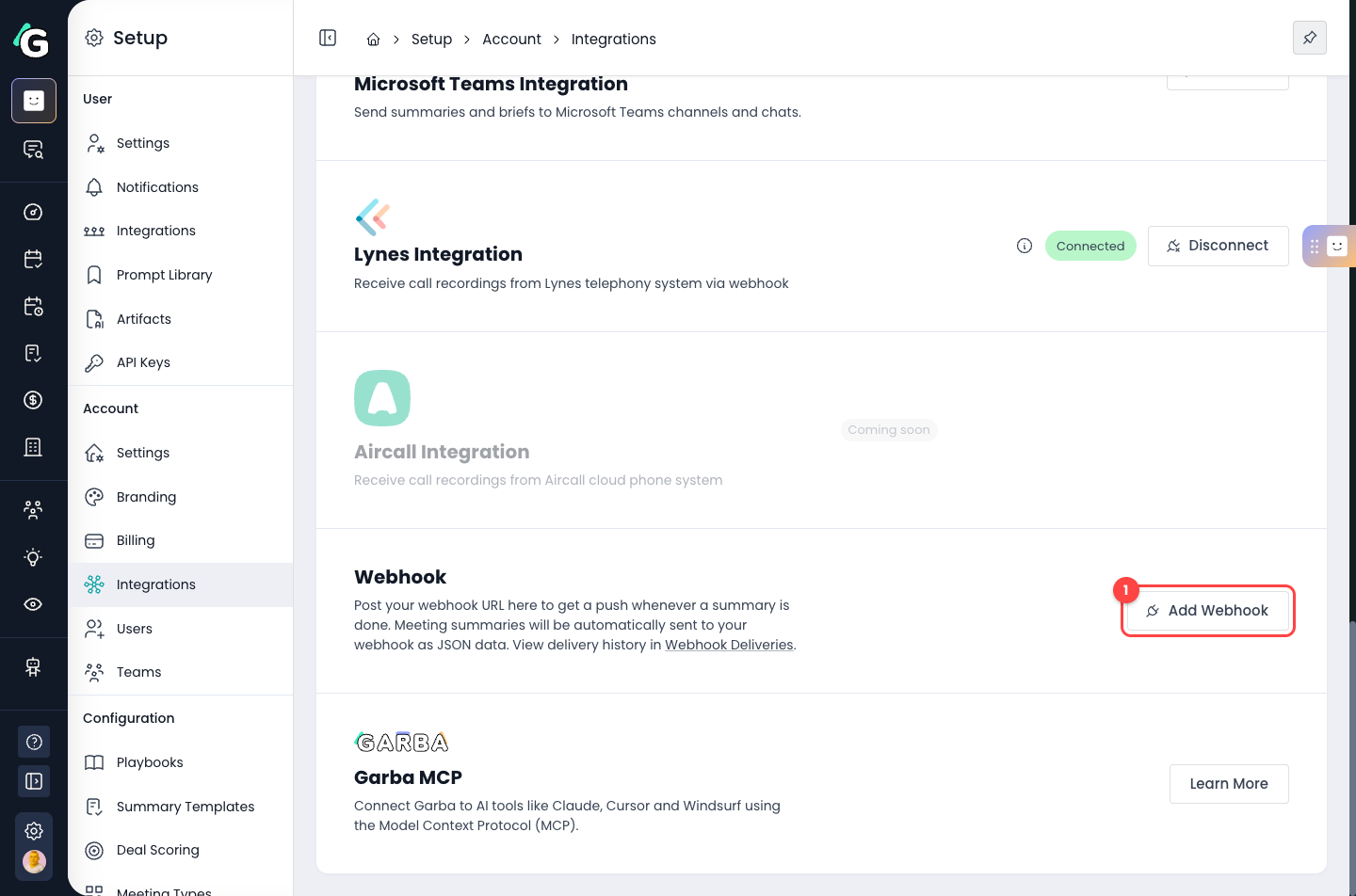
1 — Click Add Webhook to open the connection dialog
Paste your webhook URL and connect:
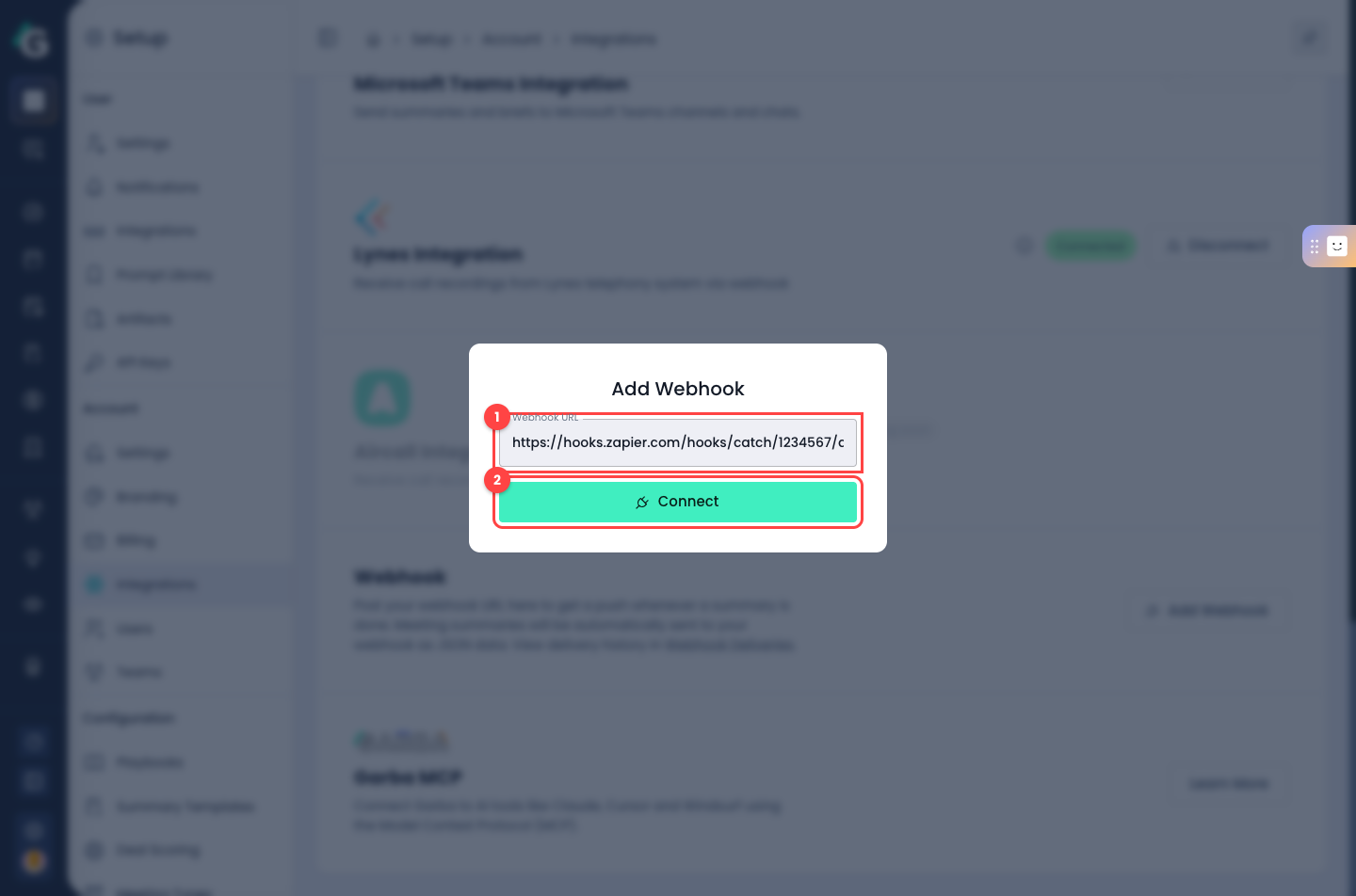
1 — Paste the webhook URL from the system you want to connect
2 — Click Connect. Garba sends the test payload right away and only saves the webhook if your endpoint responds successfully
Once connected, the card shows a Connected status and a Webhook Deliveries page appears in the Settings menu:
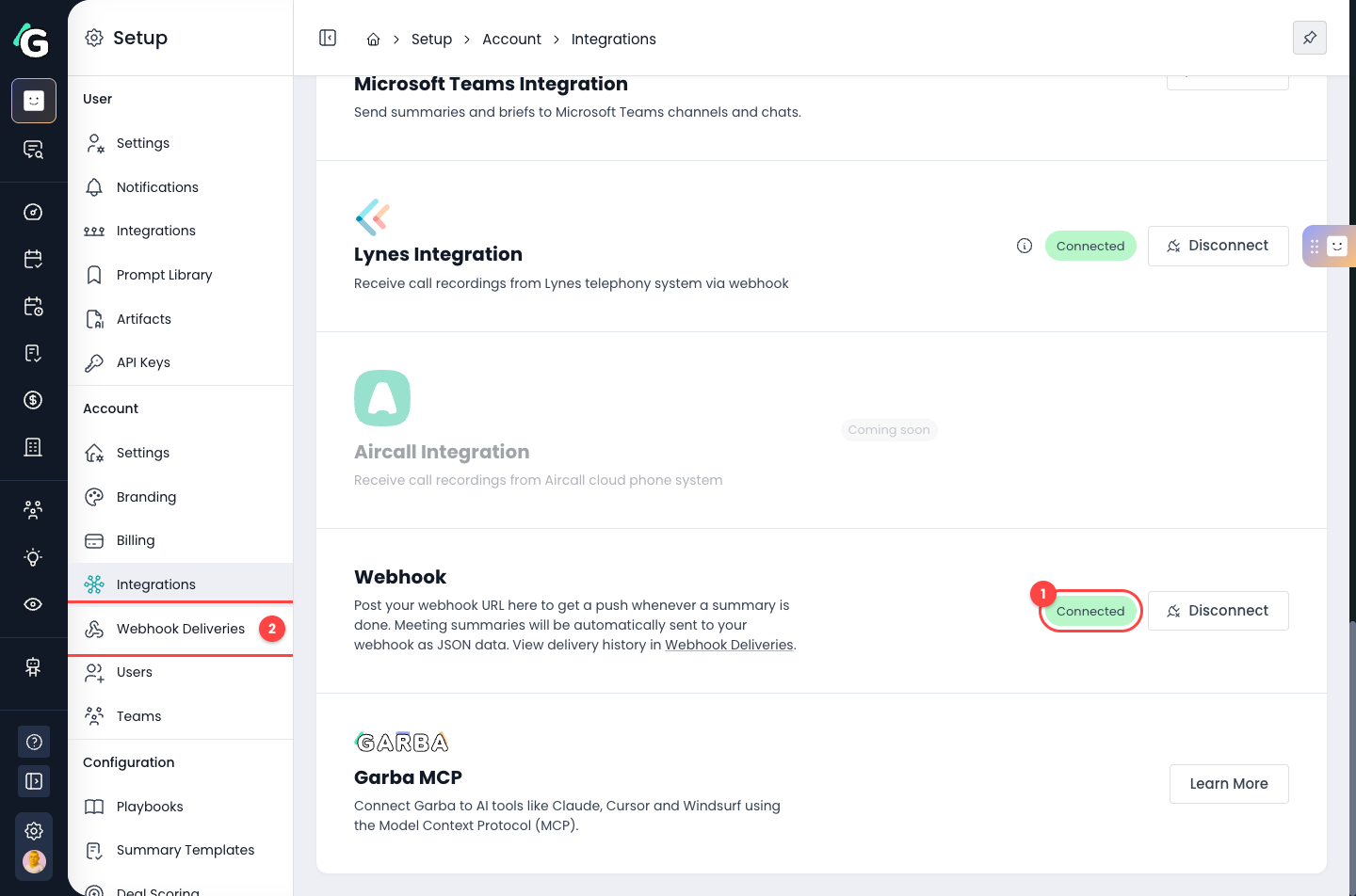
1 — The webhook is connected and active
2 — Webhook Deliveries lets you monitor every delivery (see below)
A few requirements and things to know:
The URL must use HTTPS
Local and internal network addresses are not allowed
Each account has one webhook — saving a new URL replaces the existing one
Only account admins can manage the webhook integration
In Zapier, create a new Zap and choose Webhooks by Zapier as the trigger
Select Catch Hook as the trigger event
Copy the webhook URL provided by Zapier and paste it into Garba
Return to Zapier and test the trigger to see sample data
In Make, create a new scenario with the Custom webhook trigger
Copy the webhook address and paste it into Garba — both the full URL and the [email protected] format shown by Make work; Garba converts the latter automatically
In n8n, use the Webhook trigger node and copy its production URL. For a custom integration, any HTTPS endpoint that accepts a POST request with a JSON body and responds with a 2xx status code will work.
The webhook sends a JSON payload with the following fields:
id - Unique identifier for the meeting (UUID)
name - Meeting title
meetingType - Name of the meeting type (if assigned)
created - When the meeting was created (ISO 8601)
attendeeType - Type of meeting: Single, Internal, or External
summaryInMarkdown - The meeting summary in Markdown format
summaryHtml - The meeting summary in HTML format
meetingSource - Source: FileUpload, OnlineMeeting, HubSpotCall, or InPersonMeeting (may be null)
user - Information about the meeting owner
participants - List of meeting participants
actionItems - List of action items from the meeting
eventType - Always meeting_summary_completed
name - User's full name
email - User's email address
picture - URL to profile picture (may be null)
teamName - Name of the user's team (may be null)
type - Participant role: Unknown, Host, TeamMember, or Guest
name - Participant's name
email - Participant's email address (may be null)
profilePicture - URL to profile picture (may be null)
isRoom - True when the participant is a meeting room's video system rather than a person: everyone in that room spoke through it. When Garba can tell the voices in the room apart, each is a participant of its own named "Speaker 2 in Lighthouse" and so on, with isRoom true as well. type is then the room's side when Garba can tell it, and email is null
assignedTo - User object for the assignee
title - Action item title
description - Detailed description (may be null)
dueDate - Due date in ISO 8601 format (may be null)
{
  "id": "a1b2c3d4-e5f6-7890-abcd-ef1234567890",
  "name": "Weekly Sales Pipeline Review",
  "meetingType": "Sales Call",
  "created": "2025-01-15T14:30:00Z",
  "attendeeType": "External",
  "summaryInMarkdown": "## Summary\n\nThe team reviewed the Q1 sales pipeline...\n\n## Key Points\n\n- Pipeline value increased by 15%\n- Three new enterprise deals in negotiation\n- Follow-up needed with Acme Corp",
  "summaryHtml": "<h2>Summary</h2>\n<p>The team reviewed the Q1 sales pipeline...</p>\n<h2>Key Points</h2>\n<ul>\n<li>Pipeline value increased by 15%</li>\n<li>Three new enterprise deals in negotiation</li>\n<li>Follow-up needed with Acme Corp</li>\n</ul>",
  "meetingSource": "OnlineMeeting",
  "user": {
    "name": "Jane Smith",
    "email": "[email protected]",
    "picture": "https://example.com/avatars/jane.jpg",
    "teamName": "Sales"
  },
  "participants": [
    {
      "type": "Host",
      "name": "Jane Smith",
      "email": "[email protected]",
      "profilePicture": "https://example.com/avatars/jane.jpg",
      "isRoom": false
    },
    {
      "type": "TeamMember",
      "name": "Bob Johnson",
      "email": "[email protected]",
      "profilePicture": "https://example.com/avatars/bob.jpg",
      "isRoom": false
    },
    {
      "type": "Guest",
      "name": "Alice Chen",
      "email": "[email protected]",
      "profilePicture": null,
      "isRoom": false
    },
    {
      "type": "Unknown",
      "name": "Lighthouse (Acme, 3)",
      "email": null,
      "profilePicture": null,
      "isRoom": true
    }
  ],
  "actionItems": [
    {
      "assignedTo": {
        "name": "Jane Smith",
        "email": "[email protected]",
        "picture": "https://example.com/avatars/jane.jpg",
        "teamName": "Sales"
      },
      "title": "Send follow-up proposal to Acme Corp",
      "description": "Include revised pricing and implementation timeline",
      "dueDate": "2025-01-22T00:00:00Z"
    },
    {
      "assignedTo": {
        "name": "Bob Johnson",
        "email": "[email protected]",
        "picture": "https://example.com/avatars/bob.jpg",
        "teamName": "Sales"
      },
      "title": "Schedule demo with TechStart Inc",
      "description": null,
      "dueDate": null
    }
  ],
  "eventType": "meeting_summary_completed"
}When you save a webhook, Garba sends a one-time test payload to verify your endpoint. Make sure your endpoint accepts it and responds with a 2xx status code:
{
  "eventType": "webhook_test",
  "message": "This is a test message from Garba to verify your webhook is working correctly.",
  "timestamp": "2025-01-15T14:30:00Z",
  "accountId": 123
}Once a webhook is connected, a Webhook Deliveries page appears under Settings. It shows every delivery attempt with its status, HTTP response and retry count:
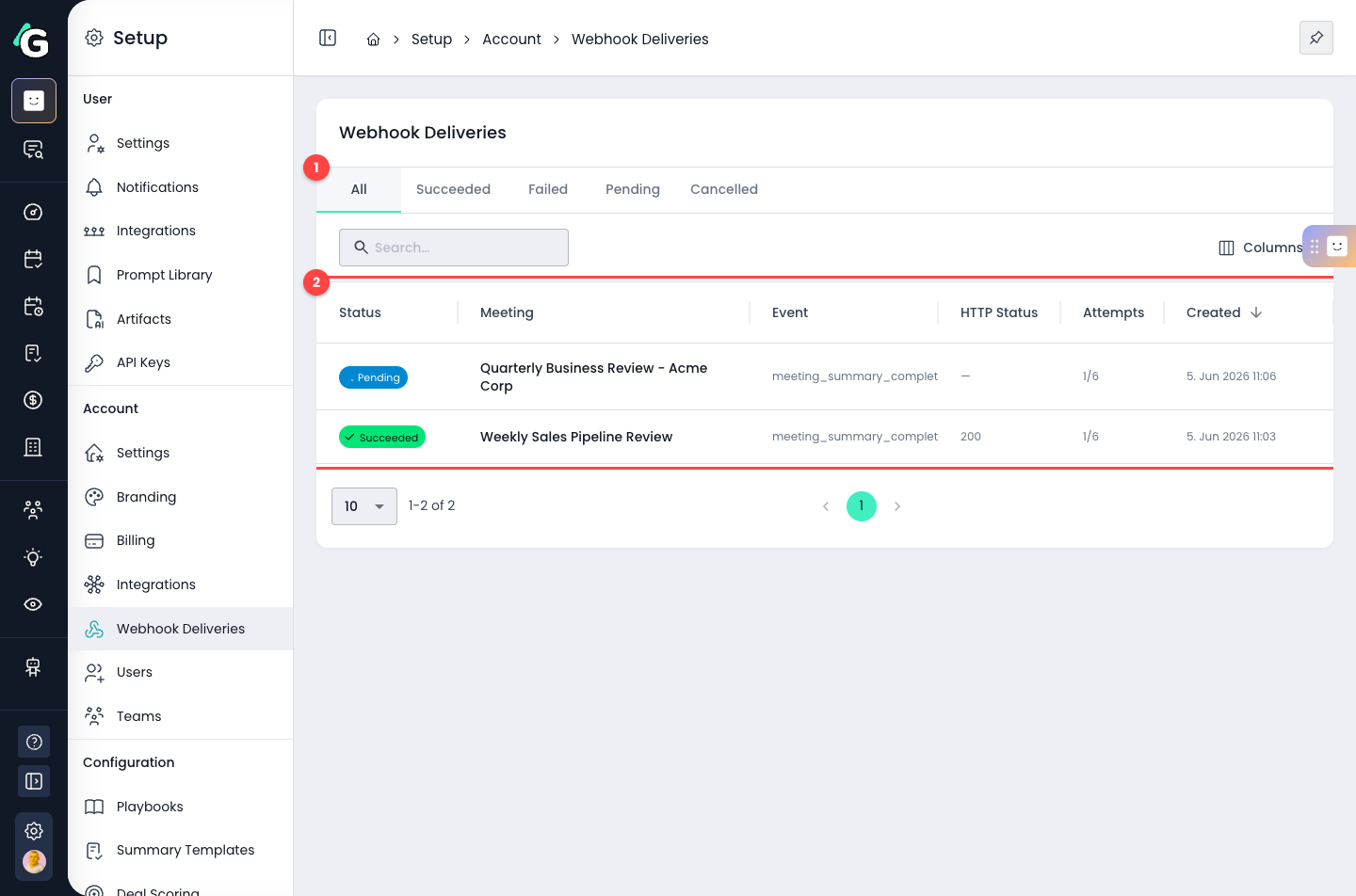
1 — Filter deliveries by status: Succeeded, Failed, Pending or Cancelled
2 — Each row shows the meeting, event type, HTTP status and attempt count. A Pending delivery has failed at least once and is waiting for an automatic retry
Click a delivery to see the full detail, including the exact JSON payload that was sent and the response from your endpoint:
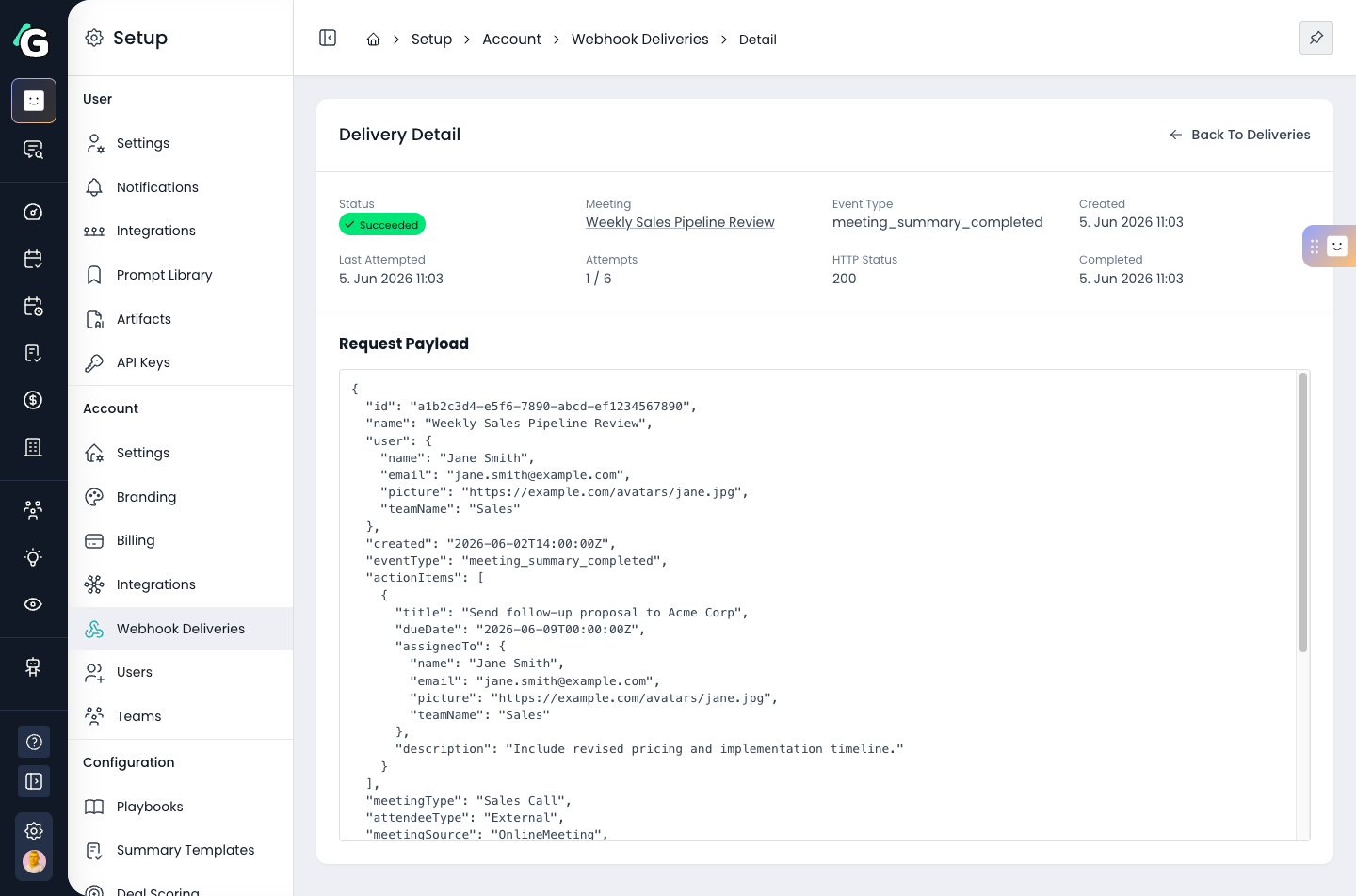
How delivery and retries work:
Failed deliveries are retried automatically up to 6 attempts with increasing delays (1 minute, 5 minutes, 30 minutes, 2 hours, then 8 hours)
Responses with a 4xx status code (except 408 and 429) are treated as permanent failures and are not retried
After 20 consecutive failures, the webhook is automatically disabled. The Webhook card in Settings then shows a Disabled status and the reason. Once your endpoint is fixed, click Re-enable on the card
Failed deliveries can also be retried manually from the delivery detail page
Delivery logs are kept for 30 days
