Garba sends two kinds of meeting brief:
Daily Brief
A concise overview of your upcoming meetings delivered once per day, at 08:00 by default.
Pre-Meeting Brief
A detailed brief tailored to each external meeting. By default, it is sent 30 minutes before the meeting. If you decline a meeting, you won't get its brief.
Garba does not prepare a brief when nobody from outside your company is on the meeting's guest list.
When a meeting has a Teams, Google Meet or Zoom link, both the Pre-Meeting Brief and the Daily Brief show Join meeting next to it, so you can go straight from the brief into the call.
You can also read the brief for a meeting at any time in the platform: click Show brief on your next meeting on the Dashboard, or click a meeting's title on the Calendar page.
If your account has Ask Garba, you can ask Garba about a brief instead of only reading it. Every brief has an Ask Garba panel beside it (below it on a phone, where Ask Garba at the top also opens the chat). It starts on that meeting and its companies, and suggests questions written for that brief, so you can ask what to prepare, who you are meeting, or what happened last time. Blueprints your admin chose to suggest on upcoming meetings sit below the questions, so one click fills a document for that meeting. Ask about this brief on your next meeting on the Dashboard opens a chat on the meeting and the companies its brief was built on. The emails have the same: Ask about this meeting at the end of a Pre-Meeting Brief, and Ask about today at the end of the Daily Brief, which opens a chat on all of that day's meetings. In any Ask Garba chat you can also type @ and pick a meeting under Upcoming meetings (the next two weeks).
If you prefer to personalize the timing, delivery method, or types of summaries and briefs you receive, open Settings and, under User, select Notifications, then scroll to Briefs & summaries:
https://app.garba.ai/setup/notifications
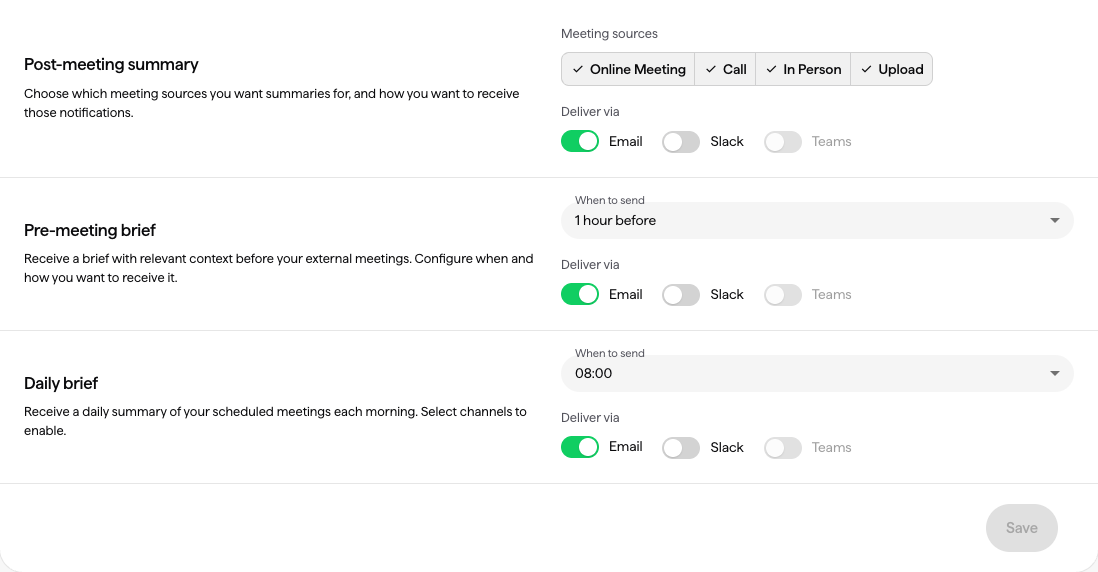
Summaries and briefs can be delivered by Email, Slack or Teams. Email is on by default. The Slack and Teams switches become available once the Garba AI agent for Slack, or Microsoft Teams, is connected under Integrations.
You can also stop a Daily Brief, Pre-Meeting Brief or meeting summary email from the email itself: click Unsubscribe at the bottom, then Unsubscribe on the page that opens. This turns off only the Email switch for that kind of email; its Slack and Teams messages keep coming. To get the email again, switch Email back on here.
Choose which meeting sources should send you a summary — Online Meeting, Call, In Person and Upload — and where it is delivered.
The summary email opens with the meeting's Key Takeaways. Then it shows who took part, from your team and from the other side, how the talk time split between the two sides, and how much each of the five biggest speakers talked. If your account has Ask Garba, two buttons below that open it on this meeting: Draft follow-up email asks Garba to write the follow-up straight away, and Ask about this meeting opens a chat about the meeting for your own question. It lists the meeting's open tasks with who owns them and when they're due, with yours first. Click one of your own tasks to open it in Garba. If your plan includes scorecards and the meeting is yours, it shows each scorecard's result the way the meeting's Scorecard tab does. Colleagues who were in the meeting don't get the scores in their copy. Then it shows each section of the meeting's summary template, and lists any topics that weren't discussed in one line at the end.
The email goes out once the key takeaways and scorecards are done, so it can arrive a few seconds after the meeting's summary shows in Garba. A scorecard that couldn't be scored is left out rather than holding the email back.
Under When to send, choose 10 minutes, 30 minutes, 1 hour or 3 hours before the meeting, and where it is delivered.
Under When to send, choose 07:00, 08:00 or 09:00, and where it is delivered.
The same page has an Alerts section for short alerts, such as a comment on one of your meetings or an agent waiting for your approval. See Notifications and alerts in Garba.
