When you enable HubSpot Calls, Garba imports the calls that your team records in HubSpot. Each imported call appears in Garba as a meeting, with a transcript, a summary, insights and action items.
You enable HubSpot Calls one time for the whole account. Garba uses the HubSpot connection that your account already has, so there is no token to create.
Before you start, make sure that you have:
An Admin role in Garba
HubSpot connected to Garba. The HubSpot Calls card only shows when HubSpot is connected.
HubSpot users with the same email addresses as the related Garba users
A recording license on those Garba users
In Garba, click your name at the bottom of the left sidebar. In the menu, under Account, click Integrations. Scroll down to the Telephony section.
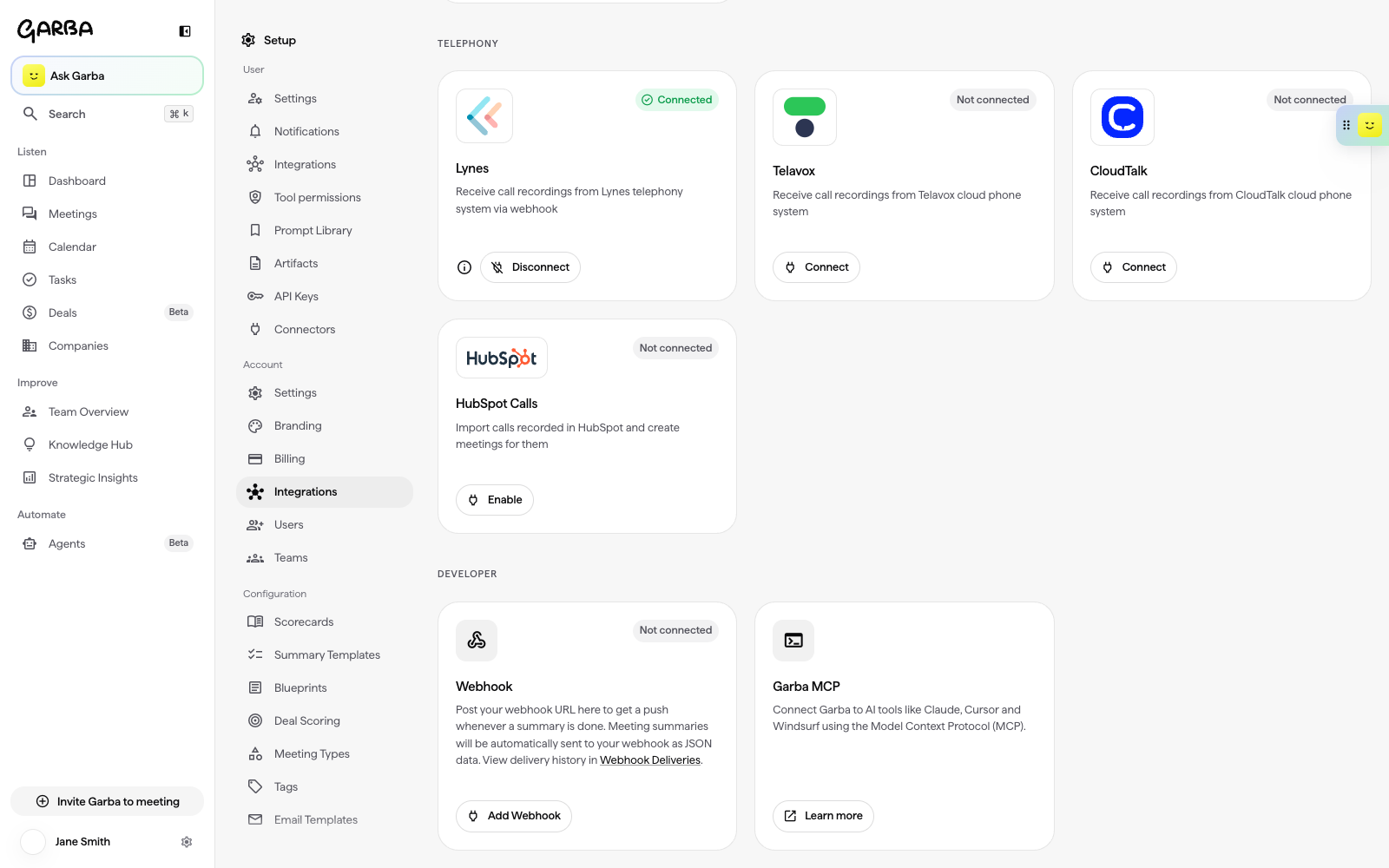
Integrations — All account-wide integrations are on this page.
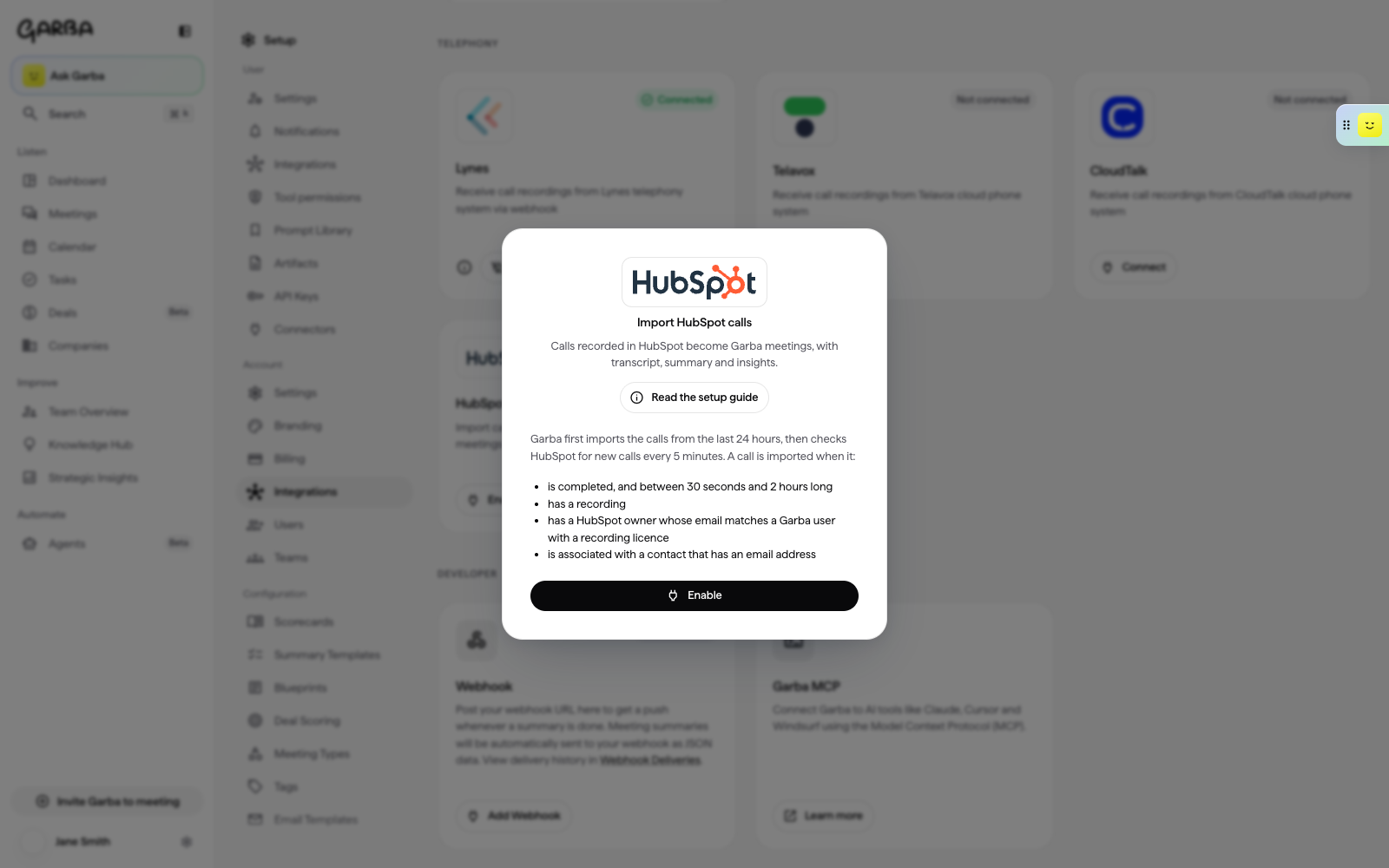
Enable — Click this button on the HubSpot Calls card. The Import HubSpot calls dialog opens.
The dialog shows which calls Garba imports. Click Enable.
On the integrations page, the HubSpot Calls card now shows the Connected status.
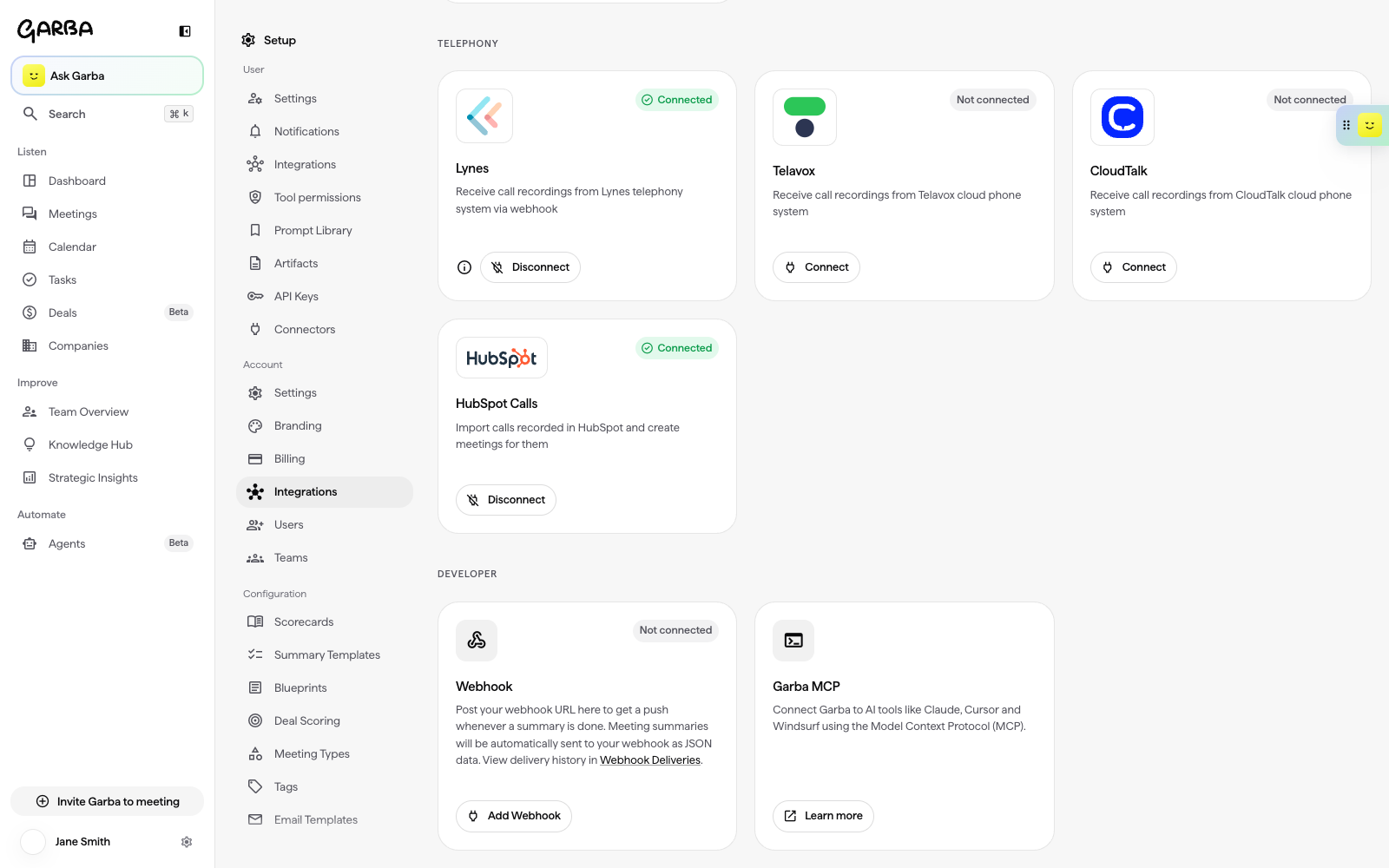
Connected — Garba imports calls from now on.
Disconnect — This button stops the import. See Disconnect HubSpot Calls below.
Garba imports a HubSpot call when the call:
Is completed
Is longer than 30 seconds and at most 2 hours long
Has a recording that Garba can download
Has a HubSpot owner whose email address matches a Garba user with a recording license
Is associated with a contact that has an email address
Garba creates the meeting for the user who owns the call in HubSpot. The meeting has the title of the call in HubSpot. A call without a title is named HubSpot Call, with the date and time of the call. The contact of the call is added as a participant.
After you enable HubSpot Calls, Garba automatically:
Imports the calls from the last 24 hours, the first time you enable
Checks HubSpot for new calls every 5 minutes
Creates a meeting for each call that matches the rules above
Downloads the recording and transcribes it
Generates a summary, insights and action items, in the same way as for a video meeting
Adds the summary to the same call in HubSpot
Garba does not import calls from before you enabled HubSpot Calls, except for the last 24 hours. If you need older calls in Garba, contact our support team.
A call appears in Garba some minutes after it is completed in HubSpot.
Calls do not show in Garba
Make sure that the call has a recording in HubSpot.
Make sure that the call is longer than 30 seconds and not longer than 2 hours.
Make sure that the call has an owner in HubSpot, and that the email address of that HubSpot user is the same as the email address of the Garba user.
Make sure that the Garba user has a recording license.
Make sure that the call is associated with a contact, and that the contact has an email address.
Make sure that HubSpot is still connected to Garba. If HubSpot is disconnected, Garba cannot import calls.
Garba checks each call one time. If Garba skipped a call, for example because the email address of the owner did not match, Garba does not import the call later, also after you fix the problem. Contact our support team to import the call.
The HubSpot Calls card is not on the integrations page
The card only shows when HubSpot is connected. Connect HubSpot in the CRM & Customer Success section of the same page.
To stop the import:
Click your name at the bottom of the left sidebar. Under Account, click Integrations.
Find the HubSpot Calls card. Click Disconnect.
Confirm with Yes.
When you disconnect, Garba stops the import of calls from HubSpot. Your HubSpot connection stays, and the imported calls stay in Garba, with their recordings, transcripts and summaries.
If you enable HubSpot Calls again later, Garba imports the calls that were made since the last call it imported.
If you have a problem, contact our support team.
