A scorecard evaluates your external meetings against the criteria you choose: a sales methodology such as BANT or MEDDPICC, or criteria you write yourself. Garba reads the transcript and answers every criterion. Each answer comes with a short explanation and a link to the moment in the recording where the topic came up.
There are two kinds of scorecard: Coverage and Skills. You choose the kind when you create a scorecard. You can't change it afterwards.
Only admins can create and edit scorecards. Scorecards are available on plans that include scorecard evaluation.
Each item on a Coverage scorecard is a prompt: a question with a yes-or-no answer. For example: "Did the salesperson ask about the prospect's budget?"
Garba answers each prompt Yes, Partially or No.
Garba answers Yes only when the topic was discussed and the prospect confirmed it or gave details. A topic that was only mentioned in passing counts as No.
The score is the share of prompts covered, shown as a percentage. Yes counts fully, Partially counts half, and No counts zero.
If you send scorecard scores to your CRM, the Coverage score is the one that is sent.
Use it for process. It checks that reps follow your methodology and collect the information you need, for example to qualify a deal.
Each item on a Skills scorecard is a skill, for example "Agreeing the purpose" or "Handling price and value".
Garba rates each skill on a scale from 1 to 5.
You write what each score from 1 to 5 means for every skill. That way every call is rated against your standard, not the AI's idea of what a 3 is.
Garba rates only what the transcript shows. A skill that never came up gets a 1.
Scores show as points on the scale, for example 3.5. Lists show them as stars.
Use it for coaching. It shows where each rep is strong and where they can improve.
A meeting can be scored by one Coverage scorecard and one Skills scorecard at the same time. For example, you can check your discovery calls for MEDDPICC coverage and also rate the same calls on discovery skills.
Go to Settings → Configuration → Scorecard. The list shows every scorecard in your account and its type.
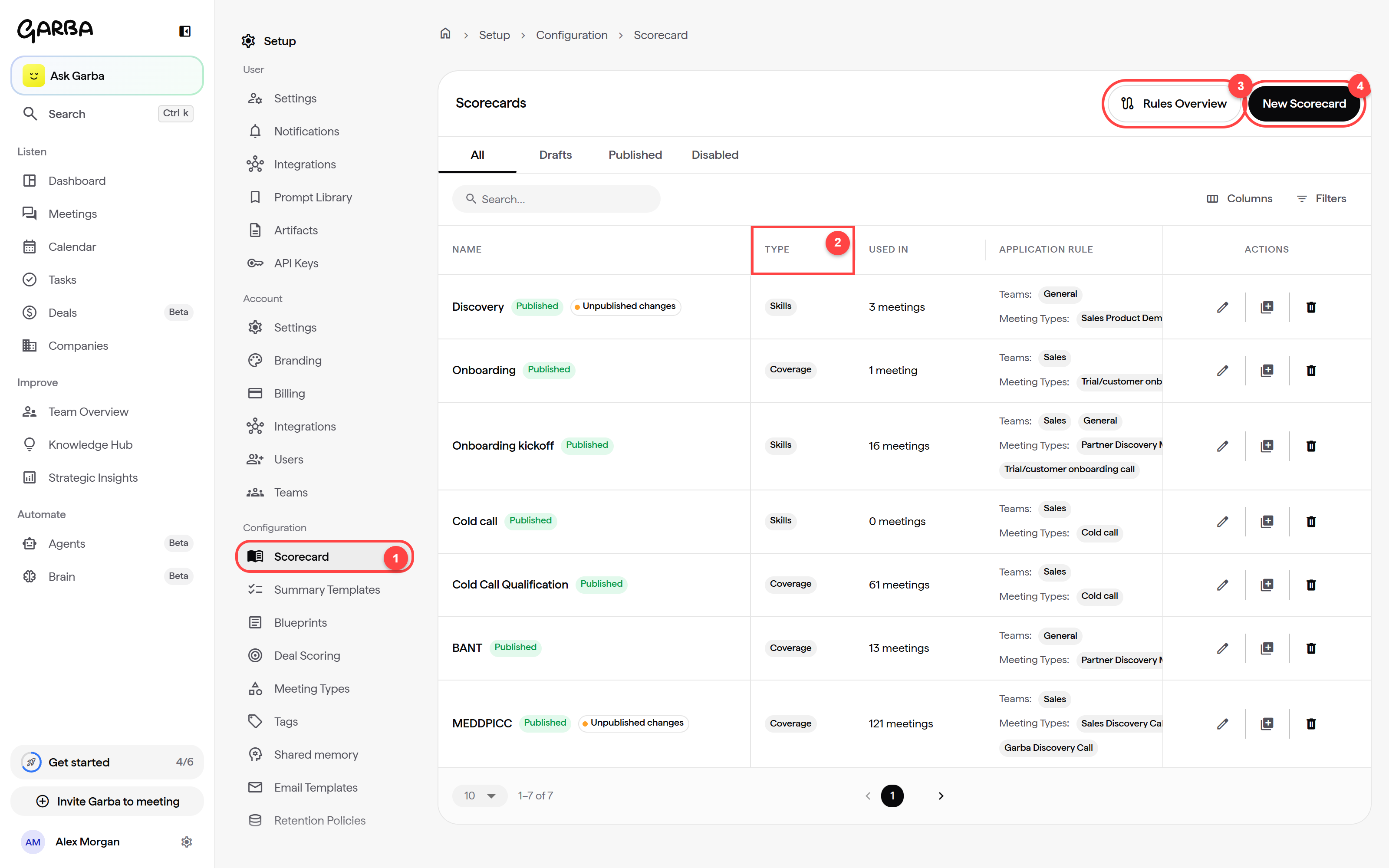
Scorecard: the settings page for scorecards.
Type: whether each scorecard is a Coverage or a Skills scorecard.
Rules Overview: a chart of which scorecard applies to which teams and meeting types.
New Scorecard: creates a new scorecard.
Click New Scorecard. Skills is selected first. You can start from a template or from a blank scorecard. Skills templates are named after the kind of meeting they rate.
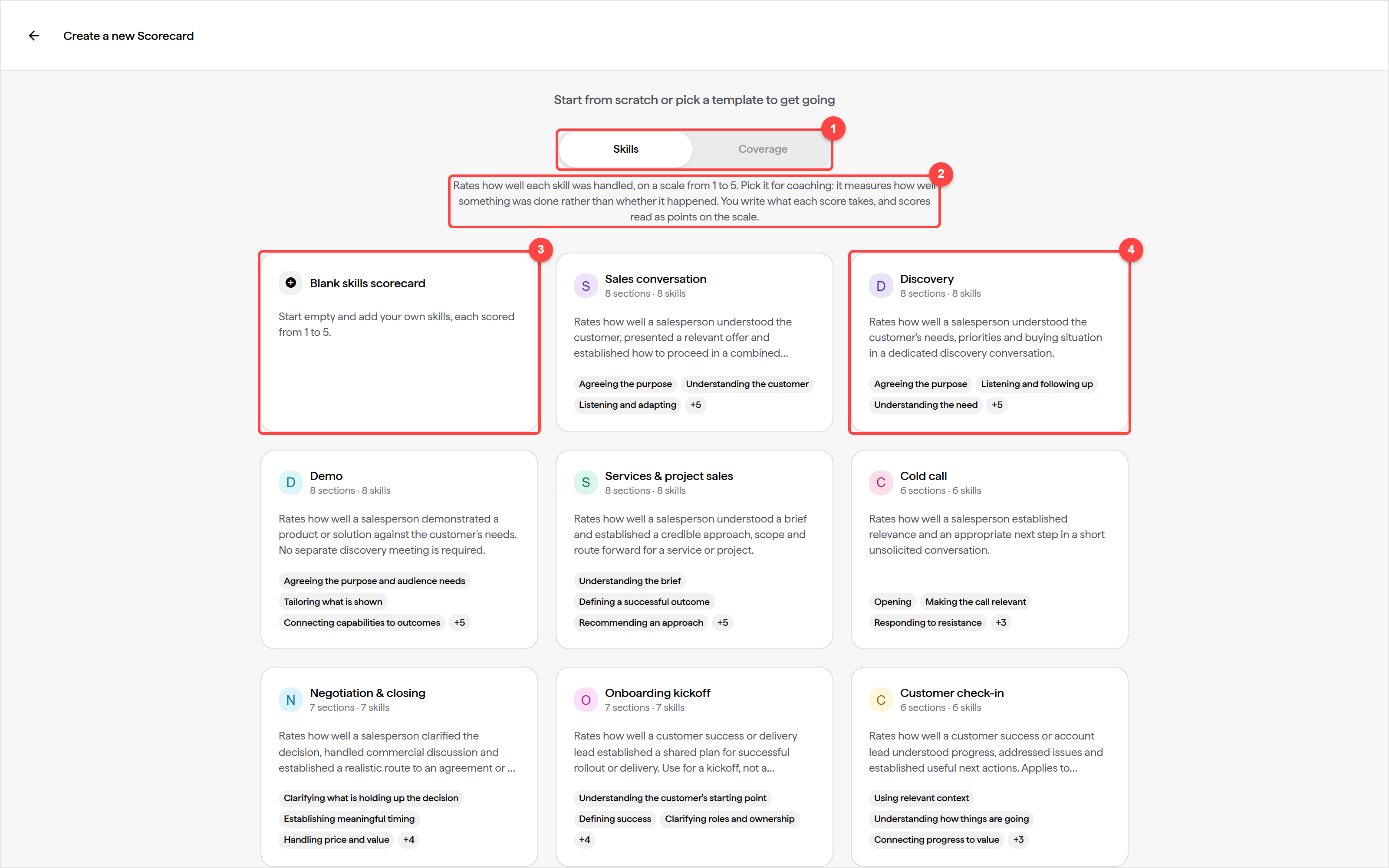
Skills / Coverage: choose the kind of scorecard. You can't change it later.
A description of the selected kind.
Blank skills scorecard: start empty and add your own skills.
Templates: Sales conversation, Discovery, Demo, Services & project sales, Cold call, Negotiation & closing, Onboarding kickoff, Customer check-in, and Renewal & expansion. Every template skill comes with all five scores already defined.
Click Coverage to see the Coverage templates.
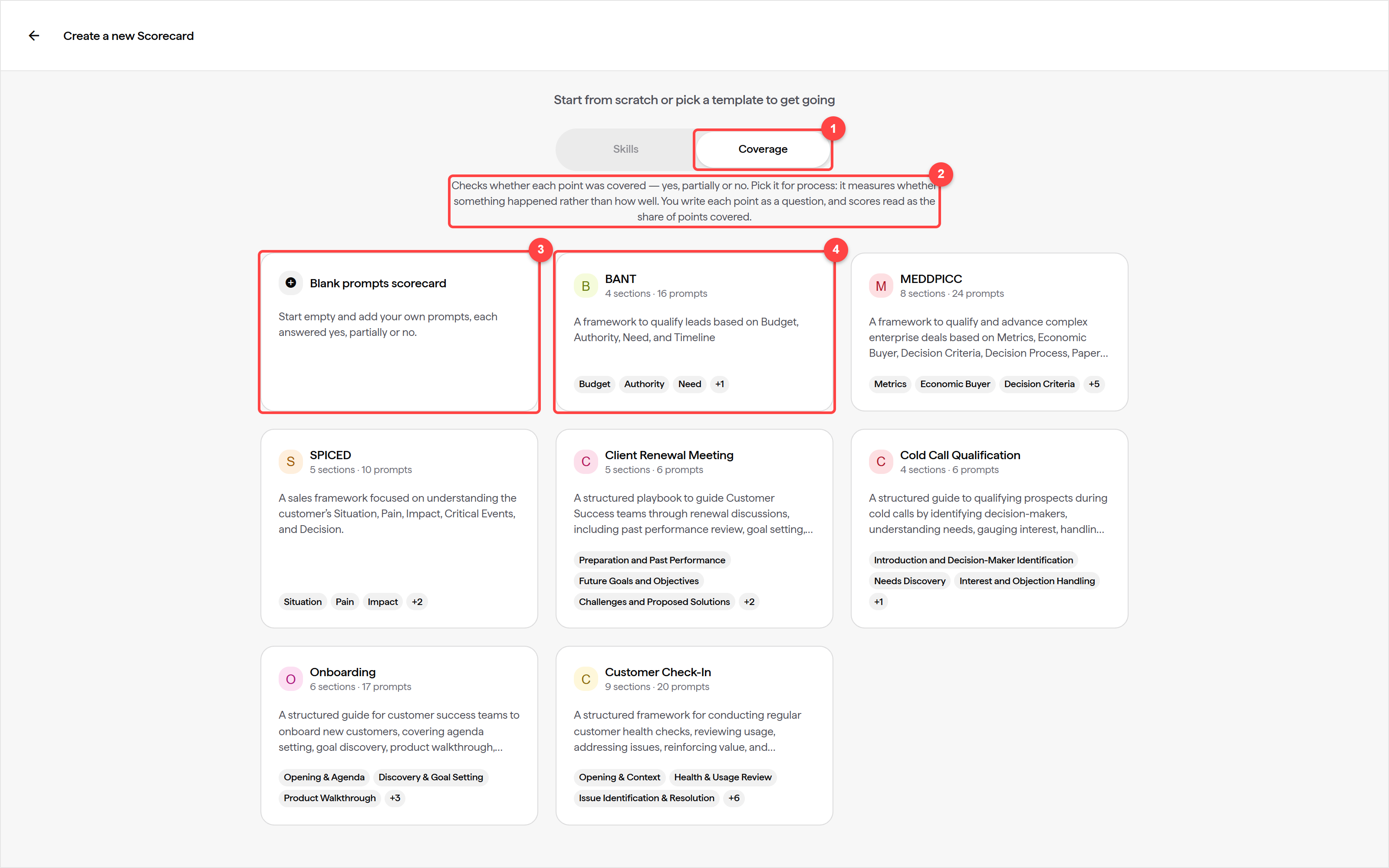
Coverage: switches the dialog to Coverage scorecards.
A description of the selected kind.
Blank prompts scorecard: start empty and write your own prompts.
Templates: BANT, MEDDPICC, SPICED, Client Renewal Meeting, Cold Call Qualification, Onboarding, and Customer Check-In.
Opening a template or a blank scorecard doesn't save anything. Garba saves the scorecard as a draft as soon as you change something in it. To keep a template exactly as it is, choose Save as draft from the arrow next to Publish.
Choose which meetings the scorecard applies to, then add or edit its criteria. Garba saves your changes as you type.
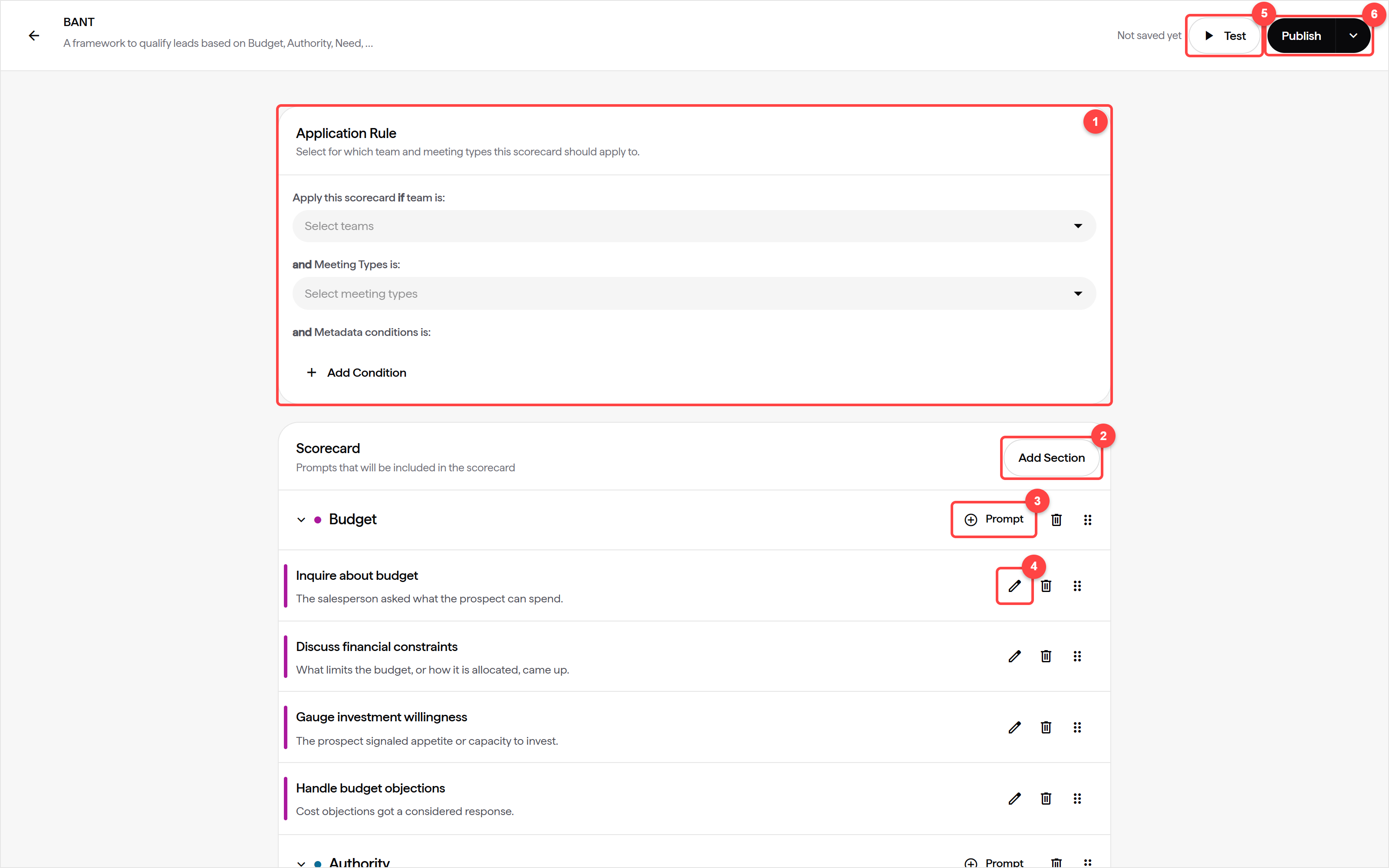
Application Rule: the teams and meeting types this scorecard scores. You can also add conditions on the meeting title or the meeting source.
Add Section: adds a group of criteria. A blank scorecard has no sections, so add one first.
Prompt: adds a prompt to the section. On a Skills scorecard this button reads Skill. In an empty section it reads Add prompt or Add skill.
Edit: opens a criterion. Drag the handle on the right to reorder criteria.
Test: runs the scorecard against a past meeting, so you can check the results before it scores real meetings.
Publish: puts the scorecard live. Until you publish, the scorecard is a draft and scores nothing. The arrow next to Publish has Disable, Save as draft and Delete.
Some rules for the Application Rule:
Two scorecards of the same kind can't cover the same teams and meeting types. A Coverage scorecard and a Skills scorecard can.
If a team has one scorecard for all meeting types and another for specific meeting types, the more specific scorecard is used for those meeting types.
If you select meeting types, you must also select at least one team.
A scorecard with no teams selected scores no meetings.
Each Coverage prompt is a question that Garba can answer with Yes, Partially or No.
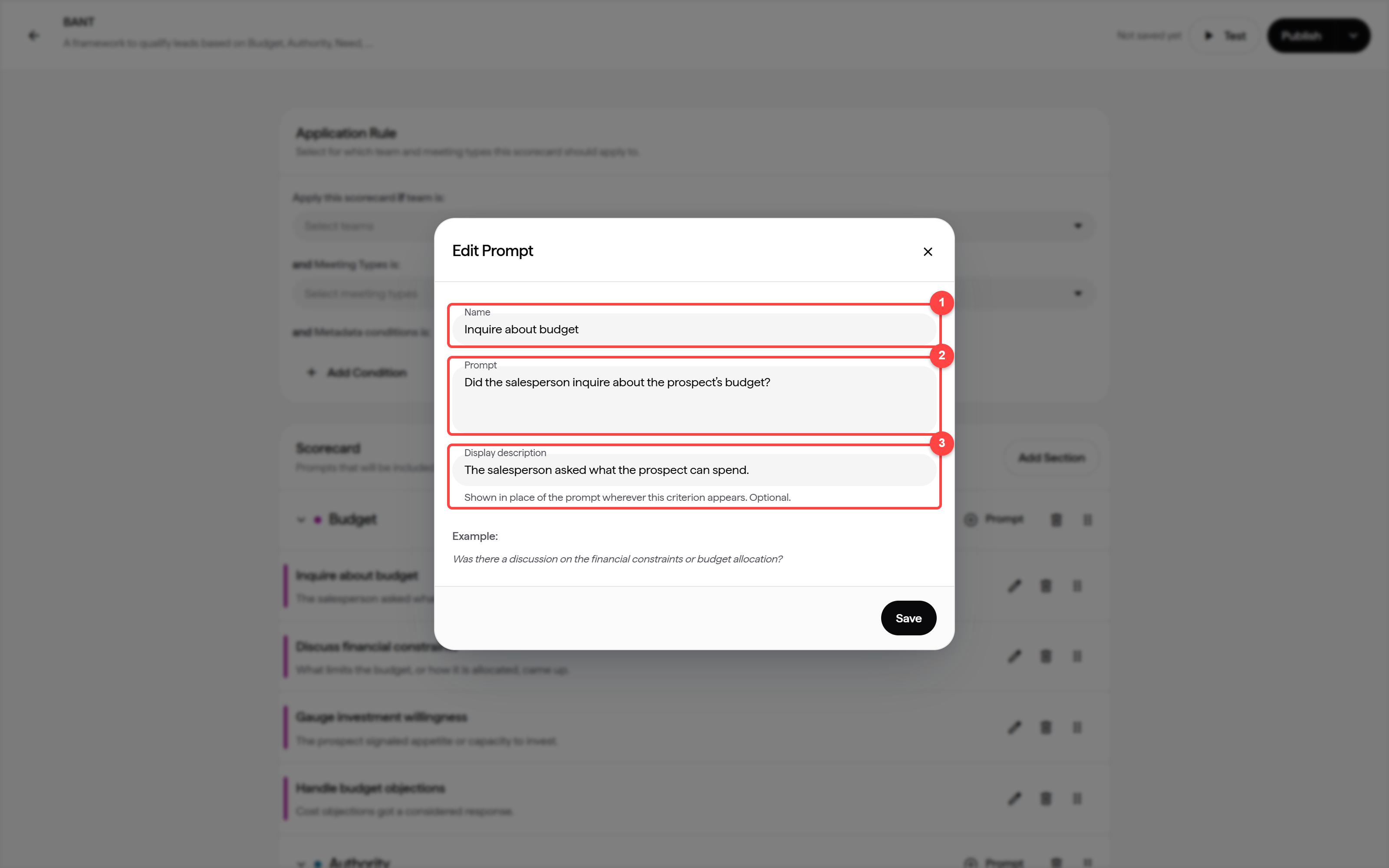
Name: a short label for the prompt.
Prompt: the question Garba answers. It must end with a question mark.
Display description: optional, up to 200 characters. It is shown instead of the full prompt in the editor, on the meeting and in Team Overview. On a new prompt, click Add description to have Garba write one from the name and the prompt.
Good prompt: "Did the salesperson ask who else is involved in the decision?" Weak prompt: "How many licences does the customer need?" The weak prompt has no yes-or-no answer.
Each skill describes what good looks like and what each score from 1 to 5 takes.
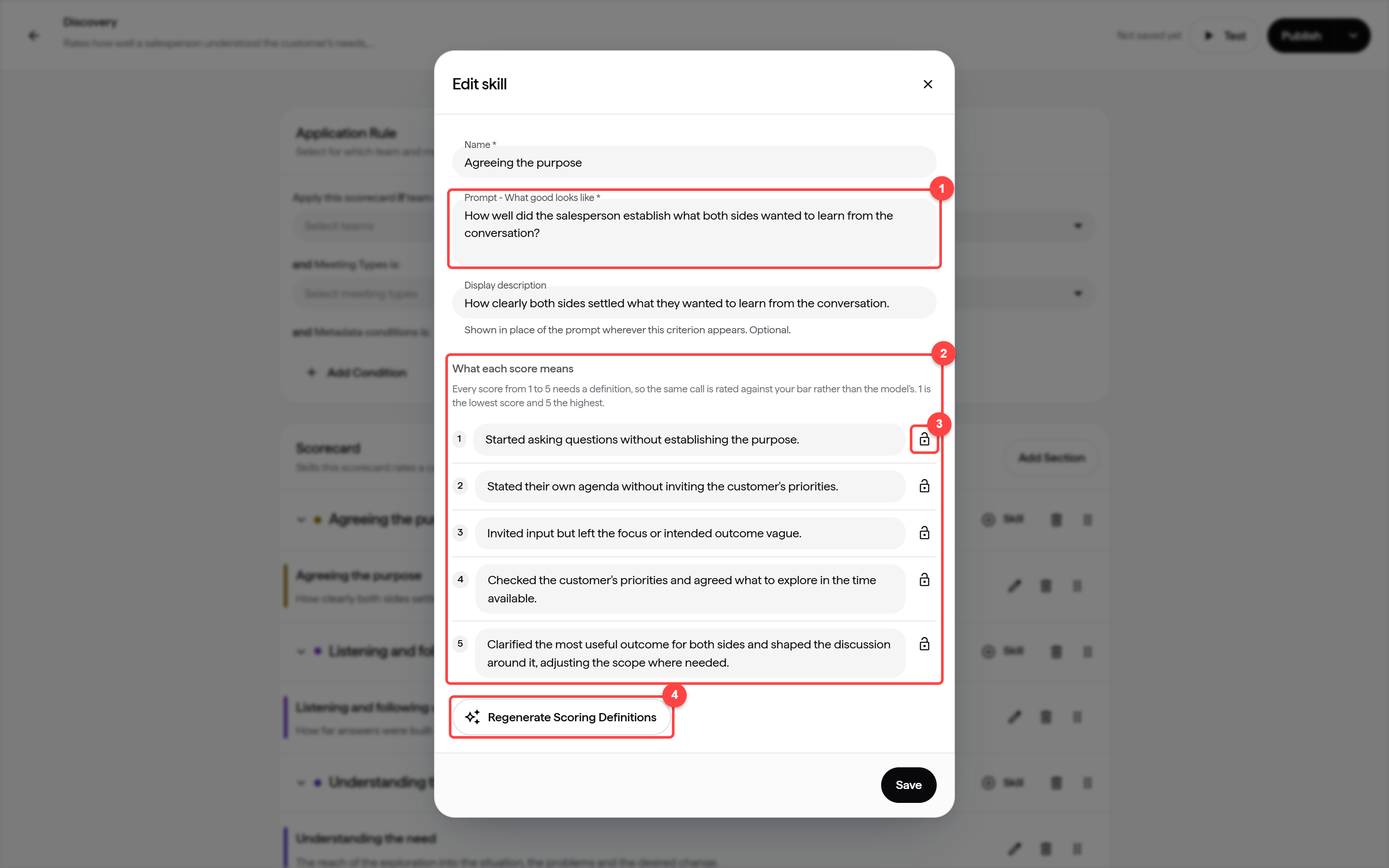
Prompt - What good looks like: describe the behaviour you want to see in the call.
What each score means: a definition for every score, from 1 (lowest) to 5 (highest). All five are required.
Lock: keeps a definition when you regenerate the others.
Regenerate Scoring Definitions: rewrites the definitions that aren't locked. On a new skill this button reads Generate Scoring Details. It writes all five definitions and the display description from the name and what good looks like. You can edit everything it writes.
Describe each score as something you can hear in the call, and make each score clearly different from the next one. For example, for "Agreeing the purpose" a 1 is "Started asking questions without establishing the purpose", and a 5 is "Clarified the most useful outcome for both sides and shaped the discussion around it".
Publish puts the scorecard live. Matching meetings are scored from then on. Meetings that were already scored keep their results, unless you re-run the evaluation on the meeting.
When you edit a published scorecard, nothing changes until you publish again. Until then, the scorecard shows an Unpublished changes label.
Disable takes a scorecard out of service. Results it already gave stay. Its teams and meeting types become free for another scorecard of the same kind.
Duplicate in the scorecard list creates a copy to start from.
Meeting page: the Scorecard tab shows the result of each scorecard, with every answer, Garba's explanation and a link to the moment in the recording. The meeting header shows one score per scorecard: a percentage for Coverage and stars for Skills.
Correcting an answer: the meeting owner, their manager or an admin can click Correct this answer on the Scorecard tab and add a motivation. Reset to AI answer restores Garba's answer.
Scoring a meeting by hand: if a meeting wasn't scored, click Run scorecard evaluation for this meeting on its Scorecard tab.
Meetings list: the Scorecard column shows each meeting's scores. The filter panel can show the meetings a given scorecard scored, or the meetings nothing scored.
Team Overview: managers and admins find Scorecard Coverage and Scorecard Skills under Improve → Team Overview. Each page shows the average over time, by category and per team member. Team members shows each person's scores.
My Performance: reps see their own scores under Improve → My Performance.
Only meetings with external participants are scored. Meetings with a very short transcript are not scored.
