Ask Garba makes it easy to extract key insights from your sales calls, helping you refine your approach and take action faster.
Use Ask Garba just like you would with any conversational AI—simply type a question, and it will analyze your meeting to provide relevant insights.
Some of our favorite prompts include:
What objections came up in this call?
How could I have handled this negotiation better?
Summarize the key action items from this meeting.
Did the prospect mention any competitors?
Help me draft a follow-up email based on this discussion.
What was the overall sentiment of this conversation?
When the answer is about numbers, Garba can show them as a row of key figures or as a chart, right in the chat. Try:
Show my won deals and win rate this quarter compared with last quarter.
Chart the number of meetings per month this year.
How are my open deals split across stages?
Compare our meetings per month this year with last year.
Which are my ten largest open deals?
Charts can compare this year with last, stack values that add up to a total, list items ranked as bars with their values, or show the parts of a total as one segmented bar. Changes that are good news show in green and bad news in red. Garba only charts numbers it found in your data. If you would rather see the exact values, ask for a table instead.
Sometimes Garba needs one more thing before it can do what you asked, such as who an email should go to, which of two meetings you meant, or where to look next when a search found nothing. It then asks above the question box, with a few answers to choose from. Click one, or click into the panel and press its number. To answer in your own words, type in Something else, or just write your reply in the question box. When there are no answers to choose from, the panel has a box to type your answer into. Skip leaves the question out, and × closes it.
In Slack and Teams, Garba asks in the reply itself, and you answer in the thread.
Garba asks the same way while it sets up an agent with you, one question at a time, with 1 of 3 showing how many are left.
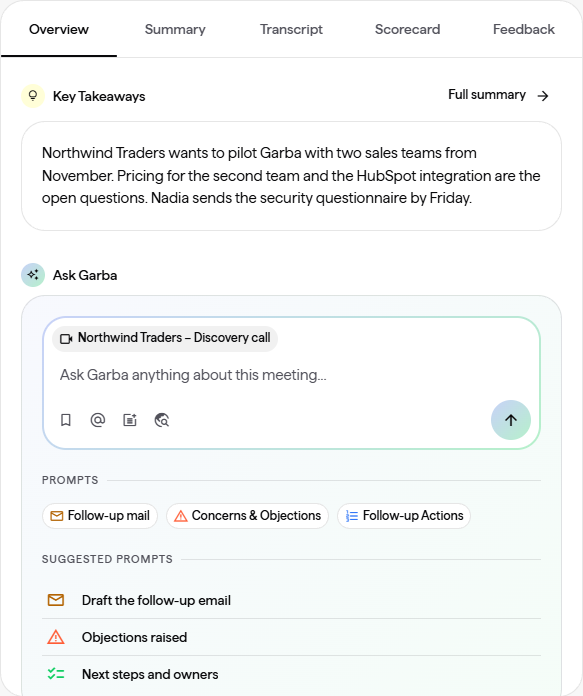
On a meeting: open the meeting and stay on the Overview tab. The Ask Garba box sits below the key takeaways and already knows which meeting you mean. Type a question or click one of the suggestions under the box. The answer opens in a panel beside the meeting.
On a company or a deal: the company and deal pages have their own Ask Garba card, for questions about everything Garba knows about that company or deal.
Across all your meetings: select Ask Garba in the left menu to ask about any of your meetings, companies and deals at once.
The History pane beside the chat lists your earlier conversations. It has two views, switched at the top:
Chats are the conversations you started yourself, grouped by day.
Agent runs are the conversations your agents produced while acting as you, grouped by agent with the newest run first. Each run shows when it ran, and Waiting for you when it stopped to ask before sending something. The switch shows how many runs are waiting for your decision, so you see it even while looking at your chats.
Search looks through the titles and messages of the view you are in. From a conversation's menu you can Pin it to the top of its view, Rename it or Delete it. Opening a run from an agent's page or from a notification switches the pane to Agent runs for you.
Ask for a table, such as "list my open deals with value, stage and next step", and Garba answers with one that uses the full width of the chat.
Short tables (under 10 rows) have a Copy table button in the top-right corner. Paste into Excel or Google Sheets and every value lands in its own cell.
Longer tables become a grid you can work with: search the rows, click a column header to sort (amounts sort by value), hide columns with Columns, narrow it down with Filters, or Export it as a CSV file. The button next to the search opens the table full screen; press Escape to go back.
The possibilities are endless—just ask! 🚀
